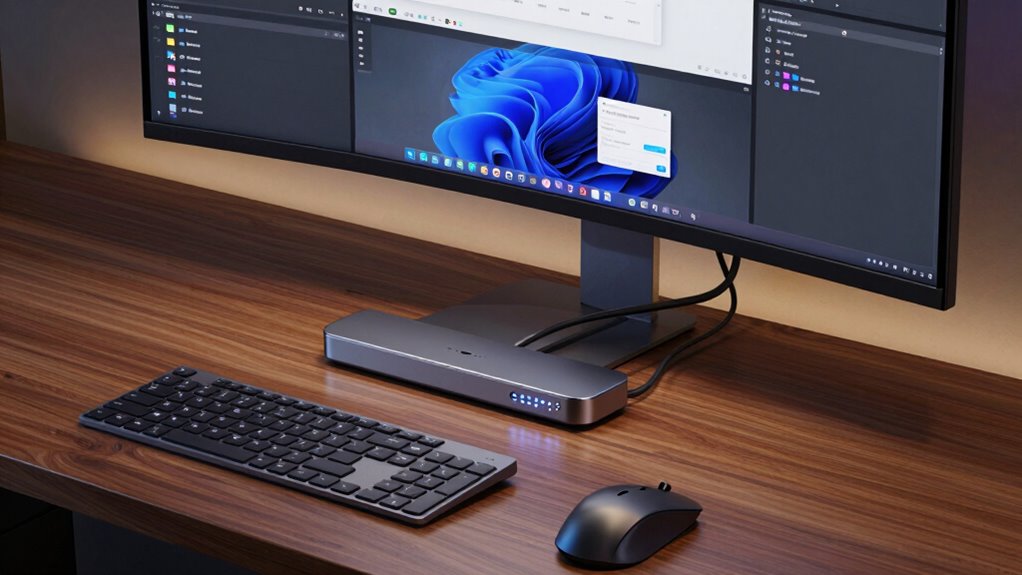

For a multi-monitor setup, I’d start with the CalDigit TS5 as the best overall pick for a high-bandwidth Thunderbolt 5 desk, while the Plugable 16-in-1 Thunderbolt 4 Dock offers a more grounded dual-display option and the TobenONE 20-in-1 DisplayLink Dock suits workstations that need four screens. The right choice depends less on the number of ports than on your laptop’s display support, operating system, and the resolutions and refresh rates you expect. Thunderbolt docks can simplify cabling and support demanding displays, while DisplayLink and USB-C models may add screen flexibility with software or host-specific limits. I compare those tradeoffs across all 12 options below so you can match a dock to your computer and monitors.

Get office and shipping supplies delivered free — and shop member deals
- Fast, free delivery on millions of items
- Access to Prime Big Deal Days deals on October 6–7
- Prime Video, Amazon Music and more included
Key Takeaways
- The CalDigit TS5 leads for bandwidth and expansion: Thunderbolt 5 makes it the strongest fit here for a demanding desk, though many laptops and monitors cannot use all of that headroom.
- Four screens point toward DisplayLink: The TobenONE 20-in-1 is the lineup’s clearest fit for a four-monitor workstation, with software dependence as a key tradeoff.
- Dual-monitor Thunderbolt 4 is a practical middle ground: The Plugable 16-in-1 pairs dual 4K display support with 100W charging, avoiding the premium focus of Thunderbolt 5.
- USB-C triple-display claims need host checks: The OREI and Plugable USB-C triple-monitor docks can suit specific setups, but port type alone does not guarantee three independent displays.
- Mac compatibility separates similar-looking picks: Plugable’s MacBook-focused Thunderbolt 4 dock and DisplayLink models address different display needs; check native display support and software requirements before choosing.
| TobenONE DisplayLink Docking Station for 3 Monitors with 120W Power Adapter |  | Best for Maximum Display Count | Ports: 18 total | Display outputs: 3 HDMI and 3 DisplayPort | Maximum displays: 4 on Windows; 3 on macOS | VIEW ON AMAZON | See Our Full Breakdown |
| CalDigit TS5 Thunderbolt 5 Dock, 15-Port, Space Gray |  | Best Premium Thunderbolt 5 Pick | Ports: 15 | Thunderbolt 5 / USB4 V2: 1 host port and 3 downstream ports, up to 80Gb/s | Display output: DisplayPort 2.1 | VIEW ON AMAZON | See Our Full Breakdown |
| UGREEN 8-in-1 Thunderbolt 4 Docking Station |  | Best for a Simple Dual-Display Setup | Ports: 3 Thunderbolt 4, 3 USB-A 3.2, 1 Gigabit Ethernet, 1 DC power | Thunderbolt 4 data speed: Up to 40Gb/s | Display support: Up to two 4K at 60Hz displays or one 8K display, depending on computer | VIEW ON AMAZON | See Our Full Breakdown |
| OREI SplitXtend USB-C Docking Station, Triple Monitor with 3x HDMI Ports – 4K |  | Best Compact HDMI Option | Total ports: 8 | HDMI ports: 3 | Power Delivery: Up to 85W with a 100W charger | VIEW ON AMAZON | See Our Full Breakdown |
| Dell Pro Thunderbolt 4 Smart Dock SD25TB4 (WD25TB4) |  | Best for Managed Four-Screen Offices | Maximum displays: Up to 4 × 4K monitors | Video outputs: 2 × DisplayPort 1.4, 1 × HDMI 2.1, USB-C, Thunderbolt 4 | Power Delivery: Up to 130W for Dell laptops; 96W for other laptops | VIEW ON AMAZON | See Our Full Breakdown |
| Anker Prime 14-in-1 Dual-Monitor Laptop Docking Station |  | Best for High-Power Charging | Total power output: 160W | USB-C ports: 3, up to 100W each | Display outputs: 2 HDMI | VIEW ON AMAZON | See Our Full Breakdown |
| Plugable 16-in-1 Thunderbolt 4 Dock with Dual 4K Display Support and 100W Charging |  | Best for Dual 4K Workstations | Display support: Dual 4K at 60Hz | USB ports: 7 | Ethernet: 2.5Gbps | VIEW ON AMAZON | See Our Full Breakdown |
| TobenONE 20-in-1 DisplayLink Docking Station for Four Monitors |  | Best for Four-Monitor Setups | Total ports: 20 | Video outputs: 4 HDMI and 4 DisplayPort | Maximum display support: 4 external monitors at 4K and 60Hz | VIEW ON AMAZON | See Our Full Breakdown |
| Plugable Thunderbolt 4 Dock for MacBook, 13-Port, 100W Charging |  | Best Mac-Focused Thunderbolt Pick | Interface: Thunderbolt 4 | Total ports: 13 | USB ports: 7 | VIEW ON AMAZON | See Our Full Breakdown |
| Plugable 13-in-1 USB-C Triple Monitor Docking Station with 100W Charging |  | Best for Three HDMI Displays | Host interface: USB-C, USB4, or Thunderbolt | Total ports: 13 | HDMI outputs: 3 | VIEW ON AMAZON | See Our Full Breakdown |
| Anker Prime 14-in-1 Thunderbolt 5 Docking Station |  | Best for High-Resolution Multi-Monitor Setups | Ports: Thunderbolt 5 upstream ×1, Thunderbolt 5 downstream ×2, USB-C ×2, USB-A ×3, HDMI 2.1 or DisplayPort 2.1, 2.5Gbps Ethernet, SD, TF, audio | Maximum display resolution: Up to 8K at 60Hz | Upstream charging: Up to 140W | VIEW ON AMAZON | See Our Full Breakdown |
| Anker 13-in-1 USB-C Laptop Docking Station with Triple Display |  | Best for Triple 1080p Displays | Port count: 13 | Video outputs: 2× HDMI and 1× DisplayPort | Display support: Up to 3 external displays at 1080p and 60Hz, or 1 display at 4K and 60Hz | VIEW ON AMAZON | See Our Full Breakdown |
| thunderbolt dock for multi monitor setup | Laptop charging |
|---|---|
| TobenONE DisplayLink Docking S | Up to 100W (96W certified) |
| CalDigit TS5 Thunderbolt 5 Doc | — |
| UGREEN 8-in-1 Thunderbolt 4 Do | Up to 85W |
| OREI SplitXtend USB-C Docking | — |
| Dell Pro Thunderbolt 4 Smart D | — |
| Anker Prime 14-in-1 Dual-Monit | — |
| Plugable 16-in-1 Thunderbolt 4 | Up to 100W |
| TobenONE 20-in-1 DisplayLink D | Up to 100W |
| Plugable Thunderbolt 4 Dock fo | — |
| Plugable 13-in-1 USB-C Triple | Up to 100W |
| Anker Prime 14-in-1 Thunderbol | — |
| Anker 13-in-1 USB-C Laptop Doc | Up to 85W |
More Details on Our Top Picks
TobenONE DisplayLink Docking Station for 3 Monitors with 120W Power Adapter
For a workstation where screen count comes first, the TobenONE DisplayLink Dock offers the broadest stated support here: up to four 4K displays on Windows or three on macOS. That makes it a better fit for large, mixed-task desktops than the UGREEN 8-in-1 Thunderbolt 4 Dock, which supports up to two 4K screens on compatible systems. Its 18 ports, Gigabit Ethernet, and up to 100W laptop charging can also replace several desk accessories. The tradeoff is the DisplayLink driver: setup is less direct than a native Thunderbolt connection, Linux and Unix are unsupported, and some paid streaming services may not play. I’d choose it for office multitasking, not for a DRM-sensitive media or graphics workflow.
Pros:- Supports up to four 4K displays on Windows and three on macOS
- Includes 18 ports, Gigabit Ethernet, and USB data up to 10Gbps
- Provides up to 100W laptop charging and 18W phone charging
- Includes a 120W power adapter
Cons:- Extended display use requires installing the DisplayLink driver
- Does not support Linux or Unix
- Paid streaming services such as Netflix may not work
Best for: Windows users building a desk workstation with four extended 4K screens and several wired peripherals.
Not ideal for: Linux or Unix users, or anyone who needs reliable playback from paid streaming services on the docked displays.
- Ports:18 total
- Display outputs:3 HDMI and 3 DisplayPort
- Maximum displays:4 on Windows; 3 on macOS
- Maximum display resolution:4K at 60Hz
- Laptop charging:Up to 100W (96W certified)
- Network:Gigabit Ethernet
- Power adapter:120W included
- Display technology:DisplayLink; driver required
Our verdict“Choose the TobenONE if your Windows desk needs four 4K screens and you can work with DisplayLink’s driver and streaming limits.”
CalDigit TS5 Thunderbolt 5 Dock, 15-Port, Space Gray
The CalDigit TS5 is the premium choice for a compatible Thunderbolt 5 or USB4 V2 computer: its DisplayPort 2.1 output and downstream Thunderbolt 5 ports give a display setup room to grow, with support for up to dual 8K at 60Hz on capable hosts. Compared with the Dell Pro Thunderbolt 4 Smart Dock SD25TB4, the TS5 prioritizes newer, higher-bandwidth connections and compact construction over enterprise management and a stated four-screen 4K setup. Its 15 ports include 2.5Gb Ethernet, fast card readers, and audio connections, while up to 140W host charging suits power-hungry laptops. The main limitation is host dependence: a Thunderbolt 5 system is needed for full performance, and display capability varies by computer and operating system. Buyers with older docks may not benefit from the added bandwidth.
Pros:- Three downstream Thunderbolt 5 ports support up to 80Gb/s
- DisplayPort 2.1 supports up to dual 8K at 60Hz on compatible systems
- Delivers up to 140W host charging
- Adds 2.5Gb Ethernet, SD and microSD readers, and three audio ports
Cons:- Full performance requires a Thunderbolt 5 or USB4 V2 computer
- Display support depends on the host computer and operating system
Best for: Owners of Thunderbolt 5 or USB4 V2 laptops who want a compact dock for high-resolution displays and fast peripherals.
Not ideal for: Buyers who need a clearly specified four-monitor 4K workstation or whose computer lacks a Thunderbolt 5 or USB4 V2 host.
- Ports:15
- Thunderbolt 5 / USB4 V2:1 host port and 3 downstream ports, up to 80Gb/s
- Display output:DisplayPort 2.1
- Display support:Up to dual 8K at 60Hz on compatible systems
- Host charging:Up to 140W
- Ethernet:2.5GbE, backward compatible with 1GbE
- Card readers:SD 4.0 and microSD 4.0 UHS-II
- Dimensions and weight:4.5 × 2.75 × 1.12 in; 8.9 oz
Our verdict“Pick the CalDigit TS5 for a Thunderbolt 5 system and high-resolution displays, provided your host can use its newer bandwidth.”
UGREEN 8-in-1 Thunderbolt 4 Docking Station
The UGREEN 8-in-1 Thunderbolt 4 Dock makes sense when two 4K displays are enough and you want a straightforward mix of Thunderbolt, USB-A, and Gigabit Ethernet. It supports up to two 4K screens at 60Hz or one 8K display on compatible computers, a narrower setup than the four-display capacity listed for the Dell Pro Thunderbolt 4 Smart Dock SD25TB4. In return, UGREEN supplies a 140W GaN charger and offers up to 85W laptop charging, a useful package for a home office with moderate peripheral needs. Its three Thunderbolt 4 ports also allow high-speed connections beyond the displays. Check your computer first: display support varies, and basic M-chip MacBooks or some USB-C devices may only drive one display. The dock also needs its included charger to operate.
Pros:- Supports up to two 4K at 60Hz displays or one 8K display on compatible systems
- Includes three Thunderbolt 4 and three USB-A 3.2 ports
- Includes a 140W GaN charger and supplies up to 85W laptop charging
- Adds Gigabit Ethernet
Cons:- Some computers, including basic M-chip MacBooks, may support only one external display
- Requires the included charger to operate
- Its display capacity is more limited than the Dell Pro dock’s stated four-monitor support
Best for: Home-office users with a compatible Thunderbolt computer who need two 4K monitors, Ethernet, and a few USB-A accessories.
Not ideal for: People who need four screens, run a basic M-chip MacBook with multiple external displays, or want a dock that works without its supplied charger.
- Ports:3 Thunderbolt 4, 3 USB-A 3.2, 1 Gigabit Ethernet, 1 DC power
- Thunderbolt 4 data speed:Up to 40Gb/s
- Display support:Up to two 4K at 60Hz displays or one 8K display, depending on computer
- Laptop charging:Up to 85W
- Included charger:140W GaN
- Compatibility:Thunderbolt 4, Thunderbolt 3, USB4, or USB-C computers and tablets
- Operating system support:macOS 11.4 or later; Windows 10 or later
- Dimensions and weight:9.5 × 9.5 × 2.5 in; 1.4 kg
Our verdict“Choose UGREEN for a compatible laptop and a tidy two-screen Thunderbolt setup with Ethernet and everyday USB ports.”
OREI SplitXtend USB-C Docking Station, Triple Monitor with 3x HDMI Ports – 4K
For a shared desk or travel bag, the OREI SplitXtend offers a light way to connect up to three external displays through HDMI. That gives it a different role from the UGREEN 8-in-1 Thunderbolt 4 Dock: OREI emphasizes multiple HDMI connections and portability, while UGREEN offers Thunderbolt 4 bandwidth and a more conventional dual-display setup. The SplitXtend also passes through up to 85W of power when paired with a 100W charger and includes an SD reader. Extended displays require a SiliconMotion driver, so setup is less plug-and-play than the native Thunderbolt approach; the product is also not recommended for gaming, design work, or HDCP-protected content. I’d reserve it for office multitasking and presentations where small size and three HDMI outputs matter more than demanding visuals.
Pros:- Provides three HDMI ports for multi-display connections
- Supports up to 85W Power Delivery with a 100W charger
- Weighs 3.99 ounces for travel and hot-desking
- Includes an SD card reader
Cons:- Extended displays require SiliconMotion driver installation
- Not recommended for gaming, design work, or HDCP-protected content
- Data transfer is limited to 5Gbps
Best for: Traveling presenters and hot-desk workers who need up to three HDMI-connected screens for standard office tasks.
Not ideal for: Gamers, design professionals, and viewers of HDCP-protected content who need demanding graphics or dependable protected video playback.
- Total ports:8
- HDMI ports:3
- Power Delivery:Up to 85W with a 100W charger
- Data transfer rate:5Gbps
- Display driver:SiliconMotion driver required for extended displays
- Additional feature:SD card reader
- Weight:3.99 ounces
- Warranty:1 year
Our verdict“Pick the OREI for portable, driver-enabled office display use when three HDMI outputs matter more than graphics or protected video.”
Dell Pro Thunderbolt 4 Smart Dock SD25TB4 (WD25TB4)
The Dell Pro Thunderbolt 4 Smart Dock SD25TB4 stands out for offices that need up to four 4K monitors alongside central network and device management. Its HDMI 2.1, DisplayPort 1.4, USB-C, and Thunderbolt 4 video connections make it a more enterprise-oriented alternative to the TobenONE DisplayLink Dock, which also targets high screen counts but depends on DisplayLink drivers. Dell adds 2.5GbE, remote Wi-Fi management through Dell Console and Intel AMT, and security features suited to managed workplaces. Charging reaches 130W on Dell laptops and 96W on other computers, so non-Dell users should not expect the full output. The dock’s remote controls also make most sense in a Dell-managed environment; for an individual desk without IT needs, that extra layer may add little over a simpler Thunderbolt dock.
Pros:- Supports up to four 4K monitors
- Provides up to 130W charging for Dell laptops and 96W for other laptops
- Includes 2.5GbE and remote Wi-Fi management through Dell Console and Intel AMT
- Has enterprise security features and supports daisy-chaining up to six devices
Cons:- Charging is limited to 96W on non-Dell laptops
- Remote management features may be of limited use outside Dell Console and Intel AMT environments
- Display capability depends on the connected computer
Best for: IT-managed offices standardizing Dell laptops across four-monitor desks with remote management and wired network needs.
Not ideal for: Mixed-brand or personal setups that do not use Dell Console or Intel AMT, especially when full 130W charging is needed on a non-Dell laptop.
- Maximum displays:Up to 4 × 4K monitors
- Video outputs:2 × DisplayPort 1.4, 1 × HDMI 2.1, USB-C, Thunderbolt 4
- Power Delivery:Up to 130W for Dell laptops; 96W for other laptops
- Network:2.5GbE Ethernet
- Management:Remote Wi-Fi management with Dell Console and Intel AMT
- Security:WPA3, PXE boot, MAC filtering, DMA protection, secure enclosure
- Thunderbolt daisy-chaining:Up to 6 devices
- Sustainability:65% recycled plastic; 100% recycled packaging
Our verdict“Choose the Dell Pro dock for a managed Dell office that needs up to four 4K screens, security controls, and remote oversight.”
Anker Prime 14-in-1 Dual-Monitor Laptop Docking Station
The Anker Prime 14-in-1 suits a desk where charging several devices matters as much as adding two screens. Its 160W total output and three USB-C ports rated up to 100W each give it more charging flexibility than the Plugable 16-in-1 Thunderbolt 4 Dock, which supplies up to 100W to the laptop. The two HDMI outputs make a tidy dual-monitor setup possible, though resolution depends on the laptop’s DisplayPort support: the listed ceiling is 2K at 60Hz with DP 1.4, or 1080p at 60Hz with DP 1.2. That makes this a less compelling pick for buyers prioritizing dual 4K displays. macOS mirrors the displays, and Linux is unsupported, so check your operating system before choosing it.
Pros:- 160W total power output supports charging several devices at once
- Three USB-C ports are rated up to 100W each
- Two HDMI outputs support a dual-monitor connection
- Works with USB-C, USB4, and Thunderbolt hosts
Cons:- macOS mirrors the two displays instead of extending them
- Linux is not supported
- Display resolution depends on the laptop and tops out at 2K at 60Hz with DP 1.4
Best for: Windows or ChromeOS laptop owners who want two HDMI displays and ample charging for several USB-C devices
Not ideal for: Linux users, Mac users who need separate extended displays, and buyers seeking dual 4K output
- Total power output:160W
- USB-C ports:3, up to 100W each
- Display outputs:2 HDMI
- Display resolution:Up to 2K at 60Hz with DP 1.4; up to 1080p at 60Hz with DP 1.2
- Data transfer:Up to 10 Gbps
- Compatibility:USB-C, USB4, and Thunderbolt; Windows 10/11 and ChromeOS
- Included cable:3.3 ft USB-C upstream cable, 100W, 10 Gbps
Our verdict“Choose the Anker Prime if charging multiple devices is a priority and your laptop can use its dual HDMI outputs as intended.”
Plugable 16-in-1 Thunderbolt 4 Dock with Dual 4K Display Support and 100W Charging
For a conventional two-screen workstation, the Plugable 16-in-1 Thunderbolt 4 Dock puts display capability ahead of sheer monitor count: it supports two 4K displays at 60Hz through HDMI or DisplayPort, without driver installation. Its seven USB ports, 2.5Gbps Ethernet, and SD and microSD readers also give it a more rounded desk setup than the Anker Prime 14-in-1, whose listed HDMI resolution is lower. The tradeoff is that the Plugable tops out at 100W laptop charging, and actual dual-display support depends on the laptop and operating system. It fits buyers who want crisp dual 4K screens and a single connection for peripherals; anyone planning three or four monitors should look at the TobenONE 20-in-1 DisplayLink Dock instead.
Pros:- Supports two 4K displays at 60Hz without drivers
- Includes seven USB ports plus SD and microSD readers
- 2.5Gbps Ethernet supports faster wired networking
- Provides up to 100W laptop charging
Cons:- Dual-display support depends on the laptop and operating system
- 100W charging may fall short for some higher-demand laptop setups
Best for: Laptop owners with compatible systems who want two 4K 60Hz displays, fast wired networking, and built-in card readers
Not ideal for: Users who need more than two monitors, charging above 100W, or dual-display support without checking host compatibility
- Display support:Dual 4K at 60Hz
- USB ports:7
- Ethernet:2.5Gbps
- Card readers:SD and microSD
- Laptop charging:Up to 100W
- Connectivity:Thunderbolt 5, Thunderbolt 4, USB4, and USB-C
- Operating systems:macOS 11 or later; Windows 10 or later
- Included cable:3.3 ft Thunderbolt 4 cable, 40Gbps
Our verdict“Pick this Plugable for a compatible laptop and a clean dual 4K desk setup with useful networking and card-reader ports.”
TobenONE 20-in-1 DisplayLink Docking Station for Four Monitors
The TobenONE 20-in-1 DisplayLink Dock is the lineup’s choice for a four-screen desk: it supports up to four external monitors at 4K and 60Hz and brings eight video outputs across HDMI and DisplayPort. That is a different use case from the Plugable 16-in-1 Thunderbolt 4 Dock, which targets two 4K screens through a simpler, driver-free setup. Here, DisplayLink drivers are required, adding setup and software dependency, and HDCP is not supported, so protected video playback is a limitation. Mac users should check their exact model too: M1 MacBooks can extend to only three monitors. The 150W adapter supplies the dock, while laptop charging is capped at 100W. This makes the TobenONE a strong fit for a dense productivity desk, provided the computer and software fit its requirements.
Pros:- Supports up to four external 4K 60Hz monitors
- Combines HDMI and DisplayPort outputs with 20 total ports
- Includes SD and microSD readers, Ethernet, and audio
- Provides up to 100W laptop charging with a 150W adapter
Cons:- Requires DisplayLink driver installation
- Does not support HDCP-protected content
- M1 MacBooks can extend to only three monitors
Best for: Windows or compatible Mac users building a four-monitor productivity desk with room for a full-size dock
Not ideal for: Buyers who want driver-free setup, HDCP-protected video playback, or four extended displays from an M1 MacBook
- Total ports:20
- Video outputs:4 HDMI and 4 DisplayPort
- Maximum display support:4 external monitors at 4K and 60Hz
- Laptop charging:Up to 100W
- Power adapter:150W
- Other connections:SD and microSD card slots, Ethernet, and 3.5mm audio
- Compatibility:Windows 10+, macOS 11+, ChromeOS 100+, Ubuntu; Thunderbolt 3/4/5, USB4, and USB-C
- Dimensions and weight:11.81 × 3.14 × 0.86 in; 2.3 lbs
Our verdict“Choose the TobenONE when four 4K screens matter more than a driver-free setup or protected video playback.”
Plugable Thunderbolt 4 Dock for MacBook, 13-Port, 100W Charging
This 13-port Plugable Thunderbolt 4 dock is aimed at MacBook owners who want a direct, driver-free route to two 4K 60Hz HDMI displays on a compatible system. Compared with the Plugable 16-in-1, it has fewer listed ports but keeps a useful mix of seven USB connections, UHS-II card readers, Ethernet, audio, and a downstream Thunderbolt 4 port. Its 100W host charging and lifetime support add practical appeal for a fixed desk. Mac compatibility needs particular care: base M1 and M2 MacBooks support only one external display, while base M3 models need clamshell mode for two. Display support varies by Mac model, so the dock cannot override those limits. It is a sensible Mac-oriented alternative to the TobenONE four-monitor dock when two screens and no DisplayLink drivers are the priority.
Pros:- Supports up to two 4K 60Hz HDMI displays on compatible systems
- Provides 100W host charging
- Includes seven USB ports, Ethernet, and UHS-II SD and microSD readers
- Works without driver installation
Cons:- Base M1 and M2 MacBooks support only one external display
- Base M3 Macs require clamshell mode for dual displays
- Display support varies by Mac model
Best for: MacBook owners with a compatible Thunderbolt 4 or USB4 system who want two HDMI monitors and broad desk connectivity
Not ideal for: Base M1 or M2 MacBook owners who need two external screens, or anyone building a setup with more than two displays
- Interface:Thunderbolt 4
- Total ports:13
- USB ports:7
- Display outputs:2 HDMI; up to two 4K 60Hz displays on compatible systems
- Host charging:100W
- Downstream Thunderbolt:1 Thunderbolt 4 port, up to 40Gbps
- Other ports:USB-C, 4 USB-A, UHS-II SD and microSD, Ethernet, and 3.5mm audio
- Dimensions and weight:3.3 × 8.9 × 0.9 in; 1.3 kg
Our verdict“Choose this dock for a compatible MacBook desk that needs two driver-free HDMI displays and a broad range of ports.”
Plugable 13-in-1 USB-C Triple Monitor Docking Station with 100W Charging
The Plugable 13-in-1 USB-C dock gives buyers three HDMI outputs for up to three extended displays, making it a useful middle ground between the dual-screen Plugable Thunderbolt 4 Dock and the four-monitor TobenONE DisplayLink model. Its display limits matter: the first HDMI output reaches 4K at 30Hz, while the other two top out at 1920×1200 at 60Hz. That mix suits office work across several screens better than a high-refresh, all-4K setup. It also supplies up to 100W to the laptop and 20W through the front USB-C port. On macOS, multiple displays require DisplayLink Manager, and HDMI 2 and 3 need the driver; HDCP-protected playback is unsupported. This is best for buyers who need three screens and accept those software and video constraints.
Pros:- Supports up to three extended HDMI displays
- Provides up to 100W laptop and 20W device charging
- Includes Gigabit Ethernet, four USB-A ports, an SD reader, and audio
- Connects through USB-C, USB4, or Thunderbolt
Cons:- Only the first HDMI output supports up to 4K, and it is limited to 30Hz
- Multiple displays on macOS require DisplayLink software
- Does not support HDCP-protected video playback
Best for: Windows, macOS, or ChromeOS laptop users who need three extended HDMI screens for office work
Not ideal for: Buyers who need three high-refresh 4K displays, protected video playback, or a driver-free multi-monitor Mac setup
- Host interface:USB-C, USB4, or Thunderbolt
- Total ports:13
- HDMI outputs:3
- Display resolution:HDMI 1: up to 4K at 30Hz; HDMI 2 and 3: up to 1920×1200 at 60Hz
- Laptop charging:Up to 100W
- Front USB-C charging:20W
- Other connectivity:4 USB-A at 5Gbps, Gigabit Ethernet, SD card reader, and audio in/out
- Compatible operating systems:Windows 10+, macOS 11+, and ChromeOS
Our verdict“Pick this Plugable when three HDMI screens are more useful than dual 4K 60Hz output or a driver-free Mac setup.”
Anker Prime 14-in-1 Thunderbolt 5 Docking Station
The Anker Prime is the stronger fit for a workstation built around high-resolution displays and fast Thunderbolt peripherals. Its Thunderbolt 5 connection supports up to 8K at 60Hz, and the dock adds HDMI 2.1 or DisplayPort 2.1, two downstream Thunderbolt 5 ports, and 2.5Gbps Ethernet. Compared with the Anker 13-in-1 USB-C Triple Display Dock, it prioritizes bandwidth and high-resolution output over a specified three-screen 1080p setup. That makes it a better match for demanding display and storage workflows, though buyers should check their laptop’s operating system and display support: dual 8K at 60Hz is specified for compatible Windows laptops. 140W host charging is another advantage for power-hungry laptops. The tradeoff is that its front USB-C ports share 45W, so they are not two independent high-power charging outlets.
Pros:- Supports display output up to 8K at 60Hz
- Thunderbolt 5 upstream and two downstream ports suit high-bandwidth peripherals
- Provides up to 140W charging to the connected laptop
- Includes 2.5Gbps Ethernet, SD and TF readers, and active cooling
Cons:- Dual 8K at 60Hz support is specified for Windows Thunderbolt 5 laptops
- The two front USB-C ports share 45W total
- Buyers must confirm their laptop and monitor support the desired multi-display configuration
Best for: Windows laptop owners building a high-resolution multi-display workstation who also need Thunderbolt peripherals, fast networking, and up to 140W host charging.
Not ideal for: Buyers who need a clearly specified triple-1080p setup or multiple high-power USB-C charging ports; the Anker 13-in-1 spells out triple-display support, while this dock’s two front USB-C ports share 45W.
- Ports:Thunderbolt 5 upstream ×1, Thunderbolt 5 downstream ×2, USB-C ×2, USB-A ×3, HDMI 2.1 or DisplayPort 2.1, 2.5Gbps Ethernet, SD, TF, audio
- Maximum display resolution:Up to 8K at 60Hz
- Upstream charging:Up to 140W
- USB-C charging:45W shared
- Included Thunderbolt cable:3.3 ft
- Included AC cable:6 ft
- Cooling:Active cooling system
Our verdict“Choose this dock for a compatible Windows workstation where high-resolution displays and Thunderbolt 5 bandwidth matter more than explicit triple-screen support.”
Anker 13-in-1 USB-C Laptop Docking Station with Triple Display
For compatible Windows and ChromeOS laptops, this Anker dock offers a straightforward path to three external 1080p monitors through two HDMI outputs and one DisplayPort. That defined triple-screen setup gives it a different role from the Anker Prime 14-in-1 Thunderbolt 5 Dock, which targets higher-resolution output and Thunderbolt bandwidth instead. The 13-in-1 also covers everyday desk needs with Ethernet, card readers, audio, and up to 85W laptop charging, while its compact vertical design helps conserve desk space. The key limitation is platform support: on macOS, external displays are limited to mirror mode, so it is a poor pick for Mac users who want an extended multi-monitor desktop. Triple-display operation also depends on compatible hardware and operating system, making a compatibility check part of the buying decision.
Pros:- Supports up to three 1080p external displays on compatible systems
- Includes two HDMI outputs and one DisplayPort
- Provides up to 85W laptop charging and up to 18W phone charging
- Compact vertical design with Ethernet, SD and microSD readers, and audio
Cons:- macOS external displays are limited to mirror mode
- Triple-display support depends on compatible hardware, operating system, and MST
- Maximum multi-display resolution is 1080p per screen
Best for: Windows 10/11 or ChromeOS laptop owners with compatible USB-C, USB4, or Thunderbolt hardware who want three 1080p screens and a compact desk setup.
Not ideal for: Mac users who need separate extended desktops across multiple external monitors, or anyone whose laptop does not support MST triple-display output.
- Port count:13
- Video outputs:2× HDMI and 1× DisplayPort
- Display support:Up to 3 external displays at 1080p and 60Hz, or 1 display at 4K and 60Hz
- Laptop charging:Up to 85W
- USB-C ports:85W host, 18W Power Delivery, and 10Gbps data
- USB-A ports:3 ports, up to 5Gbps
- Ethernet:Gigabit
- Dimensions and weight:4.9 × 3.5 × 1.6 in; 13.1 oz
- Compatibility:Full-Function USB-C, USB4, and Thunderbolt 3/4/5; extended triple displays on compatible Windows 10/11 and ChromeOS systems with MST
Our verdict“Pick this dock if your compatible Windows or ChromeOS laptop needs three 1080p screens and your setup does not require extended multi-monitor support on macOS.”

How We Picked
I ranked these docks by how clearly they support multi-monitor work, including the stated display count, connection standard, charging, and the other ports needed to keep a desk connected. I gave more weight to dependable, well-defined use cases than to a high port count alone: a dock that fits a common dual-monitor setup should rank ahead of one whose extra screens depend on DisplayLink software or particular host capabilities, unless that broader screen count is the buyer’s priority.
The order also reflects compatibility and ease of choosing. Thunderbolt 5 earns the premium position for systems that can use its bandwidth; Thunderbolt 4 models with explicit dual-display support offer a more attainable path for many setups. USB-C and DisplayLink models remain useful for narrower needs, but I rank them with their host, operating-system, and software tradeoffs in view. The product lineup does not establish one universal winner for every laptop, so buyers should verify display support against their exact computer.
| thunderbolt dock for multi monitor setup | Laptop charging |
|---|---|
| TobenONE DisplayLink Docking S | Up to 100W (96W certified) |
| CalDigit TS5 Thunderbolt 5 Doc | — |
| UGREEN 8-in-1 Thunderbolt 4 Do | Up to 85W |
| OREI SplitXtend USB-C Docking | — |
| Dell Pro Thunderbolt 4 Smart D | — |
| Anker Prime 14-in-1 Dual-Monit | — |
| Plugable 16-in-1 Thunderbolt 4 | Up to 100W |
| TobenONE 20-in-1 DisplayLink D | Up to 100W |
| Plugable Thunderbolt 4 Dock fo | — |
| Plugable 13-in-1 USB-C Triple | Up to 100W |
| Anker Prime 14-in-1 Thunderbol | — |
| Anker 13-in-1 USB-C Laptop Doc | Up to 85W |
Factors to Consider When Choosing Thunderbolt Dock For Multi Monitor Setups
Choosing a dock starts with how your laptop sends video, not how many HDMI sockets appear in a listing. I’d verify the host’s display limits, then match the dock’s connection standard and display method to the screens and workload. These checks help avoid buying a dock that physically connects but cannot drive the setup you have in mind.
Check Your Laptop’s Native Display Limits
Look up the exact laptop model and processor generation before choosing a dock. Some computers support fewer external displays than the dock can output, and certain Mac models have different limits with the lid open versus closed. Also check whether the host supports Thunderbolt or only USB-C; the connectors can look identical while offering different video and data capabilities. A dock cannot add native display support the computer lacks. If your laptop’s specifications are unclear, confirm the maximum external display count and supported resolution for each display before ordering.
Separate Thunderbolt From USB-C and DisplayLink
Thunderbolt carries display, data, and power over one cable with a defined bandwidth class, while USB-C describes the connector and can cover very different capabilities. DisplayLink creates displays through a software-driven USB graphics path, which can help when a host’s native display count is restrictive. That flexibility may require driver installation and can behave differently during protected video playback, intensive graphics work, or IT-managed deployments. Don’t treat these approaches as interchangeable just because both end in HDMI. Choose native Thunderbolt or USB-C video for a simpler graphics path, and consider DisplayLink when added screens matter more than avoiding software.
Match Resolution and Refresh Rate Across Every Screen
A dock’s headline display count does not describe every combination it can run. The maximum resolution may drop when several monitors are connected, and high refresh rates can use more bandwidth than a basic office display. Check the dock’s supported combinations for the number of screens you plan to attach, including whether it specifies 4K at a particular refresh rate. Adapters and long cables can add further limits, especially when mixing HDMI and DisplayPort. For smooth desktop work, confirm the actual mode for all connected displays rather than relying on a single-screen maximum.
Treat Charging Wattage as a Fit Check
Compare the dock’s laptop charging output with the power adapter your computer needs under load. A dock’s included power supply rating may not equal the wattage delivered to the laptop, since the dock also powers its own ports and connected devices. If charging falls short, the laptop may charge slowly or draw extra power from its original adapter. High-performance laptops can have higher demands than ultraportables, so check the manufacturer’s recommended adapter wattage. A sensible match avoids paying for unused charging capacity while preventing power limits from undermining a one-cable desk.
Count the Ports You Will Use at the Same Time
Make a short list of the devices that stay connected: monitors, external storage, wired networking, audio gear, and input devices. Then check which ports remain accessible when all displays are in use, since some docks share bandwidth or offer only a small number of fast USB connections. Front-facing ports are handy for temporary devices, while rear ports keep permanent cables tidy. If your desk relies on fast storage, compare the dock’s data port speeds rather than counting every USB socket equally. This port audit can reveal when a compact dock is enough and when a larger model saves cable swaps.
Pay for Headroom Only When Your Setup Can Use It
Thunderbolt 5 can make sense for newer computers, high-bandwidth peripherals, and a setup likely to grow, but it adds little if the laptop and connected devices are limited to older standards. Thunderbolt 4 offers a clear, capable route for many dual-monitor desks, while a USB-C dock may cover basic displays and connectivity at a lower complexity level. Think about how long you expect to keep the dock and whether future screens or storage will need more bandwidth. A premium dock is easier to justify when it replaces several adapters and supports planned upgrades. Otherwise, prioritizing verified display compatibility can matter more than buying the newest connection standard.
Frequently Asked Questions
Will any Thunderbolt dock run three monitors from my laptop?
No. The laptop’s own display controller and operating system set limits that a dock may not overcome through native video. Check the exact laptop model’s external display limit and the dock’s supported display combinations together. DisplayLink docks can add screens through software on compatible systems, but that brings driver and workload tradeoffs. A listed triple-display output is a capability to verify against your host, not a guarantee for every computer.
Should I choose DisplayLink or native Thunderbolt for extra monitors?
Native Thunderbolt is usually the simpler choice when your laptop already supports the number of displays you need. DisplayLink is worth considering when you need more screens than the host natively supports and are comfortable installing its software. For graphics-heavy work, protected video, or locked-down work computers, confirm the DisplayLink behavior and policies first. Decide based on the laptop and applications you use, rather than treating a larger display count as an automatic upgrade.
Can a MacBook drive two or more external monitors through these docks?
That depends on the specific MacBook chip and model, along with whether the dock uses native video or DisplayLink. Some MacBooks have strict external display limits even when a dock has multiple video outputs. DisplayLink can provide another route on supported configurations, but requires software and may not suit every workflow. Confirm the Mac’s official display limit and the dock maker’s compatibility notes before purchasing.
Do I need Thunderbolt 5 for a dual 4K desk?
Usually, a well-specified Thunderbolt 4 dock can be a strong fit for dual 4K work, as the Plugable 16-in-1 illustrates in this lineup. Thunderbolt 5 is more relevant if your laptop and peripherals can use its extra bandwidth or you plan a more demanding setup. The connection standard alone does not guarantee a particular resolution and refresh rate on every pair of screens. Check the exact dual-display modes supported by both the dock and host before paying for extra headroom.
What should I check if my monitors light up but show the wrong resolution or refresh rate?
Start with the dock’s supported multi-screen modes and compare them with the laptop’s video limits. Then check cable and adapter ratings, since an older or unsuitable cable can cap resolution or refresh rate. Update the computer’s graphics software and, for DisplayLink, its driver; reconnect displays one at a time to identify a combination limit. If the dock shares bandwidth between video and other ports, disconnect high-bandwidth devices briefly to see whether that changes the available mode.
Conclusion
For most buyers with a compatible newer laptop, I’d choose the CalDigit TS5 as the best overall dock, particularly when bandwidth and a broad desk setup matter. The Plugable 16-in-1 Thunderbolt 4 Dock is my best value direction for a defined dual-4K setup with 100W charging, while the Anker Prime 14-in-1 Thunderbolt 5 Dock is the best premium alternative for a Thunderbolt 5 desk. Beginners should start by matching their laptop’s display limits to a straightforward native Thunderbolt dock such as the Plugable Thunderbolt 4 Dock for MacBook when their MacBook supports the needed screens. For specific needs, choose the TobenONE 20-in-1 DisplayLink Dock for four-monitor flexibility or the UGREEN 8-in-1 Thunderbolt 4 Dock when a smaller set of connections suits the desk. Before deciding, confirm your exact laptop model, monitor modes, and whether DisplayLink software fits your workflow.
Halloween Picks
halloween
As an affiliate, we earn on qualifying purchases.