🔍 Read the full analysis: Which Thunderbolt Dock Should You Choose For A Better Desk? on ThorstenMeyerAI.com

Get business pricing on office and shipping supplies
- Business-only prices and quantity discounts
- Tax-exempt purchasing
- Multiple users, one account, clear invoices
TL;DR
The source ranks six Thunderbolt docks, led by Anker’s Prime 14-in-1 Thunderbolt 5 Dock for buyers seeking newer-generation bandwidth and a broad set of connections. It also compares five Thunderbolt 4 options, but stresses that laptop compatibility, charging requirements and display limits matter more than port count alone.
A buying guide from ThorstenMeyerAI.com ranks six Thunderbolt docking stations, naming the Anker Prime 14-in-1 Thunderbolt 5 Dock its best overall pick for buyers seeking newer-generation bandwidth and a broad connection set, as detailed in the original analysis. The comparison also covers five Thunderbolt 4 models, with recommendations shaped by charging needs, display support and compatibility with the buyer’s computer.
The guide’s other leading recommendations are the Plugable TBT-UDM for a Thunderbolt 4 setup and the Dell Pro SD25TB4 for buyers looking for a current Dell dock, alongside other Thunderbolt dock options. A second Plugable model, described as a 100W charging dock, is positioned for people who prioritize laptop charging and dual-monitor use. The source does not provide a specific model name for that Plugable dock in the supplied material.
The remaining two products are the Dell WD19TB and WD19TBS. The guide distinguishes them by their listed power configurations: it cites a 180W adapter for the WD19TB and 130W Power Delivery for the WD19TBS. Those figures are not interchangeable measures, so buyers should check the laptop’s power needs and the dock’s exact specifications before choosing.
The guide says its rankings consider Thunderbolt generation, host compatibility, charging, displays and port variety, rather than treating connector count as a complete measure of usefulness, a key consideration for multi-monitor setups. It cautions that a dock’s advertised ports do not by themselves establish that a particular computer can run every monitor or peripheral in the desired configuration.
The 6 picks
- 1
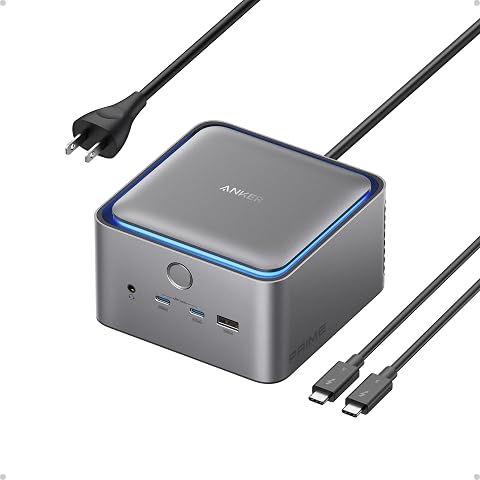 Anker Prime 14-in-1 Thunderbolt 5 Docking StationView on Amazon →
- 2
 Dell Pro Thunderbolt 4 Smart Dock SD25TB4 – USB-C Station 130W, 4 Displays 4K…View on Amazon →
- 3
 Plugable Thunderbolt 4 Dock with 100W Charging, Dual MonitorView on Amazon →
- 4
 Plugable Thunderbolt 4 Dock (TBT-UDM) for Mac and WindowsView on Amazon →
- 5
 Dell WD19TB Thunderbolt Docking Station with 180W AC AdapterView on Amazon →
- 6
 Dell Thunderbolt Dock WD19TBS with 130W Power DeliveryView on Amazon →
Match the Dock to Your Laptop
The choice can affect whether a desk setup works as intended: a dock must match the computer’s capabilities as well as the devices connected to it. Paying for Thunderbolt 5 bandwidth may not deliver a practical benefit if the laptop cannot use it, while an underpowered charging setup may not suit a demanding computer or heavy workload.
Display support also depends on more than the dock’s listed connections. A laptop’s display limits, operating system, monitor resolution and refresh rate, and connection type all shape what can run at once. Checking those details before purchase can help prevent paying for features that a system cannot use or finding that a planned multi-monitor arrangement is unsupported.
Products Worth Considering

Apple iMac MK472LL/A 27‑Inch Retina 5K Desktop (3.2 GHz Intel Core i5, 8 GB DDR3, 1 TB, macOS)

LG UltraGear 32-inch QHD Curved Gaming Monitor, 180Hz, 1ms, AMD FreeSync

FLEXISPOT E6 MAX Dual-Motor Electric Standing Desk, 55 x 28 in, Walnut Top, Black Frame
As an affiliate, we earn on qualifying purchases.
How the Six Picks Differ
The comparison spans one Thunderbolt 5 dock and five Thunderbolt 4 choices. Its central tradeoff is newer-generation bandwidth and potential headroom versus selecting a Thunderbolt 4 dock that better matches an existing computer or a specific charging and display requirement.
Within the Thunderbolt 4 group, the guide differentiates the Plugable TBT-UDM as a cross-platform option and the 100W Plugable model as a charging-focused choice. It presents the Dell Pro SD25TB4 as the newer Dell-oriented pick and the WD19 variants as options that may suit an existing Dell setup, subject to checking their differing power configurations. The source offers a ranking and buying guidance, not independent test results or a report of a new product launch.
“A dock’s port count alone does not guarantee that every screen or peripheral will work as expected.”
— ThorstenMeyerAI.com buying guide
Compatibility Depends on the Setup
The source does not give exact monitor-resolution and refresh-rate limits for each dock, nor does it list complete port layouts, prices or test conditions for all six products. It also does not identify the model name of the Plugable dock described as delivering 100W charging. The supplied material therefore supports a high-level comparison, but not a definitive compatibility check for a particular laptop and monitor combination.
It remains necessary to verify the computer’s exact port specification, operating-system support, maximum external-display count and power requirements against the manufacturer’s documentation. A USB-C-shaped port does not by itself confirm Thunderbolt support, and the source warns that adapter use or connecting several devices can affect a setup.
Check Specs Before Buying
The next step for a buyer is to compare the dock with the exact laptop model and the devices that will stay connected. Check the laptop’s Thunderbolt or USB-C capabilities, its recommended charger wattage, and its supported number of external displays. Then confirm the dock’s supported operating systems, charging output and display modes.
For a multi-monitor desk, check each screen’s resolution, refresh rate and available inputs, along with the connection types the dock supports. For power, distinguish a dock’s adapter rating from the power it delivers to the laptop. The source provides no follow-up test results or announcement; the practical next milestone is a model-specific compatibility check before purchase.
Key Questions
Which dock does the guide rank first?
It ranks the Anker Prime 14-in-1 Thunderbolt 5 Dock first, citing its Thunderbolt 5 positioning and broad connection focus. The guide does not say it is the right choice for every computer.
Is a Thunderbolt 5 dock useful with a Thunderbolt 4 laptop?
The guide says buyers should match the dock generation to the computer. A Thunderbolt 4 laptop may not benefit from the newer dock’s additional bandwidth, so check the laptop’s exact specifications before paying for that capability.
Will any of these docks run two monitors?
Not necessarily in every configuration. The laptop’s display limits, operating system, monitor specifications and connection method affect support. Confirm the exact dual-display mode for the computer and dock before buying.
What is the difference between the Dell WD19TB and WD19TBS?
The guide lists a 180W adapter for the WD19TB and 130W Power Delivery for the WD19TBS. Those describe different parts of the power setup; check the laptop’s requirements and each dock’s full specifications rather than comparing the figures as if they were equivalent.
Source: ThorstenMeyerAI.com