
For a Thunderbolt dock for multi-monitor setups on Amazon, my best overall pick is the Anker Prime 14-in-1 Dual-Monitor Docking Station for its practical mix of display support and everyday connectivity. The Plugable 16-in-1 Thunderbolt 4 Dock is a strong alternative for buyers who want dual 4K support and 100W charging, while the CalDigit TS5 suits premium setups that need Thunderbolt 5 bandwidth and high-power charging. The main tradeoffs are how many displays your computer can drive, the dock’s bandwidth and power delivery, and whether you need extra ports or a simpler, less costly setup. Compatibility varies by computer, operating system, and display connection, so a dock’s listed monitor count may not match your laptop’s capabilities. Read on for the full breakdown and guidance on choosing a dock that fits your screens and computer.

Get business pricing on office and shipping supplies
- Business-only prices and quantity discounts
- Tax-exempt purchasing
- Multiple users, one account, clear invoices
Key Takeaways
- The Anker Prime 14-in-1 Dual-Monitor Docking Station leads for most dual-monitor desks: its role is a balanced everyday setup, while specialist docks add features some buyers may not need.
- Plugable’s Thunderbolt 4 options cover different needs: the 16-in-1 model emphasizes ports alongside dual 4K support, while the quad-monitor dock targets a more complex display layout.
- Thunderbolt 5 is a premium bandwidth choice, not an automatic monitor-count upgrade: the UGREEN Maxidok, Anker Prime Thunderbolt 5, and CalDigit TS5 merit attention when newer computers and demanding peripherals can use that headroom.
- Display compatibility is the main source of surprises: docks advertising multiple outputs still depend on the laptop’s display engine, operating system, and the specific connection method.
- Power delivery and port layout separate practical desk upgrades from display-only solutions: Dell’s 130W-focused dock and StarTech’s 17-port model cater to different priorities than compact, dual-screen setups.
| Anker Prime 14-in-1 Dual-Monitor Docking Station |  | Best for a Simple Dual-HDMI Desk | Connectivity: 14-in-1 | Display outputs: 2 HDMI ports | Display resolution: Up to 2K at 60Hz with DP 1.4; up to 1080p at 60Hz with DP 1.2 | VIEW ON AMAZON | See Our Full Breakdown |
| Plugable Thunderbolt 4 Dock with 100W Charging and Dual Monitor Support |  | Best for High-Resolution Dual Displays | Interface: Thunderbolt 4 | Total ports: 13 | Display support: Dual 4K 60Hz HDMI or single 8K on compatible systems | VIEW ON AMAZON | See Our Full Breakdown |
| Plugable 16-in-1 Thunderbolt 4 Dock with Dual 4K Display Support and 100W Charging |  | Best for a Port-Rich Mixed-Peripheral Desk | Port configuration: 16-in-1 design with 7 USB ports | Display support: Dual 4K displays at 60Hz | Video connections: HDMI and DisplayPort | VIEW ON AMAZON | See Our Full Breakdown |
| Plugable Thunderbolt 4 Dock for MacBook Air and Pro |  | Best for Compatible MacBook Setups | Thunderbolt interface: Thunderbolt 4 | Ports: 13 | Display support: Up to two 4K displays at 60Hz on compatible systems | VIEW ON AMAZON | See Our Full Breakdown |
| Belkin Thunderbolt 4 Docking Station, 14-in-1, Triple Display, 96W | 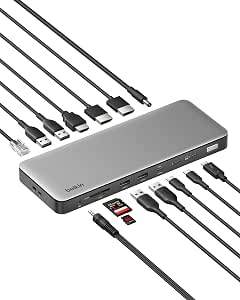 | Best for Triple Displays on Windows | Ports: 14 | Thunderbolt 4 data speed: Up to 40Gbps | Display support: Up to three 4K displays at 60Hz on compatible Windows PCs; up to two extended displays on macOS | VIEW ON AMAZON | See Our Full Breakdown |
| UGREEN Maxidok Thunderbolt 5 Docking Station with 8TB M.2 NVMe SSD Support |  | Best for Built-In Storage Expansion | Ports: 17 total | Thunderbolt: Thunderbolt 5, up to 120Gbps; 2 downstream ports | Display support: Triple independent displays on Windows; dual displays on Mac; up to 8K at 60Hz | VIEW ON AMAZON | See Our Full Breakdown |
| Dell Pro Thunderbolt 4 Smart Dock SD25TB4 USB-C Station 130W, 4K Multi-Display Support, 2x DP 1.4, HDMI 2.1, 2x Thunderbolt 4, 2.5GbE, Wi‑Fi, Sustainable Design |  | Best for Dell Office Fleets | Video support: Up to 4 × 4K monitors via HDMI 2.1, DisplayPort 1.4, USB-C, and Thunderbolt 4 | Display connections: 2 × DisplayPort 1.4 and 1 × HDMI 2.1 | Thunderbolt: 2 × Thunderbolt 4 | VIEW ON AMAZON | See Our Full Breakdown |
| Anker Prime 14-in-1 Thunderbolt 5 Docking Station |  | Best Compact Thunderbolt 5 Pick | Ports: 14 total; 8 USB ports | Interface: Thunderbolt 5, up to 120Gbps | Display support: Up to 8K at 60Hz; dual 8K on compatible Thunderbolt 5 Windows laptops | VIEW ON AMAZON | See Our Full Breakdown |
| CalDigit TS5 Thunderbolt 5 Dock with 15 Ports and 140W Charging |  | Best for High-Power Workstations | Ports: 15 total | Host connection: Thunderbolt 5 / USB4 v2, up to 80Gb/s | Thunderbolt ports: 1 host and 3 downstream | VIEW ON AMAZON | See Our Full Breakdown |
| WAVLINK Thunderbolt 4 Dock with Dual 4K HDMI |  | Best for Dual-HDMI Setups | Interface: Thunderbolt 4 | Total ports: 13 | USB ports: 6 | VIEW ON AMAZON | See Our Full Breakdown |
| StarTech Thunderbolt 4 Dock, 17-Port USB4 Docking Station |  | Best for Windows Quad-Display Setups | Connectivity: Thunderbolt 4, USB4, HDMI, MicroSD, USB, USB 2.0 | Total ports: 17 | USB ports: 7 | VIEW ON AMAZON | See Our Full Breakdown |
| Plugable Thunderbolt 4 Dock for Quad Monitors |  | Best for Flexible Quad-Display Connectivity | Display support: Up to four 4K displays or one 8K display | Video outputs: 2 HDMI, 2 Thunderbolt | Host charging: Up to 96W | VIEW ON AMAZON | See Our Full Breakdown |
| thunderbolt dock for multi monitor setups on amazon | Compatibility | Display support | Host charging |
|---|---|---|---|
| Anker Prime 14-in-1 Dual-Monit | USB-C, USB4, and Thunderbolt laptops; Windows 10 and 11, ChromeOS, and laptops with DP Alt Mode and Power Delivery | — | — |
| Plugable Thunderbolt 4 Dock wi | Thunderbolt 4, Thunderbolt 5, and USB4 systems; Windows 10 and up and compatible Macs | Dual 4K 60Hz HDMI or single 8K on compatible systems | — |
| Plugable 16-in-1 Thunderbolt 4 | Thunderbolt 5, Thunderbolt 4, USB4, and USB-C laptops; macOS 11+ and Windows 10 or later | Dual 4K displays at 60Hz | — |
| Plugable Thunderbolt 4 Dock fo | Compatible Thunderbolt 4 or USB4 Mac and Windows systems | Up to two 4K displays at 60Hz on compatible systems | Up to 100W |
| Belkin Thunderbolt 4 Docking S | Windows 11 Thunderbolt 4 hosts and Thunderbolt 4 Macs with macOS 11 or later | Up to three 4K displays at 60Hz on compatible Windows PCs; up to two extended displays on macOS | — |
| UGREEN Maxidok Thunderbolt 5 D | — | Triple independent displays on Windows; dual displays on Mac; up to 8K at 60Hz | — |
| Dell Pro Thunderbolt 4 Smart D | — | — | Up to 130W for Dell laptops; up to 96W for other laptops |
| Anker Prime 14-in-1 Thunderbol | MacBook with M1, M2, M3, or M4 Pro/Max; Thunderbolt 5 or 4 Windows laptops | Up to 8K at 60Hz; dual 8K on compatible Thunderbolt 5 Windows laptops | Up to 140W |
| CalDigit TS5 Thunderbolt 5 Doc | — | — | Up to 140W |
| WAVLINK Thunderbolt 4 Dock wit | Windows 10 or later; compatible Thunderbolt 3, 4, 5, USB4, and macOS systems | — | Up to 96W |
| StarTech Thunderbolt 4 Dock | — | — | — |
| Plugable Thunderbolt 4 Dock fo | Windows 10+, macOS 14+, and ChromeOS 100+; requires Thunderbolt, USB4, or full-featured USB-C | Up to four 4K displays or one 8K display | Up to 96W |
More Details on Our Top Picks
Anker Prime 14-in-1 Dual-Monitor Docking Station
The Anker Prime suits a desk where two HDMI connections and everyday device charging matter more than Thunderbolt bandwidth. Its dual HDMI outputs and three USB-C ports make it easy to connect screens and peripherals without assembling extra adapters, while the dock can supply up to 160W total charging output. Compared with the Plugable 16-in-1 Thunderbolt 4 Dock, though, it offers fewer display-format details and tops out at 10Gbps data transfer rather than Thunderbolt’s 40Gbps. That difference matters for large file transfers and higher-resolution monitor plans. The display limits also narrow its appeal: supported setups reach 2K at 60Hz with DP 1.4, and macOS mirrors the external screens instead of extending a different desktop to each. I’d skip it for Linux or independent dual displays on a Mac.
Pros:- Two HDMI outputs simplify a dual-screen setup
- Three USB-C ports support up to 100W each
- Up to 160W total charging output can serve several connected devices
- 14-in-1 design combines display, charging, and peripheral connections
Cons:- macOS mirrors the external displays rather than extending separate desktops
- Data transfer tops out at 10Gbps, below the 40Gbps Thunderbolt docks in this roundup
- Not compatible with Linux and does not support a 5120×1440 monitor
Best for: Windows or ChromeOS laptop owners who want two HDMI-connected screens, several USB-C connections, and charging for multiple devices at one desk.
Not ideal for: Mac users who need two separate extended desktops, Linux users, or anyone planning a 5120×1440 monitor or a high-bandwidth Thunderbolt workflow.
- Connectivity:14-in-1
- Display outputs:2 HDMI ports
- Display resolution:Up to 2K at 60Hz with DP 1.4; up to 1080p at 60Hz with DP 1.2
- Total charging output:Up to 160W
- USB-C ports:3, up to 100W each
- Data transfer speed:Up to 10Gbps
- Compatibility:USB-C, USB4, and Thunderbolt laptops; Windows 10 and 11, ChromeOS, and laptops with DP Alt Mode and Power Delivery
- macOS and Linux support:External displays mirror on macOS; Linux is not supported
Our verdict“Choose the Anker Prime for a straightforward dual-HDMI Windows or ChromeOS desk, but pick a Thunderbolt 4 dock if higher display capability or faster data transfer matters more.”
Plugable Thunderbolt 4 Dock with 100W Charging and Dual Monitor Support
For a compatible laptop driving two demanding screens, this Plugable dock is a stronger display-focused choice than the Anker Prime 14-in-1. It supports dual 4K at 60Hz over HDMI or a single 8K display on compatible systems, backed by 40Gbps Thunderbolt 4 and up to 100W host charging. The SD and microSD readers, Gigabit Ethernet, and audio jack also make it a practical one-cable desk hub. Compared with the Plugable 16-in-1, this model has fewer ports, but its two HDMI outputs offer a direct route to common monitor connections. Compatibility needs care: display behavior varies by computer and operating system, and base M3 Macs need clamshell mode for dual screens. I’d choose another option if your laptop’s display limits don’t match the dock’s capabilities.
Pros:- Supports dual 4K 60Hz HDMI displays or a single 8K display on compatible systems
- 40Gbps Thunderbolt 4 bandwidth suits fast peripherals and file transfers
- Up to 100W power delivery can charge a connected laptop
- Includes SD and microSD readers, Gigabit Ethernet, and an audio jack
Cons:- Display support varies across computers and operating systems
- Base M3 Macs require clamshell mode for dual external displays
- Has fewer ports than the Plugable 16-in-1 Thunderbolt 4 Dock
Best for: Owners of compatible Thunderbolt 4 or USB4 laptops who want two 4K HDMI monitors, fast transfers, and built-in card readers and Ethernet.
Not ideal for: People using base M3 Macs who need dual external displays while keeping the laptop open, or buyers whose USB-C and Thunderbolt 3 systems have restricted display support.
- Interface:Thunderbolt 4
- Total ports:13
- Display support:Dual 4K 60Hz HDMI or single 8K on compatible systems
- Thunderbolt speed:Up to 40Gbps
- Power delivery:Up to 100W; 96W certified
- USB connections:4 USB ports and 1 USB-C port
- Other connections:SD and microSD readers, audio combo jack, Gigabit Ethernet, and K-lock slot
- Compatibility:Thunderbolt 4, Thunderbolt 5, and USB4 systems; Windows 10 and up and compatible Macs
Our verdict“Pick this Plugable when your compatible laptop and two 4K HDMI monitors are the priority; check your computer’s display limits before buying.”
Plugable 16-in-1 Thunderbolt 4 Dock with Dual 4K Display Support and 100W Charging
The Plugable 16-in-1 is the lineup’s best fit when a multi-monitor workstation also needs plenty of connections for storage, networking, and media cards. It drives two 4K displays at 60Hz and combines seven USB ports with 2.5Gbps Ethernet, HDMI, DisplayPort, SD and microSD readers, and audio. That broader mix gives it an edge over the 13-port Plugable Thunderbolt 4 Dock if you want more ports without giving up dual 4K support. Both offer up to 100W laptop charging, so charging alone does not set them apart. The main caveat is that dual-display performance depends on the host laptop; the dock’s specifications cannot override a computer’s display limits. I’d favor the Belkin if a compatible Windows PC needs three displays, but this Plugable is more suited to a two-screen setup with varied peripherals.
Pros:- Supports two 4K displays at 60Hz on compatible laptops
- 16-in-1 connection mix includes seven USB ports and HDMI and DisplayPort
- 2.5Gbps Ethernet, SD and microSD readers, and audio are built in
- Provides up to 100W laptop charging and includes a 40Gbps Thunderbolt 4 cable
Cons:- Dual 4K display support depends on the connected laptop
- Does not offer the Belkin dock’s stated triple-display option for compatible Windows PCs
Best for: Mac or Windows laptop users building a two-monitor workstation that also needs multiple USB devices, fast wired networking, card readers, and audio.
Not ideal for: Buyers who need three external displays or who have a laptop that cannot drive two 4K screens through its USB-C, USB4, or Thunderbolt connection.
- Port configuration:16-in-1 design with 7 USB ports
- Display support:Dual 4K displays at 60Hz
- Video connections:HDMI and DisplayPort
- Power delivery:Up to 100W
- Ethernet:2.5Gbps
- Card readers:SD and microSD
- Compatibility:Thunderbolt 5, Thunderbolt 4, USB4, and USB-C laptops; macOS 11+ and Windows 10 or later
- Included cable:Thunderbolt 4, 40Gbps, 3.3 ft (1 m)
Our verdict“Choose this Plugable over the smaller 13-port model when your two-display desk needs more varied ports, provided your laptop supports the intended screens.”
Plugable Thunderbolt 4 Dock for MacBook Air and Pro
This Plugable dock is the MacBook-oriented pick for people who want two 4K displays at 60Hz alongside 100W host charging and a broad set of desk connections. Its seven USB ports, SD and microSD readers, Ethernet, and 3.5 mm audio make it more than a video adapter, while plug-and-play operation avoids driver setup. Compared with the Plugable 16-in-1, it offers a clearly listed 13-port layout and a Mac-focused title, but the core choice is still the host computer’s display support. Base M1 and M2 MacBooks support only one external display, and base M3 models need clamshell mode for two. That makes the dock a poor fix for MacBook display restrictions. I’d choose it for a compatible Mac or Windows system, but the Belkin is a better match when a compatible Windows PC needs triple-display support.
Pros:- Supports up to two 4K displays at 60Hz on compatible systems
- 100W host charging supports a one-cable laptop connection
- 13 ports include USB-C, USB-A, card readers, Ethernet, and audio
- Plug-and-play operation requires no drivers
Cons:- Base M1 and M2 MacBooks support only one external display
- Base M3 Macs require clamshell mode for dual external displays
- Does not match the Belkin dock’s stated triple-display support on compatible Windows PCs
Best for: MacBook Air and Pro owners with a Thunderbolt 4 or USB4 system that supports two external displays, plus compatible Windows laptop users wanting plug-and-play connections.
Not ideal for: Base M1 or M2 MacBook owners who need two external screens, or base M3 users who want dual displays while the laptop remains open.
- Thunderbolt interface:Thunderbolt 4
- Ports:13
- Display support:Up to two 4K displays at 60Hz on compatible systems
- Video connections:2 HDMI ports
- Host charging:Up to 100W
- USB connections:7 total
- Other connections:USB-C, USB-A, SD, microSD, Ethernet, and 3.5 mm audio
- Compatibility:Compatible Thunderbolt 4 or USB4 Mac and Windows systems
Our verdict“Choose this dock for a compatible MacBook or Windows laptop needing two 4K screens and broad connectivity, but verify your Mac’s external-display limits first.”
Belkin Thunderbolt 4 Docking Station, 14-in-1, Triple Display, 96W
The Belkin earns its place for one specific reason: on a compatible Windows PC, it supports up to three 4K displays at 60Hz. That gives it a meaningful advantage over the Plugable dual-display docks for users who need a wider workspace across three screens. Its 14-port layout also includes 2.5GbE, SD and microSD 4.0 readers, several USB connections, and up to 96W host charging, with data speeds up to 40Gbps. The tradeoff is platform dependence: macOS supports up to two extended displays, not three, and the listed compatibility calls for a Thunderbolt 4 host. It also uses a mix of DisplayPort 1.4 and HDMI 2.0 outputs, so check your monitor inputs before setting up. I’d pick it for a supported Windows triple-screen desk, not as a universal three-monitor solution.
Pros:- Supports up to three 4K displays at 60Hz on compatible Windows PCs
- 40Gbps Thunderbolt 4 data speed and up to 96W host charging
- 14-port layout includes 2.5GbE, SD and microSD 4.0 readers, and multiple USB ports
- Includes a Kensington lock and six-point safety system
Cons:- Triple extended displays are limited to compatible Windows PCs; macOS supports up to two
- Listed compatibility requires a compatible Thunderbolt 4 host
- Video connections mix DisplayPort 1.4 and HDMI 2.0, so monitor inputs may affect setup
Best for: Windows 11 users with a compatible Thunderbolt 4 laptop who need three 4K extended displays plus wired networking and card readers.
Not ideal for: Mac users seeking three extended displays, or laptop owners without a compatible Thunderbolt 4 host and monitors that match its DisplayPort and HDMI outputs.
- Ports:14
- Thunderbolt 4 data speed:Up to 40Gbps
- Display support:Up to three 4K displays at 60Hz on compatible Windows PCs; up to two extended displays on macOS
- Video ports:2x DisplayPort 1.4; HDMI 2.0
- Power delivery to host:Up to 96W
- Ethernet:2.5GbE
- USB ports:1x USB-C 10Gbps; 2x USB-A 10Gbps; 2x USB-A 5Gbps
- Compatibility:Windows 11 Thunderbolt 4 hosts and Thunderbolt 4 Macs with macOS 11 or later
Our verdict“Choose the Belkin when a compatible Windows Thunderbolt 4 laptop must drive three 4K screens; for a two-monitor setup, the Plugable docks offer a more direct match.”
UGREEN Maxidok Thunderbolt 5 Docking Station with 8TB M.2 NVMe SSD Support
The UGREEN Maxidok stands apart from the Dell Pro Thunderbolt 4 Smart Dock SD25TB4 by pairing a multi-display hub with an internal M.2 NVMe slot supporting up to 8TB. That can keep fast project files connected at the desk without using an external drive port. Its Thunderbolt 5 bandwidth, 2.5GbE, SD and TF readers, and 17-port selection make it a strong fit for a workstation with displays, wired networking, and several accessories. Windows users can run three independent displays; Mac users are limited to two, so the display advantage depends on the laptop. The tradeoff is a busier, actively cooled setup: the fan can be audible, and some SSDs with heatsinks may not fit the slot. I’d choose it over the Anker Prime 14-in-1 when internal storage matters more than a smaller port count.
Pros:- 17 ports combine Thunderbolt 5, USB, networking, audio, and card readers
- Internal M.2 PCIe Gen4x4 slot supports SSDs up to 8TB
- Supports triple independent displays on Windows, with up to 8K at 60Hz listed
- 2.5GbE Ethernet and active cooling suit a heavily connected workstation
Cons:- Mac display support is limited to dual displays
- Some heatsink-equipped M.2 drives may not fit
- The cooling fan produces noise while running
Best for: Windows workstation users who want multiple displays, 2.5GbE, and a large internal SSD in one desk dock.
Not ideal for: Mac users seeking three independent external displays, or buyers who need guaranteed compatibility with bulky heatsink-equipped NVMe drives.
- Ports:17 total
- Thunderbolt:Thunderbolt 5, up to 120Gbps; 2 downstream ports
- Display support:Triple independent displays on Windows; dual displays on Mac; up to 8K at 60Hz
- Storage expansion:M.2 NVMe PCIe Gen4x4; 2230–2280 SSDs up to 8TB
- USB ports:3 USB-A and 3 USB-C, up to 10Gbps
- Networking:2.5GbE Ethernet
- Power:Up to 240W total system power
- Cooling and construction:60mm fan; aluminum unibody in bronze
Our verdict“Choose the Maxidok if you want a Windows-focused multi-monitor dock that can also house a large internal NVMe drive.”
Dell Pro Thunderbolt 4 Smart Dock SD25TB4 USB-C Station 130W, 4K Multi-Display Support, 2x DP 1.4, HDMI 2.1, 2x Thunderbolt 4, 2.5GbE, Wi‑Fi, Sustainable Design
The Dell Pro SD25TB4 is the lineup’s clearest fit for managed Dell offices, rather than buyers simply seeking the latest Thunderbolt generation. Its stated support for up to four 4K monitors, 2.5GbE, Wi-Fi management, and enterprise security features gives IT teams more than a desk full of display connections. Dell laptops can receive up to 130W, while other brands are limited to 96W; that difference makes laptop compatibility central to its value. Compared with the UGREEN Maxidok, it offers stronger enterprise-management credentials but lacks the newer Thunderbolt 5 interface and built-in SSD slot. The multiple video standards also mean some setups may need adapters, so I’d map the laptop’s supported display outputs before buying. Its recycled materials are a useful design point, but the feature set may be excessive for a single-user home desk.
Pros:- Supports up to four 4K monitors through its listed video outputs
- Delivers up to 130W to Dell laptops and 96W to other laptops
- Includes 2.5GbE, Wi-Fi remote management, and enterprise security features
- Uses 65% recycled plastic and fully recycled packaging
Cons:- Full 130W charging is limited to Dell laptops
- The mix of DisplayPort, HDMI, USB-C, and Thunderbolt video connections may call for adapters
- Its management and security features may be unnecessary for a basic personal setup
Best for: IT teams standardizing multi-monitor workstations around Dell laptops and needing remote management and security features.
Not ideal for: Home users with non-Dell laptops who want Thunderbolt 5, internal storage expansion, or a simpler connection setup.
- Video support:Up to 4 × 4K monitors via HDMI 2.1, DisplayPort 1.4, USB-C, and Thunderbolt 4
- Display connections:2 × DisplayPort 1.4 and 1 × HDMI 2.1
- Thunderbolt:2 × Thunderbolt 4
- Host charging:Up to 130W for Dell laptops; up to 96W for other laptops
- Networking:2.5GbE Ethernet and Wi-Fi
- Security:WPA3, PXE boot, MAC filtering, DMA protection, and secure enclosure
- Materials:65% recycled plastic; 100% recycled packaging
Our verdict“Pick the Dell SD25TB4 for a Dell-centered office that needs four-screen support and fleet-management features, not for a Thunderbolt 5 workstation.”
Anker Prime 14-in-1 Thunderbolt 5 Docking Station
The Anker Prime 14-in-1 brings Thunderbolt 5 display bandwidth and 140W host charging into a comparatively compact 4.56-inch-square body. It makes more sense for a tidy workstation than the 17-port UGREEN Maxidok, especially when a small footprint matters more than built-in SSD storage or a larger connection roster. The dock supports displays up to 8K at 60Hz, but its dual-8K claim is specific to compatible Thunderbolt 5 Windows laptops; Mac display results depend on the laptop. Active cooling is intended for sustained workloads, while the front USB-C ports share 45W, which can limit charging when several devices draw power. At 2.4 pounds, it is compact in shape rather than especially light. I’d shortlist it for newer, high-bandwidth systems, but buyers with older Thunderbolt setups should compare it with the Dell SD25TB4’s enterprise-oriented feature set.
Pros:- Thunderbolt 5 supports data transfer up to 120Gbps
- Provides up to 140W upstream charging
- Supports up to 8K at 60Hz, with dual 8K on compatible Thunderbolt 5 Windows laptops
- Combines 14 ports with active cooling in a compact square chassis
Cons:- Dual-8K support is limited to compatible Thunderbolt 5 Windows laptops
- Front USB-C ports share 45W of charging output
- At 2.4 pounds, its compact dimensions do not make it a lightweight travel option
Best for: Owners of compatible Thunderbolt 5 laptops who want high-resolution displays and strong host charging in a compact desktop footprint.
Not ideal for: Buyers needing a built-in SSD bay, a very lightweight travel dock, or assured dual-8K output from a Mac or older Windows laptop.
- Ports:14 total; 8 USB ports
- Interface:Thunderbolt 5, up to 120Gbps
- Display support:Up to 8K at 60Hz; dual 8K on compatible Thunderbolt 5 Windows laptops
- Host charging:Up to 140W
- Front USB-C charging:45W shared
- Ethernet:2.5Gbps
- Dimensions and weight:4.56 × 4.56 × 2.95 in; 2.4 lb
- Compatibility:MacBook with M1, M2, M3, or M4 Pro/Max; Thunderbolt 5 or 4 Windows laptops
Our verdict“Choose the Anker Prime if a compact footprint, Thunderbolt 5, and high host charging matter more than internal storage or maximum port count.”
CalDigit TS5 Thunderbolt 5 Dock with 15 Ports and 140W Charging
The CalDigit TS5 earns its place for buyers who want a Thunderbolt 5 dock with substantial host charging and a layout suited to sustained desk use. It supplies up to 140W to the host from a 240W power supply, plus 2.5GbE and UHS-II SD and microSD readers for fast card transfers. Against the Anker Prime 14-in-1, the TS5 offers three downstream Thunderbolt ports and a DisplayPort 2.1 connection, while Anker lists 14 ports and a more compact square enclosure. Neither dock guarantees a particular multi-monitor result across every computer: CalDigit explicitly says display support and performance depend on the host. Its aluminum heat-sink chassis helps shed heat, but needs clearance around it. I’d favor this over the WAVLINK Thunderbolt 4 dock for a compatible newer system, not for a laptop whose display limits are the bottleneck.
Pros:- Provides up to 140W host charging from a 240W power supply
- Three downstream Thunderbolt ports support a flexible high-bandwidth setup
- Includes 2.5GbE and UHS-II SD and microSD card readers
- Aluminum heat-sink chassis is designed to dissipate heat
Cons:- Display performance and monitor support depend on the connected computer
- The chassis needs clearance for heat dissipation
- Its Thunderbolt 5 capabilities may not benefit systems limited by older host connections
Best for: Power users with a compatible Thunderbolt 5 or USB4 v2 laptop who need high host charging, fast card readers, and several downstream Thunderbolt connections.
Not ideal for: Buyers who need a guaranteed monitor count without checking laptop support, or who have limited desk clearance around the dock.
- Ports:15 total
- Host connection:Thunderbolt 5 / USB4 v2, up to 80Gb/s
- Thunderbolt ports:1 host and 3 downstream
- Display output:DisplayPort 2.1
- Host charging:Up to 140W
- Networking and card readers:2.5GbE; SD 4.0 and microSD 4.0 UHS-II
- Power supply:240W
- Dimensions and weight:4.5 × 2.75 × 1.12 in; 8.9 oz
Our verdict“The TS5 suits compatible workstation users who prioritize 140W charging and downstream Thunderbolt connections over a guaranteed display configuration.”
WAVLINK Thunderbolt 4 Dock with Dual 4K HDMI
The WAVLINK Thunderbolt 4 Dock is the practical pick for buyers whose monitors already use HDMI and who want to connect two 4K screens without relying on a mix of DisplayPort and adapters. On compatible Windows systems, it supports dual 4K at 60Hz or one 8K display, along with up to 96W host charging, 2.5Gbps Ethernet, card readers, and 13 ports. Compared with the newer Anker Prime 14-in-1, WAVLINK uses Thunderbolt 4 rather than Thunderbolt 5 and does not list 140W host charging, but its dual-HDMI arrangement can be a more straightforward match for HDMI monitor pairs. Mac users should check their specific computer and connection setup: base M1, M2, and M3 Macs have limited external-display support. This dock is best chosen for a known compatible system, not on the assumption that any laptop will drive two displays.
Pros:- Two HDMI outputs support dual 4K at 60Hz on compatible Windows systems
- Can drive one 8K display at 60Hz on compatible systems
- Provides up to 96W host charging and 2.5Gbps Ethernet
- Includes SD and MicroSD V4.0 readers among 13 total ports
Cons:- Display support varies by computer and operating system
- Base M1, M2, and M3 Macs have limited external-display support
- Thunderbolt 4 and 96W charging trail newer, higher-power options such as the Anker Prime
Best for: Windows laptop owners with two HDMI monitors who want dual 4K output, Ethernet, and card readers in one dock.
Not ideal for: Users who need a guaranteed dual-display setup on a base M1, M2, or M3 Mac, or who want Thunderbolt 5 and higher host charging.
- Interface:Thunderbolt 4
- Total ports:13
- USB ports:6
- Display outputs:2 HDMI; dual 4K at 60Hz or single 8K at 60Hz on compatible Windows systems
- Host charging:Up to 96W
- Ethernet:2.5Gbps
- Card reader:SD/MicroSD V4.0, up to 312MB/s
- Compatibility:Windows 10 or later; compatible Thunderbolt 3, 4, 5, USB4, and macOS systems
Our verdict“Choose WAVLINK when your compatible Windows laptop and two HDMI monitors make its direct dual-HDMI output more useful than newer Thunderbolt features.”
StarTech Thunderbolt 4 Dock, 17-Port USB4 Docking Station
The StarTech stands out when a compatible Windows laptop needs up to four 4K displays at 60Hz without adding DisplayLink software. That makes it a more direct fit for native multi-screen use than the Plugable Thunderbolt 4 Dock for Quad Monitors, whose HDMI outputs require DisplayLink. Its 17 ports, two HDMI connections, and included 180W adapter also suit a desk with many peripherals, while up to 98W charging can power a connected laptop.
The tradeoff is that its headline display capacity depends on the computer’s graphics hardware, not just the dock. Mac support is narrower: supported models can run dual extended 4K displays, but base M-series Macs support only one, and the M3 MacBook Air needs clamshell mode for two. Choose this for a compatible Windows workstation; skip it if your Mac’s native display limits won’t meet your setup needs.
Pros:- Supports up to four 4K 60Hz displays on compatible Windows computers without DisplayLink software
- 17 total ports provide broad connectivity for monitors and peripherals
- Up to 98W laptop charging can reduce the need for a separate laptop power supply
- Includes a 180W power adapter and supports Windows and macOS
Cons:- Actual display count depends on the host computer’s processor and graphics capabilities
- Base M-series Macs support only one display, while the M3 MacBook Air needs clamshell mode for two
- Mac multi-monitor support is limited to supported models and dual extended 4K displays
Best for: Windows laptop owners with compatible graphics who want up to four extended 4K monitors, substantial peripheral connectivity, and high-wattage laptop charging.
Not ideal for: Owners of base M-series Macs seeking multiple extended displays, or buyers who need guaranteed quad-display support regardless of host graphics capability.
- Connectivity:Thunderbolt 4, USB4, HDMI, MicroSD, USB, USB 2.0
- Total ports:17
- USB ports:7
- HDMI ports:2
- Maximum displays:Up to four 4K 60Hz on compatible Windows laptops; dual extended 4K 60Hz on supported Macs
- Laptop power delivery:Up to 98W
- Power adapter:180W
- Dimensions:3.8 x 8.3 x 1.4 inches
- Weight:7.04 ounces
Our verdict“Choose the StarTech for a compatible Windows setup that needs native quad 4K displays and extensive ports, but check your computer’s display limits before buying.”
Plugable Thunderbolt 4 Dock for Quad Monitors
Plugable’s appeal is its mix of up to four 4K displays or one 8K display and a varied set of outputs: two HDMI and two Thunderbolt. It also brings four 40Gbps Thunderbolt ports, Gigabit Ethernet, and an SD card slot, making it a flexible hub for a desk that combines screens, storage, and wired networking. Compared with the StarTech Thunderbolt 4 Dock, its HDMI outputs rely on DisplayLink software, so it is less straightforward for buyers who want display connections without an added software requirement.
Up to 96W host charging is close to the StarTech’s 98W, but the port count is lower at 13. Compatibility also needs careful checking: display capacity varies across Windows, macOS, and ChromeOS, and some systems support fewer screens. This is a good fit for buyers who value its output mix and accept DisplayLink; those seeking simpler native display support should compare alternatives first.
Pros:- Supports up to four 4K displays or one 8K display, subject to host compatibility
- Combines two HDMI and two Thunderbolt video outputs
- Four 40Gbps Thunderbolt ports add flexibility for high-speed devices
- Includes Gigabit Ethernet, USB ports, and an SD card slot
Cons:- DisplayLink software is required for the HDMI outputs
- Supported display count varies by computer and operating system
- Offers 13 total ports, fewer than the StarTech dock’s 17
Best for: Thunderbolt or USB4 laptop owners who want a mix of HDMI and Thunderbolt video outputs, Ethernet, SD access, and the option of a four-screen setup with DisplayLink.
Not ideal for: Buyers who want HDMI displays to work without DisplayLink software, or Mac and ChromeOS users who need a guaranteed four-monitor configuration.
- Display support:Up to four 4K displays or one 8K display
- Video outputs:2 HDMI, 2 Thunderbolt
- Host charging:Up to 96W
- Thunderbolt ports:4 total; 40Gbps
- Total ports:13
- USB ports:6
- Ethernet:Gigabit Ethernet
- Compatibility:Windows 10+, macOS 14+, and ChromeOS 100+; requires Thunderbolt, USB4, or full-featured USB-C
- Dimensions:3.7 x 8.3 x 0.7 inches
Our verdict“Pick Plugable if you want varied video outputs and added Ethernet and SD connectivity and are comfortable with DisplayLink for HDMI.”

How We Picked
I ranked these docks around the job implied by the search: connecting more than one monitor reliably while keeping a computer and desk peripherals connected through one dock. I compared stated display support, Thunderbolt generation, charging capacity, connection variety, and the usefulness of the port mix. I also weighed how clearly each model serves a distinct setup, from basic dual-screen desks to quad-monitor workstations and high-bandwidth Thunderbolt 5 systems.
The order favors a useful balance over the largest specification list. The Anker Prime dual-monitor model ranks first as a broad fit; Plugable’s 16-in-1 and 100W dock options follow for buyers prioritizing specific port and charging needs. Premium Thunderbolt 5 docks rank well for compatible systems but are less compelling when a buyer’s computer or displays cannot use their extra bandwidth. Dedicated triple- and quad-display choices, plus models with more specialized connectivity, rank according to how well their specific strengths match a narrower need. I treat advertised monitor counts as conditional on the host computer and operating system, not as a guarantee.
| thunderbolt dock for multi monitor setups on amazon | Host charging |
|---|---|
| Anker Prime 14-in-1 Dual-Monit | — |
| Plugable Thunderbolt 4 Dock wi | — |
| Plugable 16-in-1 Thunderbolt 4 | — |
| Plugable Thunderbolt 4 Dock fo | Up to 100W |
| Belkin Thunderbolt 4 Docking S | — |
| UGREEN Maxidok Thunderbolt 5 D | — |
| Dell Pro Thunderbolt 4 Smart D | Up to 130W for Dell laptops; up to 96W for other laptops |
| Anker Prime 14-in-1 Thunderbol | Up to 140W |
| CalDigit TS5 Thunderbolt 5 Doc | Up to 140W |
| WAVLINK Thunderbolt 4 Dock wit | Up to 96W |
| StarTech Thunderbolt 4 Dock | — |
| Plugable Thunderbolt 4 Dock fo | Up to 96W |
Factors to Consider When Choosing Thunderbolt Dock For Multi Monitor Setups On Amazon
Before choosing a dock, match the screens and computer as a system rather than shopping by port count alone. These broader checks can prevent an expensive dock from delivering fewer displays—or less charging—than your desk needs.
Match the Dock to Your Computer’s Display Limits
Start with the laptop’s maximum number of external displays, since the dock cannot add display capacity that the computer does not support. Check the exact computer model, processor generation, and operating system documentation; two laptops with the same connector can handle different monitor arrangements. Pay attention to whether the stated display count assumes the built-in laptop screen is open or closed. Also check if the dock relies on DisplayPort, HDMI, or a software-based display method, because those approaches can behave differently across systems. A common mistake is buying a dock by its output count alone. Confirm your intended screen count and resolution against both the computer maker’s specifications and the dock maker’s compatibility notes before ordering.
Work Out the Resolution and Refresh Rate You Actually Need
“Dual 4K” describes a broad capability, not necessarily every combination of resolution and refresh rate. Higher refresh rates, HDR, and multiple high-resolution screens can use more of the available video bandwidth. Write down each monitor’s resolution and refresh target, then check whether those targets work together through the dock rather than relying on a single-display maximum. Cable versions and adapters can also limit the signal even when the dock and monitor support it. For office documents and video calls, stable standard refresh may matter more than the highest available rate. For animation, gaming, or detailed visual work, verify the full multi-screen configuration before choosing a dock.
Treat Thunderbolt Generation as a System-Level Decision
A Thunderbolt 5 dock can offer more bandwidth headroom than a Thunderbolt 4 model, but that advantage depends on having a compatible computer and peripherals. If your current laptop uses Thunderbolt 4, a newer dock may still connect, but it will not make the host operate at Thunderbolt 5 speeds. Consider whether you expect to add faster storage, higher-bandwidth displays, or other demanding devices while keeping the dock for several computer upgrades. For a straightforward dual-monitor office, a well-matched Thunderbolt 4 dock may be a more sensible fit than paying for capacity your setup cannot use. For mixed-generation equipment, check backward compatibility and which features change when connected to an older host.
Size Charging Capacity to Your Laptop
Dock charging figures matter most when the computer draws substantial power under load. Compare the dock’s host charging output with the laptop maker’s supplied adapter, and check whether charging performance changes when many devices are attached. A lower-wattage dock can still suit a compact laptop, but it may charge slowly or fail to keep up during demanding work on a higher-power model. Some docks also reserve power for connected accessories, so the maximum figure delivered to the computer is more useful than a headline total. Avoid assuming that every USB-C or Thunderbolt port provides the same charging output. If a dock will replace your laptop charger, verify the exact host-power specification first.
Choose Ports for the Devices You Keep Connected
Count the devices that will stay on your desk: monitors, storage, keyboard, webcam, wired network, audio gear, and card readers. A large port count only helps if the ports are the right kinds and sit where you can reach them. Check whether video outputs match your displays or whether you will need adapters, and note which USB ports support faster data or charging. Ethernet speed can matter for large file transfers or managed office networks, while extra Thunderbolt ports can make a setup easier to expand. Think about cable direction and desk placement too; rear-facing connectors keep a desk tidy, while accessible front ports make frequent swaps easier. A dock with fewer, better-placed connections may fit better than a larger model with ports you will not use.
Plan for Heat, Space, and Future Changes
Multi-monitor docks can run warm when charging a laptop and moving data across several connections, so leave room for airflow rather than trapping the unit behind equipment. Check the dock’s dimensions and whether its power supply will also need space on or under the desk. If you may add displays later, distinguish between spare video outputs and actual capacity to drive another screen. Storage expansion features, such as an M.2 slot, can be useful but add another compatibility and heat consideration. A good expansion plan starts with the next likely change—not every possible device you might someday connect. This helps avoid paying for an oversized setup while keeping a clear path for the upgrades you genuinely expect.
Frequently Asked Questions
Will any of these docks run two monitors from my laptop?
Not automatically: the laptop must support the number and type of external displays you want to connect. Check the exact model’s display limits, not just the presence of a Thunderbolt or USB-C port. Operating system support and the dock’s video connection method can also affect the result. Confirm the supported resolutions and refresh rates for two displays at once, since a dock may list different limits for one screen. If your computer supports only one external display natively, a dock with two video outputs may not provide two independent screens.
Should I choose a Thunderbolt 5 dock over a Thunderbolt 4 dock?
Choose Thunderbolt 5 when your computer and connected devices can use its additional bandwidth, or when you have a clear plan to move to compatible hardware. That headroom may matter for demanding displays, fast storage, or a desk with several bandwidth-heavy devices. For many standard dual-monitor office setups, a Thunderbolt 4 dock can already provide the needed connections and charging. A newer dock will not upgrade the capabilities of an older host computer. Check which features remain available when the dock connects to your current laptop before paying for the newer generation.
Can I mix HDMI and DisplayPort monitors on one dock?
Often, but the answer depends on the dock’s supported output combinations and the computer’s display limits. Some docks have both connector types built in, while others need an adapter for one or more screens. Adapters can affect resolution, refresh rate, or features such as HDR, so check the full signal path rather than the connector shape alone. Confirm whether the dock supports both outputs operating together at your monitors’ chosen settings. If a display is older, verify its input options and cable requirements before selecting the dock.
Is a quad-monitor dock the right choice if I currently use two screens?
Only if you expect to add screens or have a specific reason to keep multiple displays connected. A quad-monitor model does not guarantee four independent screens on every computer, and it may add cost, desk space, and setup complexity without improving a two-screen workflow. Check the host’s supported display count and the dock’s resolution limits for the complete arrangement. If your current need is simply two reliable monitors, a dual-display model may offer a more direct match. Consider a quad-monitor dock when the computer, work software, and future display plan all justify the extra outputs.
What should I check before replacing my laptop charger with a dock?
Compare the dock’s host charging output with the wattage required by your exact laptop, then check the laptop maker’s guidance for charging over Thunderbolt or USB-C. A dock that supplies less power may still work but charge more slowly, particularly during intensive tasks. Also check whether the dock’s stated output is dedicated to the computer or shared across connected devices. A high-power model such as Dell’s 130W dock may suit some power-hungry setups, but its listed output alone does not confirm compatibility with every laptop. Keep the original charger available until you verify charging performance with your full desk connected.
Conclusion
For most people building a dual-monitor desk, I’d start with the Anker Prime 14-in-1 Dual-Monitor Docking Station as the best overall balance in this lineup. The Plugable Thunderbolt 4 Dock with 100W Charging is my best value direction for buyers who want the essentials of dual-screen connectivity and laptop charging, while the Plugable Thunderbolt 4 Dock for MacBook Air and Pro is the more approachable pick for MacBook owners seeking a clearly focused setup. For a best premium choice, consider the CalDigit TS5 when your computer and peripherals can make use of Thunderbolt 5 and its high charging capacity. For a specific need, the Plugable quad-monitor dock targets expanded display walls, Belkin’s triple-display dock suits a three-screen plan, and Dell’s SD25TB4 brings a distinct mix of power, networking, and display connections. Before choosing any of them, verify your laptop’s display limits, monitor settings, and charging requirements; those checks matter more than the number of outputs printed on the box.
Halloween Picks

10-Foot Halloween Inflatable Double-Headed Dragon Archway

11.2-Foot Halloween Inflatable Pumpkin with LED Lights

MGparty 14.5 ft Halloween Inflatable Walk-In Pumpkin House with LED Lights
As an affiliate, we earn on qualifying purchases.