
This checklist is for small business owners who make videos, record audio, or create visual content without a dedicated production team. It covers tools that can support a practical setup, from sound and lighting to storage.

Get business pricing on office and shipping supplies
- Business-only prices and quantity discounts
- Tax-exempt purchasing
- Multiple users, one account, clear invoices
The sections follow the job each tool does: capture audio, light a scene, hold a phone, choose a webcam, create graphics, and store files. Each product slot includes a buying lens so you can check whether the item fits your workflow before committing.
Use the list as a workflow check, not a requirement to buy everything. Start with the content you already make, confirm connections and fit with your existing equipment, and add only the tools that address a real production need.
USB microphone
A microphone can make spoken content easier to record and understand, so it matters for interviews, explainers, and other voice-led material. The RØDE PodMic USB Dynamic Broadcast Microphone, XLR + USB-C is the pick for this slot. Its name indicates both XLR and USB-C connections, which gives you a concrete compatibility check: confirm that the device or recording setup you plan to use supports the connection you intend to use.
A common mistake is choosing a microphone before deciding where and how it will be used. Check whether you need a desk setup, whether your stand or mount can hold the microphone, and whether your recording space can accommodate it. Also consider cable routing and how close you can comfortably position it while speaking. The product name identifies it as a dynamic broadcast microphone, but it does not specify included accessories or your room’s acoustics, so verify those details separately before relying on it for a particular setup.
What to look for:
- Confirm your device supports the intended USB-C or XLR connection.
- Check whether your stand or mount is suitable for the microphone.
- Plan cable routing around your recording position.
- Verify which accessories are included before recording.
RØDE PodMic USB Dynamic Broadcast Microphone, XLR + USB-C
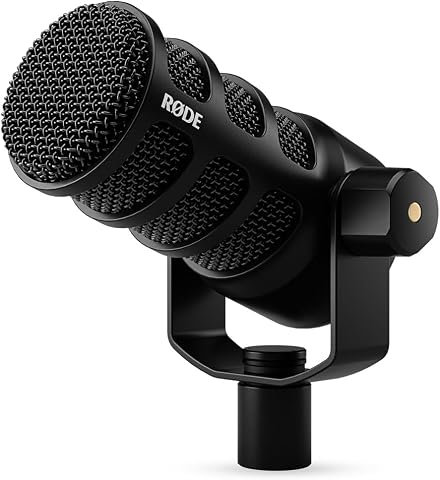
The RØDE PodMic USB is a versatile broadcast microphone with both XLR and USB-C connections, suitable for streaming, podcasts, and recording. It features onboard audio processing with APHEX DSP, noise rejection for speech clarity, and zero-latency monitoring for real-time audio feedback.
Pros:
- Versatile XLR and USB-C connectivity for flexible setup
- Built-in audio processing enhances sound quality
- Effective noise rejection for clear speech
- Zero-latency monitoring for real-time audio
Cons:
- May require additional equipment for professional XLR use
- Bulkier design compared to traditional microphones
Best for: Creators comparing USB-C and XLR workflows
Not ideal for: Setups without a compatible connection or suitable mount
Bottom line: Choose it after confirming how it will connect to your recording setup.
LED video light
Lighting shapes how clearly a subject appears on camera, making it a useful part of a repeatable video setup. The Godox SL60II-Bi Bi-Color LED Video Light Kit, 2-Pack is the pick here. The product name identifies a bi-color light kit with two lights; consider whether your room and shooting area can accommodate a two-light arrangement before choosing it.
One frequent buying mistake is selecting lighting without considering placement, power, and the space available. Measure the area where the lights would sit, check that stands or other mounting options suit your plan, and make sure the lights can be positioned without obstructing movement or the camera frame. Think about whether you need to match the room’s existing light and how you will store the kit between shoots. The name alone does not establish what accessories are included, so check the kit contents and compatibility with any stands or modifiers you intend to use. A simple placement plan can help you decide whether a two-light kit fits your workflow.
What to look for:
- Measure the available space for two lights and their stands.
- Check the included kit contents before planning a setup.
- Confirm stand and accessory compatibility.
- Plan where lights can sit without entering the camera frame.
- Consider storage and transport between shoots.
Godox SL60II-Bi Bi-Color LED Video Light Kit, 2-Pack

This two-light studio kit includes SL60II-Bi LED lights, softboxes, stands, umbrellas, reflectors, and other accessories. Each light offers adjustable brightness and color temperature, app, remote, or onboard control, and 11 FX effects for photography, video, and streaming.
Pros:
- Two lights and a broad range of included accessories
- Adjustable color temperature and dimmable brightness
- Supports app, remote, and onboard control
- Bowens mount works with compatible lighting accessories
Cons:
- The full kit weighs 26.7 lb
- Power cords are required
Best for: Creators planning a space for two lights
Not ideal for: Very compact work areas without room for placement
Bottom line: Check the room and kit contents before planning around two lights.
Smartphone tripod
A secure phone mount helps keep framing steady for demonstrations, short videos, and calls. The NEEWER Metal Phone Tripod Mount with Arca-Type QR Base and Cold Shoe is the pick for this slot. Its name calls out an Arca-type quick-release base and a cold shoe, so check that the tripod connection and any accessory you plan to attach match those interfaces.
Fit is the central buying concern: confirm that the mount accommodates your phone, including its case if you plan to leave one on. Check the mount’s opening range and how it holds the phone before building a setup around it. Another common mistake is assuming that a mount’s connection features guarantee compatibility with every tripod or accessory. Verify the tripod’s plate or base interface, and confirm that any microphone or light accessory uses a compatible attachment. Think through portrait and landscape framing, phone-button access, and whether the mount can be positioned at the angle your content needs. These checks help avoid a setup that technically attaches but is awkward to use.
What to look for:
- Confirm your phone fits with its case, if applicable.
- Check that your tripod matches the Arca-type base interface.
- Verify accessory fit for the cold shoe.
- Consider portrait and landscape framing needs.
- Check access to phone controls when mounted.
NEEWER Metal Phone Tripod Mount with Arca-Type QR Base and Cold Shoe
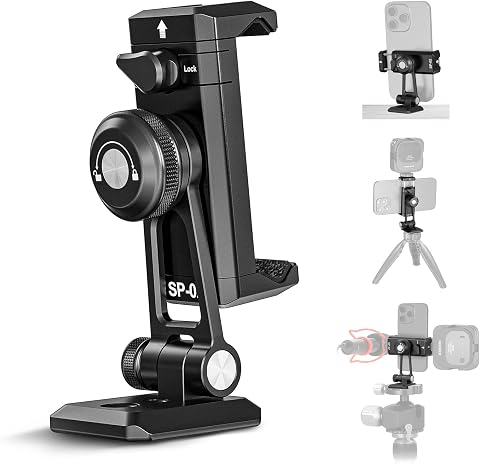
A spring-loaded phone clamp with an Arca-type quick-release base mounts compatible smartphones on tripods and other supports. It swivels and tilts for portrait or landscape framing, with padded grips and a cold shoe for attaching a small light or microphone.
Pros:
- Arca-type quick-release base and multiple thread sizes support versatile tripod mounting
- Swivel and tilt adjustments allow flexible framing
- Padded clamp helps protect the phone and prevent slipping
- Cold shoe accommodates a small light or microphone
Cons:
- Not water resistant
- Maximum recommended load is 250 g
Best for: Phone creators checking tripod and accessory fit
Not ideal for: Setups using incompatible tripod or accessory connections
Bottom line: Match the phone, tripod interface, and accessories before use.
Webcam
A webcam can support meetings, tutorials, and other camera-facing content, but this checklist does not name a specific product for the slot. Start by identifying the device you will connect it to and the software you use. The connection and mounting fit should work with your desk or screen arrangement, and the camera should frame the subject and workspace you want viewers to see.
A common mistake is choosing a webcam based on a feature list without checking how it fits the room. Consider where it will sit, how you will position it, and whether it can connect to your computer. Check the camera view from your usual seating position, and account for lighting and background in the frame. If you record more than one kind of content, consider whether the webcam’s placement can serve those uses without repeated rearranging. Confirm compatibility with your operating system and intended apps from the product documentation. A short trial call or recording can help you assess framing, focus, and sound in your actual space before you settle on a setup.
What to look for:
- Confirm compatibility with your computer and intended apps.
- Check mounting options for your screen or desk.
- Review framing from your usual camera position.
- Consider room lighting and what appears in the background.
- Try a recording in the actual workspace before settling on placement.
Drawing tablet
A drawing tablet can be useful when your content workflow includes illustration or other pen-based visual work. The pick is the Drawing Tablet with Screen XPPen Artist 22 2nd 21.5-inch Pen Display w. The name identifies a 21.5-inch pen display, making desk space and computer compatibility key checks before you choose it.
Measure the desk area available for the display and consider how you will position it alongside your keyboard, mouse, and other equipment. Check the product documentation for computer, operating system, and connection requirements; the name does not specify those details or what accessories are included. A common mistake is focusing on screen size while overlooking the room needed to work comfortably. Consider whether your chair and desk arrangement let you reach the display naturally, and whether the pen workflow suits the software you use. Also verify that the product listing matches the exact model you intend to buy, since the supplied name ends with an incomplete “w.” Confirming the full product details helps you plan a compatible workspace.
What to look for:
- Measure desk space for a 21.5-inch display and its placement.
- Confirm computer, operating system, and connection requirements.
- Check compatibility with your drawing software.
- Review included accessories and setup needs.
- Verify the complete model listing before purchase.
Drawing Tablet with Screen XPPen Artist 22 2nd 21.5-inch Pen Display with 8192 L

The XPPen Artist 22 2nd is a 21.5-inch pen display designed for digital art, offering vibrant colors, high precision, and a tilt-sensitive stylus. It supports multiple operating systems and software, making it suitable for drawing, painting, and online teaching.
Pros:
- Vibrant color display with wide color gamut
- High pressure sensitivity and tilt support for natural drawing
- Adjustable stand for comfortable working angles
- Compatible with multiple operating systems and software
Cons:
- Requires separate purchase of USB-C cable for connection
- Some users may find the setup process complex
- Price not specified in the data
Best for: Creators with desk space for pen-based visual work
Not ideal for: Compact desks or unverified computer setups
Bottom line: Confirm the full model details and workspace fit first.
Portable SSD
External storage can help keep content files together and make a working library easier to manage. The pick is the SanDisk 8TB Extreme Portable SSD. The product name states an 8TB capacity and identifies it as portable storage; confirm the connection type and compatibility with the devices you plan to use, as those details are not included in the name.
A common mistake is treating storage capacity as the only decision. Consider how you organize active projects, where backups live, and whether your computer has a compatible port. Check the product documentation for connection requirements and file-system compatibility with your devices. Plan how you will label and organize folders so footage, audio, and final exports remain easy to locate. If you work across multiple computers, confirm that your workflow can access the drive consistently. Also consider how the drive will be carried and stored between work locations. These practical checks help ensure that a portable drive fits the way you create and manage files.
What to look for:
- Confirm compatible ports on every intended device.
- Check file-system compatibility with your computers.
- Plan a folder structure for projects and exports.
- Decide where separate backups will be kept.
- Consider how you will carry and store the drive.
SanDisk 8TB Extreme Portable SSD

The SanDisk 8TB Extreme Portable SSD offers high-speed NVMe performance with up to 1050MB/s read and 1000MB/s write speeds. It features rugged durability with drop, water, and dust resistance, along with password protection and a 5-year warranty, making it ideal for active lifestyles and professional use.
Pros:
- High-speed data transfer with up to 1050MB/s read and 1000MB/s write speeds
- Rugged design with drop, water, and dust resistance for durability
- Includes password protection with 256-bit AES encryption for security
- Compact and portable, ideal for travel and on-the-go use
Cons:
- Performance may vary depending on host device and conditions
- Limited to USB 3.0 and USB 3.2 Gen 2 connectivity, may require compatible ports
- Price not specified, which could be a consideration for budget-conscious buyers
Best for: Creators organizing sizable content libraries
Not ideal for: Workflows without compatible connections or backup plans
Bottom line: Verify device compatibility and backup habits before making it your main drive.
Prioritize purchases by the biggest workflow gap. If spoken content is hard to capture, start with audio; if viewers cannot see the subject clearly, address lighting; then consider stable phone mounting, a webcam, drawing tools, and storage according to the content you make. Check compatibility and fit before each purchase.
You can build a capable content setup one useful tool at a time. Use this checklist to clarify what your workflow needs, confirm the practical details, and keep creating with the equipment that fits your space and process.
Fall Picks

Samsung Essential S3 27-Inch FHD Curved Monitor (S36GD)
As an affiliate, we earn on qualifying purchases.