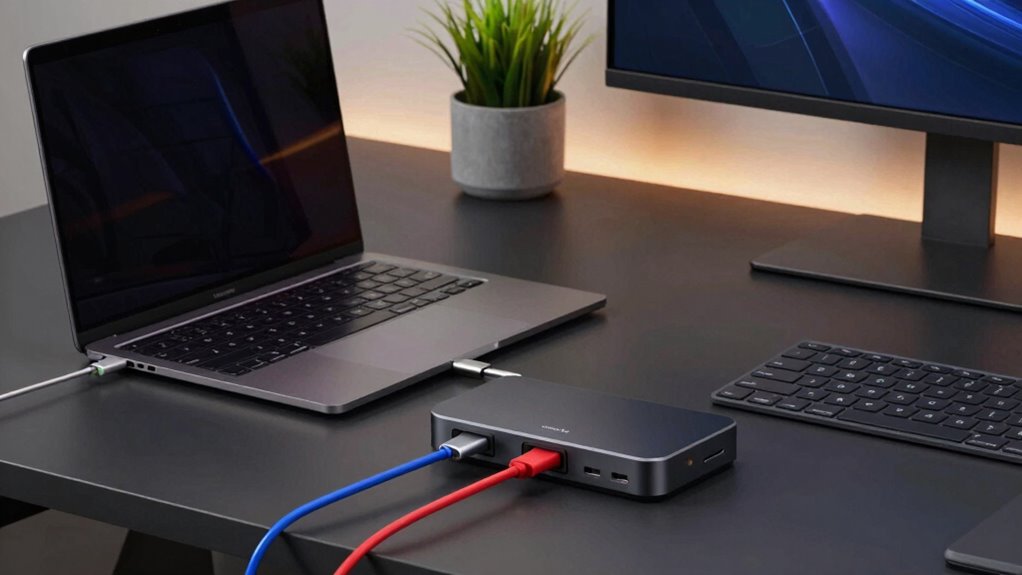

A USB-C docking station for a hot desk setup should make it easy to connect a laptop, monitor, keyboard, and network with minimal cable swapping. My best overall pick is the Anker Prime 14-in-1 Dual-Monitor Docking Station for its broad desktop connectivity, while the Anker 675 suits people who want a dock and monitor stand in one, and the Anker 332 is a simpler choice for a light setup. The main tradeoffs are port count versus desk footprint, native display support versus software-dependent multi-monitor output, and convenience versus the need to check laptop compatibility. A dock that works well for one employee may not support every laptop or display in a shared office. Read on for how the 15 options differ and which setup each one best fits.

Get business pricing on office and shipping supplies
- Business-only prices and quantity discounts
- Tax-exempt purchasing
- Multiple users, one account, clear invoices
Key Takeaways
- The Anker Prime 14-in-1 is the strongest all-around shared-desk fit: its large selection of connections favors a permanent workstation with multiple peripherals, though it takes more desk space than a compact hub.
- Integrated desk organization is a distinct advantage, not a universal upgrade: the Anker 675 combines docking and monitor-stand functions, while the Mukiya and PULWTOP also pair docking with laptop support.
- DisplayLink and native USB-C video are not interchangeable: the Anker Prime DL7400 may suit complex multi-display needs, but buyers should check software, operating-system, and workplace IT requirements.
- More ports do not automatically make a better hot-desk dock: the Anker 332 and 8-in-1 options may be easier to share and store when users need only a display, charging, and a few accessories.
- Compatibility is the deciding check across this lineup: monitor count, resolution, laptop USB-C capabilities, charging needs, and Windows-versus-macOS behavior can change which dock is suitable.
| Mukiya 8-in-1 USB-C Laptop Docking Station Stand |  | Best for an Ergonomic Hot Desk | Ports: 8: HDMI, 2 USB-A 3.0, USB-C PD, USB-C data, SD, TF | HDMI output: Up to 4K UHD (3840 × 2160) at 30 Hz | USB-A speed: Up to 5 Gbps | VIEW ON AMAZON | See Our Full Breakdown |
| Anker Prime 14-in-1 Dual-Monitor Docking Station |  | Best for a Fixed Dual-Monitor Desk | Connectivity: 14-in-1 | Total charging output: 160 W | USB-C ports: 3, up to 100 W each | VIEW ON AMAZON | See Our Full Breakdown |
| Anker 675 12-in-1 USB-C Docking Station and Monitor Stand |  | Best for a Permanent Monitor-Stand Setup | Ports: 12 total | USB-A ports: 3, up to 10 Gbps | USB-C ports: 2, up to 10 Gbps | VIEW ON AMAZON | See Our Full Breakdown |
| Anker Nano 13-in-1 Laptop Docking Station with Detachable 6-in-1 USB-C Hub |  | Best for Desk-to-Travel Flexibility | Ports: 13 | Display outputs: 2 HDMI and 1 DisplayPort | Display support: 1 display up to 4K at 60 Hz; dual 2K at 60 Hz; triple 1080p at 60 Hz | VIEW ON AMAZON | See Our Full Breakdown |
| Anker Laptop Docking Station Dual Monitor 8-in-1 USB-C Hub with 4K HDMI |  | Best Compact Value for Windows Desks | Ports: 8 total | Display outputs: 2 HDMI; one display up to 4K at 60 Hz or two at 30 Hz | USB ports: 3 total | VIEW ON AMAZON | See Our Full Breakdown |
| Dual Monitor Docking Station USB‑C Hub with 2 HDMI Ports |  | Best Lightweight Desk-Drawer Pick | Host connection: USB Type-C | Total ports: 9 | USB ports: 4 total; includes 3 USB-A 3.0 and 1 USB-C 2.0 | VIEW ON AMAZON | See Our Full Breakdown |
| Acer 13-in-1 USB-C Docking Station with Triple Display Support |  | Best for Windows Triple-Screen Desks | Total ports: 13 | Video outputs: 2 HDMI and 1 DisplayPort 1.4 | Display support: Up to three independent displays on compatible Windows laptops using MST | VIEW ON AMAZON | See Our Full Breakdown |
| Anker Nano Laptop Docking Station Dual Monitor 8-in-1 USB-C Hub for Windows |  | Best Compact Fast-Data Hub | Total ports: 8 | Video: 2 HDMI outputs, up to 4K at 60Hz each | USB data: USB ports support up to 10Gbps | VIEW ON AMAZON | See Our Full Breakdown |
| Selore 14-in-1 USB-C Docking Station for Dual Monitors |  | Best Legacy-Display Flexibility | Total ports: 14 | Display outputs: 2 HDMI and 1 VGA | USB data: USB-A and USB-C; USB 3.1 ports up to 10Gbps | VIEW ON AMAZON | See Our Full Breakdown |
| PULWTOP 11-in-1 USB-C Docking Station with Dual 4K Monitors and Vertical Laptop Stand |  | Best for a Clear, Clutter-Free Windows Desk | Total ports: 11 | Video: 2 HDMI; up to 4K at 60Hz | USB-C data ports: 2 USB-C Gen 2, up to 10Gbps | VIEW ON AMAZON | See Our Full Breakdown |
| Anker 332 5-in-1 USB-C Hub with 4K HDMI | 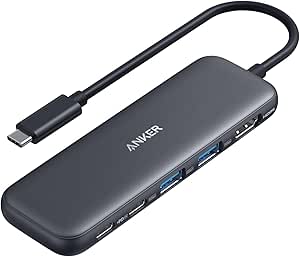 | Best Compact Grab-and-Go Pick | Ports: 5: 4K HDMI, 1 USB-C data, 2 USB-A data, 1 USB-C PD-IN | HDMI output: Up to 4K at 30 Hz | Data transfer: Up to 5 Gbps | VIEW ON AMAZON | See Our Full Breakdown |
| Dell Pro WD25 USB-C Docking Station |  | Best for Shared Office Workstations | Connection: USB-C | Power delivery: Up to 100W | Display support: Up to four high-resolution displays | VIEW ON AMAZON | See Our Full Breakdown |
| Baseus Spacemate Nomos Air 12-in-1 Docking Station for Dual Monitors |  | Best for Dual 4K Desk Setups | Total ports: 12 | Display output: Two 4K displays at 60 Hz | USB data transfer: Up to 10 Gbps | VIEW ON AMAZON | See Our Full Breakdown |
| 12-in-1 USB-C Docking Station with Dual 4K HDMI |  | Best for Mixed Windows and Mac Desks | Total ports: 12 | HDMI: 2 × 4K HDMI | USB ports: 4 USB-A: 2 USB 3.0 and 2 USB 2.0; 2 USB-C 3.0 | VIEW ON AMAZON | See Our Full Breakdown |
| Anker Prime DL7400 14-in-1 DisplayLink Docking Station |  | Best for Triple-Display Power Users | Total ports: 14 | Display outputs: 2 HDMI and 1 DisplayPort; up to three 4K displays | USB-C upstream power: Up to 140W | VIEW ON AMAZON | See Our Full Breakdown |
| usb c docking station for hot desk setup | Compatibility | Power delivery | Total ports |
|---|---|---|---|
| Mukiya 8-in-1 USB-C Laptop Doc | — | Up to 100 W input; up to 90 W laptop charging | — |
| Anker Prime 14-in-1 Dual-Monit | USB-C, USB4, and Thunderbolt; Windows 10/11 and ChromeOS | — | — |
| Anker 675 12-in-1 USB-C Dockin | — | — | — |
| Anker Nano 13-in-1 Laptop Dock | USB-C and Thunderbolt 3/4/5 laptops; Windows 10 or later | — | — |
| Anker Laptop Docking Station D | USB-C, USB4, and Thunderbolt laptops; Windows 10/11, ChromeOS, and macOS with mirrored displays | — | — |
| Dual Monitor Docking Station U | — | Up to 100W input; up to 90W laptop output | 9 |
| Acer 13-in-1 USB-C Docking Sta | — | — | 13 |
| Anker Nano Laptop Docking Stat | Windows 10/11 and ChromeOS; laptops with DP Alt Mode and Power Delivery; macOS mirrors only | 100W PD input; up to 85W upstream laptop output | 8 |
| Selore 14-in-1 USB-C Docking S | USB-C devices supporting DisplayPort Alternate Mode or Thunderbolt 3 | 100W input; up to 87W laptop charging output | 14 |
| PULWTOP 11-in-1 USB-C Docking | Windows, ChromeOS, Android, and Ubuntu devices with full-featured USB-C, USB4, or Thunderbolt 3/4/5; not compatible with Mac | Up to 100W input; up to 85W laptop charging | 11 |
| Anker 332 5-in-1 USB-C Hub wit | USB-C, USB4, and Thunderbolt; macOS 12+, Windows 10/11, and ChromeOS; not Linux | — | — |
| Dell Pro WD25 USB-C Docking St | — | Up to 100W | — |
| Baseus Spacemate Nomos Air 12- | — | Up to 100W | 12 |
| 12-in-1 USB-C Docking Station | USB-C laptops supporting DisplayPort Alt Mode and Power Delivery | Up to 100W pass-through | 12 |
| Anker Prime DL7400 14-in-1 Dis | Windows 10 and Windows 11; triple-display use requires the latest DisplayLink driver | — | 14 |
More Details on Our Top Picks
Mukiya 8-in-1 USB-C Laptop Docking Station Stand
The Mukiya is the most useful pick here when a shared desk needs to become a workable laptop station quickly: it combines a height-adjustable stand with an HDMI connection, everyday USB ports, and card readers. Its nine height settings can raise the screen without adding a separate laptop riser, while the folding design is easier to carry between work locations than the full-size Anker 675 monitor-stand dock. The tradeoff is that this is a lighter, laptop-centered hub, not a substitute for a fixed multi-display workstation. HDMI tops out at 4K at 30 Hz, and card-reader speeds are listed at up to 25 MB/s. I’d also check that the laptop’s USB-C port supports video before relying on the HDMI output. Choose it for posture and portability; skip it if fast card transfers or smoother high-refresh video matter more.
Pros:- Combines a laptop stand and USB-C hub, reducing separate desk accessories
- Nine height settings and non-slip pads support a more adjustable setup
- Folds to a compact size and includes a storage bag for carrying
- Provides HDMI, two USB-A ports, USB-C, SD, and TF connections
Cons:- HDMI is limited to 4K at 30 Hz
- HDMI requires a laptop USB-C port that supports video output
- SD and TF transfer speeds are listed at up to 25 MB/s
Best for: Hot-desk workers who carry their laptop between locations and want an adjustable stand plus basic display and peripheral connections in one portable unit.
Not ideal for: Users who need 4K at 60 Hz, fast SD or TF card transfers, or HDMI support from a USB-C port without video output capability.
- Ports:8: HDMI, 2 USB-A 3.0, USB-C PD, USB-C data, SD, TF
- HDMI output:Up to 4K UHD (3840 × 2160) at 30 Hz
- USB-A speed:Up to 5 Gbps
- Power delivery:Up to 100 W input; up to 90 W laptop charging
- Height adjustment:9 levels
- Material:Aluminum alloy
- Maximum supported laptop weight:40 lbs
- Folded dimensions and weight:10.5 × 2.2 × 0.9 inches; 11.2 ounces
Our verdict“Choose the Mukiya if an adjustable, foldable laptop stand matters more than high-refresh video or fast card transfers.”
Anker Prime 14-in-1 Dual-Monitor Docking Station
For a hot desk that needs a dependable spread of connections rather than a compact travel hub, the Anker Prime brings 14-in-1 connectivity, dual HDMI, and substantial combined charging output. Its three USB-C ports and transfer speeds up to 10 Gbps suit desks where several devices need to connect or charge at once. Compared with the detachable hub in the Anker Nano 13-in-1, this is a more desk-focused choice: it offers broad connectivity but lacks that model’s removable travel piece. Display behavior is the key limitation. On macOS, the two external screens mirror each other, while supported resolutions depend on the laptop’s DisplayPort version; Linux is not supported. The 1.28 kg plastic enclosure is also less appealing for a bag. I’d rank it highly for Windows or ChromeOS users settling into a two-screen station, not for Mac users who expect extended desktops.
Pros:- 14-in-1 connectivity with dual HDMI outputs
- Up to 160 W total charging output and three USB-C ports rated up to 100 W each
- Data transfer speeds up to 10 Gbps
- Works with USB-C, USB4, and Thunderbolt connections
Cons:- macOS mirrors the image across both external displays
- Linux is not supported
- At 1.28 kg, it is better suited to a fixed desk than regular travel
Best for: Windows or ChromeOS hot-desk users who want dual external displays, multiple USB-C connections, and charging for several devices from a stationary dock.
Not ideal for: Mac users who need separate extended images on two external monitors, Linux users, or commuters seeking a lightweight dock to carry daily.
- Connectivity:14-in-1
- Total charging output:160 W
- USB-C ports:3, up to 100 W each
- Data transfer rate:Up to 10 Gbps
- Display outputs:2 HDMI
- Display resolution:Up to 2K at 60 Hz with DP 1.4; 1080p at 60 Hz with DP 1.2
- Compatibility:USB-C, USB4, and Thunderbolt; Windows 10/11 and ChromeOS
- Weight and material:1.28 kg; plastic enclosure
Our verdict“Pick the Anker Prime for a Windows or ChromeOS hot desk with two monitors and several devices, but not for independent dual displays on macOS.”
Anker 675 12-in-1 USB-C Docking Station and Monitor Stand
The Anker 675 suits a hot desk that is shared by one person or kept in place, where lifting the monitor and consolidating connections matter more than easy packing. Its monitor-stand design creates space beneath the screen, while HDMI, Ethernet, card readers, USB ports, and wireless charging cover a broad mix of desk needs. Compared with the portable Mukiya, it is a substantial 3.7-pound desktop fixture rather than a foldable laptop support; that bulk pays off if the monitor can stay put. Its single HDMI output supports 4K at 60 Hz, but video is HDMI-only, so it does not offer a second display connection. The two USB-C Power Delivery ports share up to 45 W, which limits how much charging power is available through them. I’d choose it for a tidy, monitor-centered station, not for a frequently changing desk or multi-monitor setup.
Pros:- Combines a monitor stand with a 12-port docking station
- Single HDMI output supports up to 4K at 60 Hz
- Includes Ethernet, SD and microSD/TF card slots, and wireless charging
- Upstream USB-C supports up to 100 W
Cons:- Large, heavy form factor is inconvenient for a mobile hot-desk routine
- Video output is HDMI-only and limited to one display
- Two USB-C Power Delivery ports share up to 45 W
Best for: Workers with a monitor-based hot desk who want a raised monitor platform, Ethernet, wireless charging, card readers, and a single 4K display connection.
Not ideal for: People who carry their dock between desks, need multiple external monitors, or expect the USB-C Power Delivery ports to provide high charging output individually.
- Ports:12 total
- USB-A ports:3, up to 10 Gbps
- USB-C ports:2, up to 10 Gbps
- Upstream USB-C power:Up to 100 W
- USB-C Power Delivery:2 ports share up to 45 W
- Video output:1 HDMI port, up to 4K at 60 Hz
- Additional connections:SD and microSD/TF card slots; Ethernet
- Dimensions and weight:21.26 × 8.66 × 3.54 inches; 3.7 lb
Our verdict“Choose the Anker 675 when you want a lasting monitor-stand station with broad desk connectivity and do not need a portable or multi-monitor dock.”
Anker Nano 13-in-1 Laptop Docking Station with Detachable 6-in-1 USB-C Hub
The Anker Nano is the most adaptable option here for someone who alternates between a prepared desk and working elsewhere: its detachable 6-in-1 hub can travel while the larger dock stays set up. At the desk, two HDMI ports and DisplayPort support up to three external displays, alongside Gigabit Ethernet and up to 100 W laptop charging. That makes it more versatile than the single-display Anker 675, while the Mukiya is easier to carry as a stand but does not offer the same multi-display reach. Display limits deserve attention: the Nano supports one 4K display at 60 Hz, dual 2K at 60 Hz, or triple 1080p at 60 Hz, and macOS mirrors multiple external displays. It also needs a laptop connection to activate. I’d favor it for compatible Windows users who split time between a shared desk and travel, rather than Mac users seeking independent screens.
Pros:- Detachable 6-in-1 hub offers a separate travel-friendly connection option
- Supports up to three external displays with stated resolution modes
- Provides up to 100 W laptop charging and data transfer up to 10 Gbps
- Includes a 140 W power adapter and 3-foot USB-C cable
Cons:- macOS mirrors the image across multiple external displays
- Requires a connected laptop to activate
- Triple-display mode is limited to 1080p at 60 Hz per display
Best for: Windows laptop users who move between a multi-display hot desk and travel, and want a detachable hub for lighter carry.
Not ideal for: Mac users who need distinct images across multiple external screens, or anyone expecting the dock to operate without a connected laptop.
- Ports:13
- Display outputs:2 HDMI and 1 DisplayPort
- Display support:1 display up to 4K at 60 Hz; dual 2K at 60 Hz; triple 1080p at 60 Hz
- USB-C data transfer:Up to 10 Gbps
- Laptop charging:Up to 100 W Power Delivery
- Included power adapter:140 W
- Ethernet:Gigabit
- Compatibility:USB-C and Thunderbolt 3/4/5 laptops; Windows 10 or later
Our verdict“Choose the Anker Nano if you want a capable Windows desk dock with a detachable hub for travel, and its display behavior matches your laptop.”
Anker Laptop Docking Station Dual Monitor 8-in-1 USB-C Hub with 4K HDMI
This compact Anker hub makes sense when a hot desk needs familiar connections without the footprint of a full desktop dock. At just 3.2 ounces, it is easier to move than the 3.7-pound Anker 675, and its eight connections include dual HDMI, Gigabit Ethernet, SD/TF reading, and USB-A ports. Pass-through charging reaches 85 W, enough to power many laptop setups while keeping a USB-C port free for the hub. The display modes are more conditional than the dual-HDMI label may suggest: one output can reach 4K at 60 Hz, while two displays run at 30 Hz, and macOS mirrors the image. Linux is unsupported, and the product requires a separate 100 W PD wall charger and USB-C cable. I’d pick it for a Windows user who needs a small, portable dual-display hub, not someone seeking a ready-to-use package or Mac extended desktops.
Pros:- Lightweight, compact chassis is easy to move between hot desks
- Dual HDMI outputs, with one supporting up to 4K at 60 Hz
- Includes Gigabit Ethernet, SD/TF reader, and multiple USB-A ports
- USB-C pass-through charging supports up to 85 W
Cons:- Dual-display mode is limited to 30 Hz, and macOS mirrors the displays
- Linux is not supported
- Requires a separate 100 W PD wall charger and USB-C cable
Best for: Windows 10/11 or ChromeOS users who want a lightweight hub for a shared desk with Ethernet, card readers, dual HDMI, and pass-through laptop charging.
Not ideal for: Linux users, Mac users needing independent images on two external screens, or buyers who need the charger and USB-C cable included.
- Ports:8 total
- Display outputs:2 HDMI; one display up to 4K at 60 Hz or two at 30 Hz
- USB ports:3 total
- Pass-through charging:Up to 85 W
- Network:Gigabit Ethernet
- Card reader:SD and TF
- Compatibility:USB-C, USB4, and Thunderbolt laptops; Windows 10/11, ChromeOS, and macOS with mirrored displays
- Dimensions and weight:4.65 × 2.01 × 0.69 inches; 3.2 ounces
Our verdict“Pick this Anker hub for a compact Windows hot-desk kit if you already have the required charger and do not need extended displays on macOS.”
Dual Monitor Docking Station USB‑C Hub with 2 HDMI Ports
For hot desks where the dock needs to be easy to carry or stash between shifts, this 2.88-ounce hub pairs dual HDMI outputs with Gigabit Ethernet, audio, and three USB-A ports. Its advertised dual 4K at 60Hz support is a useful step up from older VGA-equipped options such as the Selore 14-in-1, though display behavior still depends on the laptop: macOS mirrors rather than extending across both screens. The dock can pass up to 90W to a laptop from a 100W PD connection, but no power adapter is included, and some laptops may show a slow-charger warning. I’d choose it over the Acer 13-in-1 when portability matters more than a supplied adapter or extra display outputs. Its broad OS support is appealing, but buyers should check their laptop’s USB-C video and charging support before relying on it as a shared, plug-in-and-go station.
Pros:- Lightweight 2.88-ounce design is easy to move or store.
- Two HDMI outputs support up to 4K at 60Hz.
- Includes Gigabit Ethernet, audio, and three USB-A 3.0 ports.
- Supports up to 90W laptop charging with a suitable 100W power input.
Cons:- Power adapter is not included.
- macOS supports mirroring only for dual displays.
- Some laptops may show a slow-charger warning.
Best for: Hybrid workers who carry a lightweight dock between hot desks and need Ethernet, USB-A peripherals, and two HDMI connections.
Not ideal for: Mac users who need separate extended desktops, or office teams that want a complete dock-and-power setup without sourcing a compatible adapter.
- Host connection:USB Type-C
- Total ports:9
- USB ports:4 total; includes 3 USB-A 3.0 and 1 USB-C 2.0
- Video:2 HDMI outputs; up to 4K at 60Hz
- Data rate:Up to 5Gbps
- Networking and audio:Gigabit Ethernet and audio jack
- Power delivery:Up to 100W input; up to 90W laptop output
- Dimensions and weight:4.72 × 2.36 × 0.59 inches; 2.88 ounces
- Compatibility and warranty:macOS, Windows, Linux, ChromeOS, and Android; 2-year warranty
Our verdict“Choose this for a portable hot-desk kit with useful wired connectivity, provided you supply power and do not need extended dual displays on a Mac.”
Acer 13-in-1 USB-C Docking Station with Triple Display Support
When a hot desk is shared by Windows users who need several screens and a predictable power setup, Acer’s included 110W adapter gives it an advantage over the Vicfluxion and PULWTOP docks, which require a separate power source. On compatible Windows laptops, its HDMI and DisplayPort connections can support three independent displays; the listed triple-4K mode runs at 30Hz, and support depends on the laptop, GPU, and DSC compatibility. That makes this a stronger fit for document-heavy workflows than for users chasing high-refresh display output. The port mix also covers Ethernet, audio, and SD/TF cards, while the aluminum enclosure is designed to dissipate heat. The tradeoff is significant for mixed Mac offices: macOS mirrors displays only. I’d pick it over the Selore when the power adapter and DisplayPort matter, but skip it if every desk user needs a simple, OS-agnostic extended-display setup.
Pros:- 110W adapter is included and supports up to 100W laptop charging.
- Can drive three independent displays on compatible Windows laptops.
- HDMI, DisplayPort, Ethernet, audio, and SD/TF readers cover varied desk needs.
- Aluminum enclosure is designed to dissipate heat.
Cons:- macOS supports display mirroring only, not extended desktops.
- Triple-display and high-resolution modes depend on laptop, GPU, and DSC compatibility.
- Rear USB-C port is data-only and cannot connect monitors or Thunderbolt devices.
Best for: Windows-based hot desks used by analysts, designers, or office staff who need up to three displays and want the power adapter supplied.
Not ideal for: Mac users needing extended desktops, or teams whose laptops have not been checked for triple-display and DSC support.
- Total ports:13
- Video outputs:2 HDMI and 1 DisplayPort 1.4
- Display support:Up to three independent displays on compatible Windows laptops using MST
- Maximum listed resolution:Triple 4K at 30Hz on compatible Windows systems with DSC
- USB ports:4 USB-C and 3 USB-A
- Other connections:Gigabit Ethernet, 3.5 mm AUX, SD and TF card readers
- Power:110W adapter included; up to 100W laptop charging
- Material:Aluminum
- Included accessories:USB 4.0 Type-C cable, user manual, and quick guide
Our verdict“Pick Acer for a Windows hot desk that needs three displays and an included power adapter, after confirming the host laptop supports the desired display mode.”
Anker Nano Laptop Docking Station Dual Monitor 8-in-1 USB-C Hub for Windows
The Anker Nano is the clearest choice here for a crowded hot desk where small size and fast peripheral transfers matter more than a large port count. It offers two HDMI outputs rated up to 4K at 60Hz and 10Gbps data on all USB ports, plus SD and TF card slots. Compared with the Vicfluxion, it trades Gigabit Ethernet and an audio jack for faster stated USB data and card readers; the Acer 13-in-1 is a better fit if the desk needs more display choices or an included power adapter. This hub passes up to 85W to a laptop, but reaching that level requires a separate 100W PD charger. It is designed for Windows laptops with DP 1.4 Alt Mode, and macOS mirrors displays only. That makes it a tidy shared-desk option for compatible Windows users, not a universal dock for a mixed fleet.
Pros:- Compact 8-in-1 design takes up little desk space.
- Two HDMI outputs support up to 4K at 60Hz each.
- USB ports support data rates up to 10Gbps.
- SD and TF card slots support UHS-III, with listed speeds up to 104MB/s.
Cons:- A separate 100W PD charger is required for full 85W laptop pass-through.
- macOS supports mirrored displays only.
- No Gigabit Ethernet or audio jack is listed.
Best for: Windows laptop users who move between compact hot desks, transfer files through USB or card readers, and need two HDMI displays.
Not ideal for: Mac users who need extended displays, or hot-desk teams that require built-in Ethernet, an audio jack, or an included charger.
- Total ports:8
- Video:2 HDMI outputs, up to 4K at 60Hz each
- USB data:USB ports support up to 10Gbps
- USB port count:4 USB-A and 2 USB-C
- Power delivery:100W PD input; up to 85W upstream laptop output
- Card readers:SD and TF; UHS-III, up to 104MB/s
- Compatibility:Windows 10/11 and ChromeOS; laptops with DP Alt Mode and Power Delivery; macOS mirrors only
- Dimensions and weight:7.87 × 4.13 × 0.79 inches; 3.84 ounces
Our verdict“Choose the Nano for a compact Windows hot-desk hub with fast USB data and dual HDMI, if you can provide the charger and do not need Ethernet.”
Selore 14-in-1 USB-C Docking Station for Dual Monitors
Selore’s main hot-desk advantage is its three kinds of display output: two HDMI ports plus VGA can help a shared workspace accommodate newer monitors alongside an older projector or screen. On compatible Windows systems, the dock can support up to three displays, but modes depend on the host; Mac display support is limited to mirroring. Against the Acer 13-in-1, Selore adds VGA and lists 10Gbps USB 3.1 data, while Acer supplies a power adapter and uses a more display-focused HDMI/DisplayPort mix. Selore accepts a 100W power input and delivers up to 87W to the laptop, so the power source needs to be part of the desk setup. Its Ethernet, audio, card readers, and plug-and-play operation make it a practical connector-rich choice, though the plastic enclosure is less premium than Acer’s aluminum body.
Pros:- HDMI and VGA outputs provide flexibility for mixed-age displays.
- Up to three screens are supported on compatible Windows systems.
- Includes Gigabit Ethernet, audio, SD, and microSD readers.
- USB 3.1 data ports support speeds up to 10Gbps.
Cons:- Display output requires USB-C DisplayPort Alternate Mode or Thunderbolt 3 support.
- Mac display support is limited to mirroring.
- 100W power input and up to 87W laptop output mean a compatible power source is needed.
Best for: Windows hot-desk teams that rotate among HDMI monitors and older VGA displays and need Ethernet, card readers, and audio in one hub.
Not ideal for: Mac users who need extended monitors, or offices that want an included power adapter and a metal enclosure.
- Total ports:14
- Display outputs:2 HDMI and 1 VGA
- USB data:USB-A and USB-C; USB 3.1 ports up to 10Gbps
- Card readers:SD and microSD, up to 200Mbps
- Ethernet:1000Mbps
- Power delivery:100W input; up to 87W laptop charging output
- Audio:3.5 mm port
- Compatibility:USB-C devices supporting DisplayPort Alternate Mode or Thunderbolt 3
- Enclosure:Plastic, grey
Our verdict“Choose Selore when a shared Windows desk must connect both modern HDMI screens and older VGA hardware, and supply power separately.”
PULWTOP 11-in-1 USB-C Docking Station with Dual 4K Monitors and Vertical Laptop Stand
PULWTOP combines a dock with a vertical laptop stand, making it the most desk-layout-focused option in this group. For a fixed hot desk, that can free up space beside the keyboard while connecting two independent 4K displays at 60Hz on compatible Windows laptops. Its USB-C Gen 2 and USB-A Gen 2 ports support 10Gbps data, with additional USB 3.0 and USB 2.0 connections for everyday peripherals. Compared with the Anker Nano, PULWTOP adds the stand and Gigabit Ethernet, but it is much less flexible for mixed-device offices: it is not compatible with Mac, and USB-C ports are data-only rather than video or charging outputs. Laptop charging reaches up to 85W with a suitable adapter, which is not included. I’d favor it when the laptop stays at the desk; frequent movers may prefer the lighter, standalone Vicfluxion hub.
Pros:- Integrated vertical stand helps reclaim desk surface.
- Supports two independent 4K displays at 60Hz on compatible Windows systems.
- Includes Gigabit Ethernet and USB data ports up to 10Gbps.
- Provides up to 85W laptop charging with a suitable adapter.
Cons:- Not compatible with Mac computers.
- Power adapter is not included.
- USB-C data ports do not provide video output or charging.
Best for: Windows hot-desk users who usually leave their laptop at the station and want a vertical stand, wired networking, and dual 4K displays.
Not ideal for: Mac users, people who regularly carry the dock between desks, or teams expecting the dock’s USB-C ports to charge devices or drive extra monitors.
- Total ports:11
- Video:2 HDMI; up to 4K at 60Hz
- USB-C data ports:2 USB-C Gen 2, up to 10Gbps
- USB-A ports:1 USB-A Gen 2 at 10Gbps, 2 USB 3.0 at 5Gbps, and 1 USB 2.0
- Ethernet:Gigabit Ethernet
- Power delivery:Up to 100W input; up to 85W laptop charging
- Compatibility:Windows, ChromeOS, Android, and Ubuntu devices with full-featured USB-C, USB4, or Thunderbolt 3/4/5; not compatible with Mac
- Dimensions:2.32 × 1.63 × 1.8 inches
- Design:Integrated vertical laptop stand
Our verdict“Pick PULWTOP for a mostly fixed Windows hot desk where the laptop stand and cable consolidation matter more than Mac support or portability.”
Anker 332 5-in-1 USB-C Hub with 4K HDMI
For a hot desk where I want to carry as little as possible, the Anker 332 covers everyday connections without the footprint of a full dock. Its HDMI output, two USB-A ports, USB-C data port, and pass-through charging let me connect a display and common peripherals from one small hub. Compared with the Dell Pro WD25, it has far fewer ports and no Ethernet, but it is also much lighter and simpler to pack between workstations. The tradeoff is a 4K limit of 30 Hz, which is less fluid than a 60 Hz display connection, and its USB-C PD input handles charging only. I would skip it for Linux systems or multi-monitor desks; for a single-screen setup, its compact layout is the appeal.
Pros:- Compact 1.44-ounce design is easy to move between desks.
- Includes HDMI, two USB-A data ports, and a USB-C data port.
- Pass-through charging supports up to 85W.
- Data ports support speeds up to 5 Gbps.
Cons:- HDMI output is limited to 4K at 30 Hz.
- USB-C PD-IN is for charging only, and USB-C ports do not output video.
- Not compatible with Linux.
Best for: Hot-desk workers with a USB-C laptop, one external monitor, and a few USB peripherals who want a hub that is easy to carry.
Not ideal for: Linux users, multi-monitor setups, or desks that need wired Ethernet and a full-size port selection.
- Ports:5: 4K HDMI, 1 USB-C data, 2 USB-A data, 1 USB-C PD-IN
- HDMI output:Up to 4K at 30 Hz
- Data transfer:Up to 5 Gbps
- Pass-through charging:Up to 85W
- Compatibility:USB-C, USB4, and Thunderbolt; macOS 12+, Windows 10/11, and ChromeOS; not Linux
- Dimensions:4.78 × 1.59 × 0.45 inches
- Weight:1.44 oz
- Warranty:18 months
Our verdict“Choose the Anker 332 if portability and basic single-monitor hot-desk connections matter more than Ethernet, higher refresh rates, or extensive expansion.”
Dell Pro WD25 USB-C Docking Station
The Dell Pro WD25 is the strongest fit here for a hot desk that stays equipped for different employees and demanding display setups. It combines six USB ports with HDMI, DisplayPort, and Ethernet, while delivering up to 100W USB-C power to a connected laptop. That makes it more suitable as a station fixture than the portable Anker 332, which is easier to carry but lacks Ethernet and broad display support. Dell lists support for up to four high-resolution displays, though the exact setup depends on the host system and display configuration. Its 1.2-pound body is less appealing to someone packing a dock daily, and operating-system support is limited to the versions specified. I would favor it for a managed office desk, not a lightweight personal travel kit.
Pros:- Supports up to four high-resolution displays.
- Provides up to 100W USB-C power delivery.
- Combines DisplayPort, HDMI, Ethernet, and six USB ports.
- Uses at least 65% postconsumer recycled materials and includes a three-year limited hardware warranty with Advanced Exchange.
Cons:- At 1.2 pounds, it is less convenient to carry than a compact hub.
- Compatible operating systems are limited to the versions listed in the product data.
Best for: Office teams setting up shared desks for employees who need wired networking, multiple displays, and laptop charging from one dock.
Not ideal for: Frequent commuters seeking a small carry-on hub or users whose operating-system version is outside Dell’s listed compatibility.
- Connection:USB-C
- Power delivery:Up to 100W
- Display support:Up to four high-resolution displays
- Ports:10 total, including 6 USB ports, HDMI, DisplayPort, and Ethernet
- Compatible operating systems:Windows 10/11, Ubuntu 24.04, Red Hat Enterprise Linux 9.6+, and ChromeOS 137
- Dimensions:8.07 × 3.54 × 1.39 inches
- Weight:1.2 lb
- Recycled materials:At least 65% postconsumer recycled materials
- Warranty:3-year limited hardware warranty with Advanced Exchange
Our verdict“Pick the Dell Pro WD25 for a shared workstation that needs multiple display connections, wired Ethernet, and a substantial set of ports.”
Baseus Spacemate Nomos Air 12-in-1 Docking Station for Dual Monitors
For a hot desk built around two sharp external displays, the Baseus Spacemate Nomos Air offers a more focused match than the simpler Anker 332. It supports dual 4K at 60 Hz and pairs that display capacity with 1 Gbps Ethernet, USB connections rated up to 10 Gbps, and SD and TF card readers. That mix can reduce the adapters a creative or technical worker has to bring along. Its 31.5-inch host cable gives some placement flexibility, although the dock itself weighs 0.62 kg and takes more desk space than a pocket hub. The main setup catch is that the charger is not included; laptop charging also depends on supplying a compatible power source, and dual-display support can vary by laptop. I would check the host computer before choosing it.
Pros:- Supports two 4K displays at 60 Hz.
- USB ports support data transfer up to 10 Gbps.
- Combines 1 Gbps Ethernet with SD and TF card readers.
- Offers up to 100W power delivery and a 31.5-inch host cable.
Cons:- Charger is not included.
- Dual-monitor support depends on the laptop.
- Heavier and bulkier than compact hubs such as the Anker 332.
Best for: Laptop users who regularly work from a two-monitor hot desk and need fast peripheral connections, wired networking, and SD/TF card access.
Not ideal for: Buyers seeking a ready-to-use dock with a charger included, or anyone whose laptop cannot support the stated dual-display setup.
- Total ports:12
- Display output:Two 4K displays at 60 Hz
- USB data transfer:Up to 10 Gbps
- Power delivery:Up to 100W
- Ethernet:1 Gbps
- Card readers:SD and TF
- Host cable:31.5 inches
- Dimensions and weight:6.46 × 4.72 × 2.91 inches; 0.62 kg
- Charger:Not included
Our verdict“Choose the Baseus if your hot desk needs dual 4K screens and card-reader access, and you already have a compatible charger and laptop.”
12-in-1 USB-C Docking Station with Dual 4K HDMI
This 12-in-1 USB-C docking station bundles two HDMI ports, Gigabit Ethernet, card readers, and a broad range of USB connections in a compact aluminum-alloy body. For a shared hot desk used by both Windows and Mac laptop owners, its display behavior is a key distinction: Windows can extend across two screens, while Mac dual-display output mirrors rather than providing separate extended desktops. That limitation makes it less flexible than the Baseus Spacemate Nomos Air, which lists dual 4K at 60 Hz, though the Baseus also has a more prominent charger-not-included caveat. This dock offers up to 100W pass-through charging, but it does not include a charger in the listed product data. It also requires a laptop with DisplayPort Alt Mode and Power Delivery, so I would verify host support before standardizing it across a shared desk.
Pros:- Provides two 4K HDMI ports and up to 100W pass-through charging.
- Includes Gigabit Ethernet and SD/TF readers that can read simultaneously.
- Offers four USB-A and two USB-C ports.
- Compact aluminum-alloy enclosure measures 5 × 3 × 1.2 inches.
Cons:- Mac dual-display mode mirrors rather than extending the desktop.
- Requires USB-C DisplayPort Alt Mode and Power Delivery support from the laptop.
- USB data transfer is limited to up to 5 Gbps.
Best for: Hot-desk users with compatible USB-C laptops who want Ethernet, card readers, and dual HDMI connections, especially Windows users who need extended displays.
Not ideal for: Mac users who need two independent extended displays, or laptop owners without USB-C DisplayPort Alt Mode and Power Delivery support.
- Total ports:12
- HDMI:2 × 4K HDMI
- USB ports:4 USB-A: 2 USB 3.0 and 2 USB 2.0; 2 USB-C 3.0
- Power delivery:Up to 100W pass-through
- Ethernet:Gigabit, up to 1000 Mbps
- Data transfer:Up to 5 Gbps
- Card readers:SD and TF; simultaneous reading supported
- Display modes:Windows extended mode (MST); Mac mirror mode (SST)
- Compatibility:USB-C laptops supporting DisplayPort Alt Mode and Power Delivery
Our verdict“Choose this dock for a compatible Windows hot desk with two extended HDMI displays, but look elsewhere if Mac users need separate desktops on both monitors.”
Anker Prime DL7400 14-in-1 DisplayLink Docking Station
The Anker Prime DL7400 is the most display-oriented choice in this group, built for a hot desk where one laptop must drive up to three 4K screens. Its HDMI and DisplayPort outputs, up to 140W USB-C upstream power, 2.5Gbps Ethernet, and SD/TF slots make it a more capable fixed workstation hub than the Dell Pro WD25 for the stated triple-display use. That added reach comes with real setup conditions: triple-display operation requires Windows 10 or 11 and the latest DisplayLink driver, while DRM-protected streaming may show a black screen. The built-in display and fan provide status and cooling, but its 834.1-gram body is not a casual pocket carry. I would choose it for a permanent, high-output desk rather than a shared station that needs effortless cross-platform plug-in use.
Pros:- Supports up to three 4K displays.
- Provides up to 140W USB-C upstream power.
- Includes 2.5Gbps Ethernet, SD/TF slots, and a 3.5 mm audio jack.
- Built-in display and fan provide status monitoring and cooling.
Cons:- Triple-display use requires Windows 10 or 11 and the latest DisplayLink driver.
- DRM-protected streaming may show a black screen.
- Front USB-C ports do not support video output, and the dock is relatively heavy to carry.
Best for: Windows professionals who regularly use three 4K displays, high-speed wired networking, and substantial laptop charging at a fixed hot desk.
Not ideal for: Mac or non-Windows users, people who want driver-free triple-display use, and workers who carry their dock between locations.
- Total ports:14
- Display outputs:2 HDMI and 1 DisplayPort; up to three 4K displays
- USB-C upstream power:Up to 140W
- Front USB-C charging:Up to 100W per port
- Ethernet:2.5Gbps
- Audio and card slots:3.5 mm headphone and microphone combo jack; SD and TF
- Compatibility:Windows 10 and Windows 11; triple-display use requires the latest DisplayLink driver
- Dimensions and weight:7.67 × 3.62 × 1.89 inches; 834.1 g
- Included cable:USB-C 3.2 Gen 2, 3.3 ft
Our verdict“Pick the DL7400 for a Windows hot desk that needs three 4K screens and high charging capacity, provided the DisplayLink driver and streaming limitations fit your workflow.”

How We Picked
I ranked these docks around the needs of a shared workstation: quick laptop connection, useful port selection, predictable display support, desk footprint, and ease of handoff. A hot-desk dock should reduce daily cable handling without forcing every user to adopt the same laptop or monitor setup. I gave more weight to practical flexibility than raw port count, and treated integrated stands, detachable hubs, and compact designs as advantages only when they match a clear desk-use pattern.
Compatibility and tradeoffs shaped the order as much as features. Models with broad connectivity, such as the Anker Prime 14-in-1, lead for users who need a full workstation, while simpler hubs rank better for lighter needs rather than pretending to replace a powered desktop dock. DisplayLink models, triple-display docks, and dual-monitor hubs require extra scrutiny of laptop support, operating system, and video limits. The ranking reflects likely fit for hot desks, not a claim that every model works with every computer or monitor.
Factors to Consider When Choosing Usb C Docking Station For Hot Desk Setups
For a hot desk, the right dock is the one that works reliably across the laptops people actually bring and keeps shared equipment easy to use. I would check the following before choosing by port count or display claims.
Check the Laptop’s USB-C Capabilities
A USB-C connector does not guarantee the same docking features on every laptop. The port may support charging and data but not video, or it may use Thunderbolt or USB4 for higher-bandwidth displays. Ask IT or check the laptop specifications for DisplayPort Alt Mode, Thunderbolt, USB4, and power delivery support. In a shared office, test against the least capable laptop that still needs the desk before standardizing on a dock. This can prevent a situation where one employee gets two displays while another gets none through the same cable.
Match Display Support to Real Workloads
Count the monitors and check their resolution and refresh rate together, not as separate headline specifications. A dock advertised for dual or triple displays may rely on DisplayLink software, a particular operating system, or a host connection with enough bandwidth. DisplayLink can help with multi-display setups, but it may not suit every managed computer or workflow that restricts drivers. Native video output is often the simpler path when laptop support and monitor count align. Before buying, confirm how the dock behaves with the exact mix of laptops and screens used at the desk.
Choose a Port Layout People Can Share
Hot desks often need ports for a monitor, wired network, keyboard, mouse, headset, and occasional storage, but not every user needs all of them at once. Front-facing ports make frequent USB swaps easier, while ports at the rear can keep permanent cables tidy. Check whether the dock has the specific connections the office relies on, such as Ethernet, audio, or a card reader, rather than counting every socket equally. A detachable hub, like the concept used by the Anker Nano 13-in-1, may help when users sometimes work away from the desk. Extra ports add little value if they make the dock bulky and remain unused.
Treat Charging as a Shared-System Requirement
Dock charging needs to match the laptops, not just the dock’s advertised maximum. A high-demand workstation may charge slowly if the dock supplies less power than the laptop’s original adapter, particularly while running displays and peripherals. Check the dock’s host charging output and whether its power supply is included or separate. In a shared space, leave the dock powered and make the laptop connection obvious so users do not mistake a data-only cable for a charging fault. Avoid assuming that every USB-C dock can replace every laptop charger.
Balance Desk Organization Against Flexibility
A stand-integrated design can reclaim space and keep a laptop positioned neatly, as with the Anker 675, but it may not suit every desk height, device size, or employee preference. A separate compact dock is easier to move, replace, or pair with different stands. Vertical laptop holders can save surface area, though they make access to the built-in screen less convenient. Think about whether the laptop stays open as a second display or is usually closed and tucked away. For shared desks, flexibility often matters more than a single tidy arrangement.
Plan for Compatibility Checks and Desk Handoffs
A dock is only easy to share if users can connect without repeated setup or troubleshooting. Confirm whether any required DisplayLink software can be installed on managed devices and whether the dock behaves consistently across the office’s operating systems. Label the host cable and leave a short connection guide at the desk, especially when monitors have multiple inputs. Test sleep, wake, charging, and display detection, since those everyday actions can cause more friction than initial setup. A short compatibility pilot with representative laptops is more useful than choosing from specifications alone.
Frequently Asked Questions
Will one USB-C dock work with both Windows laptops and MacBooks?
Sometimes, but the answer depends on the laptops’ USB-C video support and the dock’s display technology. A basic dock may handle power and peripherals on both platforms while the number of supported external displays differs. DisplayLink models can add display options but may require software and approval from workplace IT. Check the dock maker’s compatibility details for each operating system and laptop model, including limits for extended displays. For a shared desk, test the exact devices employees will connect rather than relying on the USB-C label alone.
Should I choose a DisplayLink dock for a hot desk with multiple monitors?
DisplayLink is worth considering when the host laptop’s native video support cannot drive the required monitor arrangement. It can be a useful fit for mixed hardware, but it adds software and may be restricted by managed-device policies. Some graphics-heavy tasks or protected video workflows may also behave differently than with native display output. If the laptops already support the needed monitors through USB-C, a native-video dock can mean fewer setup steps. Confirm operating-system support and IT approval before selecting DisplayLink as a shared-office standard.
Is an integrated monitor stand better than a separate dock?
An integrated design can reduce cable clutter and free desk space, which helps when the station stays in one place. It is less flexible if users have different monitor heights, laptop sizes, or preferences for keeping the laptop screen open. A separate dock is easier to reposition or replace without changing the desk layout. Consider how the workstation is used across a typical day, including whether the laptop remains in active use. Choose the integrated option for a consistent desk arrangement, and a separate dock when adaptability matters more.
How much charging power should a shared USB-C dock provide?
Use the laptop’s required charging specification as the starting point, then check the dock’s host charging output. A thin laptop may work well with less power than a mobile workstation, so one figure does not suit every office. If the dock supplies less than the laptop needs, it may charge slowly or lose charge under heavy use. Also check whether the dock’s power adapter is included and whether it must remain connected for full operation. When several laptop types share a desk, validate charging with the most power-hungry model.
Is a compact hub enough, or should I choose a full docking station?
A compact hub can be a practical choice when the desk needs only a monitor, basic USB accessories, and perhaps a small number of additional connections. A full dock makes more sense when users need wired networking, several peripherals, higher charging capacity, or multiple displays. Smaller options such as the Anker 332 favor portability and simplicity, while 14-in-1 models target a more complete workstation. Think about the equipment that stays on the desk, not every device someone might connect once in a while. Buying more ports than the shared setup uses can add bulk without making handoffs easier.
Conclusion
For most fixed shared workstations, I would start with the Anker Prime 14-in-1 Dual-Monitor Docking Station as the best overall choice, especially when users need several peripherals and dual displays. The Anker 332 5-in-1 is my best value-style pick for a simpler desk with modest connection needs, while the Anker 675 is the best premium fit for buyers who want docking and monitor-stand organization in one unit. For beginners, a straightforward hub such as the Anker Laptop Docking Station Dual Monitor 8-in-1 is easier to match to a basic monitor-and-accessory setup than a software-dependent multi-display dock. For specific needs, choose the Anker Prime DL7400 only when DisplayLink suits the office’s devices and policies, or look at the Acer 13-in-1 for a triple-display workflow after checking host compatibility. My final choice would depend on a real check of laptop video support, charging requirements, and the monitors already installed at the desk.
Halloween Picks

Kalolary 11 ft Halloween Inflatable Archway Ghost House Tunnel

Gemmy 6.4 ft Beetlejuice Animatronic Halloween Decoration with Spinning Head

Vexalify 11-Inch Halloween Pumpkin Fog Machine with 12-Color Lights
As an affiliate, we earn on qualifying purchases.