Businesses comparing Microsoft 365 and Google Workspace are choosing how employees will create documents, communicate, and work together—not simply picking a word processor. Microsoft 365 combines full desktop versions of Word, Excel, and PowerPoint with web apps, email, storage, and collaboration tools. Google Workspace puts Gmail, Docs, Sheets, and Meet at the center, with work primarily saved and shared online.

Get business pricing on office and shipping supplies
- Business-only prices and quantity discounts
- Tax-exempt purchasing
- Multiple users, one account, clear invoices

Microsoft Office Home & Business 2024 for PC or Mac
- ✔ Included apps: Word, Excel, PowerPoint, Outlook, OneNote
- ✔ License: One-time purchase for one person
- ✔ Compatible devices: One PC or Mac

Microsoft Office Home 2024 for Windows or Mac
- ✔ Included apps: Word, Excel, PowerPoint, OneNote
- ✔ License: One-time purchase for one person
- ✔ Device limit: One Windows or Mac device
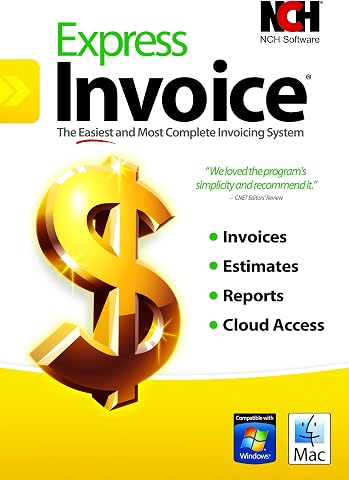
Express Invoice Billing and Invoicing Software for PC
- ✔ Platform: PC
- ✔ Operating system: Windows
- ✔ Supported documents: Invoices, orders, and quotes
The biggest difference is where each suite feels most capable: Microsoft has the edge for complex desktop work and compatibility with established Office files; Google makes shared browser-based work feel more direct. Microsoft 365 is a stronger fit for organizations that depend on advanced spreadsheets, desktop workflows, or Microsoft systems. Google Workspace suits teams that prioritize straightforward collaboration, web access, and Gmail. Both can serve a small business or a large organization, but the better choice depends on the work people do every day and the systems they already use.
At a Glance
| Criteria | Microsoft 365 | Google Workspace | Winner |
|---|---|---|---|
| Document and spreadsheet features | Full desktop Office apps offer advanced tools, especially in Excel and PowerPoint. | Docs, Sheets, and Slides cover common work; fewer advanced desktop-style features. | A |
| Real-time collaboration | Coauthoring is supported, with experience varying across apps and desktop versus web use. | Real-time editing and sharing are central to the browser-based apps. | B |
| Desktop and offline work | Strong desktop apps; many workflows work offline after setup and sync later. | Mostly browser-first, with offline access available when configured; less suited to complex desktop workflows. | A |
| Email and meetings | Outlook and Teams support business email, calendars, chat, and meetings. | Gmail, Calendar, Chat, and Meet provide a tightly integrated communication suite. | Depends |
| File storage and sharing | OneDrive and SharePoint support personal and team files, with configurable permissions. | Google Drive provides shared storage and link-based collaboration. | Depends |
| Administration and security | Broad business controls, identity options, and security features; setup can take expertise. | Central administration and security controls support business use; advanced needs depend on plan and configuration. | Depends |
| Value for typical businesses | Strong value when desktop Office apps and Microsoft services are actively used. | Strong value for teams that use its collaboration and communication tools daily. | Depends |
Microsoft Office Home & Business 2024 for PC or Mac
For an individual whose day moves between writing proposals, updating spreadsheets, preparing presentations, and responding to email, Office Home & Business 2024 offers the most balanced toolkit in this lineup. It includes Word, Excel, PowerPoint, Outlook, and OneNote, so buyers get a dedicated desktop email application in addition to the familiar office essentials. That breadth is why we place it ahead of Office Home 2024: the latter covers core creation work but omits Outlook, leaving business email outside the package.The one-time license may suit someone who prefers a defined desktop purchase over a subscription, and compatibility with one PC or Mac gives the product a straightforward installation target. Technical support by chat or phone is another practical advantage when setup or application questions interrupt work. However, the license is for one computer, and the product is desktop-focused. It does not provide the multi-device reach or cloud storage associated with Microsoft 365 subscription benefits. Compared with Express Invoice, this is the stronger choice for broad office tasks but lacks dedicated recurring billing and invoice management. We would choose it for a solo professional who needs general office applications on a primary workstation, not for a team seeking shared cloud workflows or a billing-first system.
Pros:
- Includes Word, Excel, PowerPoint, Outlook, and OneNote
- One-time purchase for one person
- Available for one PC or Mac
- Technical support is available by chat or phone
Cons:
- Licensed for only one PC or Mac
- Desktop use only
- Does not include Microsoft 365 subscription benefits such as 1 TB cloud storage and multi-device support
Best for: A solo business user who wants desktop documents, spreadsheets, presentations, notes, and email on one PC or Mac.
Not ideal for: People who need to install office apps across several devices, work primarily in a browser, or require specialized invoicing workflows.
Bottom line: We rank it first for individual business users who want the broadest everyday office toolkit in a one-computer license.
“We rank it first for individual business users who want the broadest everyday office toolkit in a one-computer license.”
Microsoft Office Home 2024 for Windows or Mac
Office Home 2024 is the more focused option for people whose business work mainly means producing documents, spreadsheets, and presentations. Word, Excel, PowerPoint, and OneNote cover those core tasks, and the one-time purchase avoids an ongoing subscription commitment. For a home-based consultant or small operation that already handles email elsewhere, the narrower app bundle can be enough.Its place behind Office Home & Business comes down to a concrete omission: Outlook is not included. Buyers who want one package for both office files and desktop email should step up to the Home & Business edition. Against Express Invoice, Office Home provides broader general-purpose document creation, while Express Invoice is much better suited to quotes, recurring invoices, and customer billing records. The Office Home license also covers just one Windows or Mac device, so it is a poor fit if work regularly moves between a laptop and desktop. The absence of Microsoft 365 benefits, including multi-device support and cloud storage, further limits its usefulness for a distributed workflow. We see it as a deliberate, pared-back choice for one person with an established email setup and a stable primary computer.
Pros:
- Includes four classic desktop Office apps
- Supports Windows and Mac devices
- One-time purchase
- Covers documents, spreadsheets, presentations, and notes
Cons:
- Limited to installation on a single device
- Does not include Outlook
- Does not include Microsoft 365 subscription benefits such as 1 TB cloud storage and multi-device support
Best for: A solo user who needs Word, Excel, PowerPoint, and OneNote on one computer and already has an email solution.
Not ideal for: Business users who need Outlook included, use multiple computers, or want invoice and customer account management.
Bottom line: We recommend it when core office documents matter more than bundled email or cross-device access.
“We recommend it when core office documents matter more than bundled email or cross-device access.”
Express Invoice Billing and Invoicing Software for PC
When billing administration takes more time than creating office documents, Express Invoice fills a gap the two Microsoft packages do not address. It is designed to create invoices, orders, and quotes, with room to add a business logo, notes, and customized templates. Support for recurring invoices, multiple tax rates, and customer account management makes it the specialist pick for a small business that needs repeatable billing tasks in one workflow.That focus also defines the tradeoff. Express Invoice does not include Word, Excel, PowerPoint, or Outlook, so it complements a general office suite more naturally than it replaces one. Compared with the Microsoft options, it reaches further into billing records and invoice output but covers far fewer kinds of work. Multiple users and mobile access through a web interface may help a small operation coordinate, although some functionality depends on that interface rather than a single desktop flow. The listed operating system is Windows, which makes this a narrower platform choice than either Office product. We would shortlist it for a Windows-based business that sends regular quotes or invoices; buyers seeking a broad productivity environment should pair it with a separate office suite or choose another toolset.
Pros:
- Supports recurring invoices and multiple tax rates
- Customizable templates, business details, logos, and notes
- Allows multiple users and mobile access through a web interface
- Can print, email, or fax invoices and other documents
Cons:
- Listed minimum operating system is Windows
- Some features require access through a web interface
- Does not provide general office apps such as Word, Excel, or Outlook
Best for: A Windows-based small business that needs customizable invoices, quotes, recurring billing, and customer account tracking.
Not ideal for: Mac users, buyers looking for a complete office suite, or teams that require every function to work solely in a desktop application.
Bottom line: We choose Express Invoice for billing-heavy workflows where repeat invoices and customer records matter more than general office apps.
“We choose Express Invoice for billing-heavy workflows where repeat invoices and customer records matter more than general office apps.”
As an Amazon Associate we earn from qualifying purchases.
Key Differences
Microsoft 365’s advantage is depth in desktop Office. Excel users working with complex models, macros, or established templates are more likely to preserve their familiar workflows, and PowerPoint and Word offer mature desktop capabilities. Google Workspace handles everyday documents well, but teams moving demanding Office work into browser tools may need to adapt files or processes. This is a major difference for specialist or document-heavy teams and a minor one for people writing routine documents and tracking simple data.
Google Workspace’s advantage is the ease of working together in the browser. Shared Docs, Sheets, and Drive files make simultaneous editing and commenting straightforward, particularly for distributed teams that want to open a link and start. Microsoft also supports coauthoring and cloud sharing, but its experience spans desktop and web apps, OneDrive, SharePoint, and Teams. That flexibility is useful, though it can require more choices and setup. Neither suite wins every communication scenario: Outlook and Teams may fit Microsoft-centered organizations, while Gmail and Meet are a natural pairing for teams already using Google.
Value follows actual usage, not the brand name or a feature checklist. Paying for Microsoft 365 makes sense when desktop Office, advanced administration, or Microsoft integration replaces other tools or saves real staff time. Google Workspace can be better value when browser collaboration and Gmail are the main needs and desktop Office features would go unused. Before switching, account for migration, training, file compatibility, storage, security configuration, and any separate apps required; subscription price alone does not capture the cost of a change.
Detailed Comparison
Document and spreadsheet features (Microsoft 365 wins — major)
Microsoft 365 wins by a major margin for advanced desktop work. Excel and the other Office apps provide powerful features and preserve workflows built around Office formats. Google Docs, Sheets, and Slides are capable for everyday tasks, but teams with complex spreadsheets, macros, or presentation templates may encounter limitations or need workarounds. For standard reports and shared planning sheets, the difference is smaller.
Real-time collaboration (Google Workspace wins — moderate)
Google Workspace has a moderate edge in the simplicity of browser-based coediting. People can work in the same document, see changes, and comment without deciding which desktop app or storage location to use. Microsoft 365 also supports collaboration, especially when files are stored in OneDrive or SharePoint, but the mix of desktop and web apps can make the workflow less uniform. Teams that already manage files well in Microsoft’s ecosystem may feel little disadvantage.
Desktop and offline work (Microsoft 365 wins — major)
Microsoft 365 wins clearly for sustained desktop and offline work. Its installed apps are suited to intensive editing, and files can be worked on offline and synced later when set up appropriately. Google Workspace offers offline options, but the suite is designed around browser access and connected files. This is a major practical distinction for employees with unreliable connectivity or desktop-dependent processes, and a minor one for office-based teams with steady internet access.
Email and meetings (moderate difference)
This is a close fit decision rather than a universal win. Outlook and Teams integrate naturally with Microsoft calendars, Office files, and Microsoft identity; Gmail and Meet keep communication straightforward for Google-oriented teams. Existing habits, external contacts, meeting requirements, and integrations matter more than a general feature count. Switching suites solely for email is rarely compelling if the current service already fits the business.
File storage and sharing (moderate difference)
Neither service wins across all organizations. Google Drive’s shared-file model makes link-based collaboration easy to understand. OneDrive and SharePoint offer a flexible foundation for personal and team files, with more structure available for organizations prepared to configure it. The minor-to-moderate difference is mostly operational: teams should compare how each handles current permissions, shared folders, external access, and migration before moving files.
Administration and security (moderate difference)
Both suites provide business administration and security controls, and the winner depends on the company’s requirements and skills. Microsoft 365 can be a strong fit for organizations already managing Windows devices, Microsoft identity, and Office accounts, although its many services can add administrative complexity. Google Workspace offers centralized controls aligned with its web-first environment. This is a moderate difference for regulated or larger organizations, which should map required controls to the specific subscription and configuration.
Value for typical businesses (moderate difference)
There is no default price winner because plans, regional pricing, and included features vary. Microsoft 365 earns its cost when staff use desktop Office or benefit from bundled Microsoft services; otherwise, those capabilities may be paid for without a return. Google Workspace is attractive when email, cloud storage, and browser collaboration cover the workload. The better value is the plan that meets actual needs with the fewest extra subscriptions, migration costs, and workflow compromises.
Microsoft 365: Pros and Cons
Pros:
- Full desktop Word, Excel, and PowerPoint support demanding workflows.
- Strong fit for organizations already using Microsoft systems and Office files.
- Offline desktop work is practical for many common tasks.
- Outlook, Teams, OneDrive, and SharePoint offer a broad business toolset.
Cons:
- The range of apps and storage services can make setup and file organization harder.
- Teams may pay for desktop capabilities they rarely use.
- Collaboration can feel less consistent when staff move between desktop and web apps.
Google Workspace: Pros and Cons
Pros:
- Browser-based coediting and sharing are simple to adopt.
- Gmail, Calendar, Drive, and Meet work together in a consistent web workflow.
- Useful for distributed teams that need convenient access from different devices.
- Can be a good-value choice when advanced desktop Office features are unnecessary.
Cons:
- Less suitable for workflows that depend on advanced Excel features, macros, or exact Office behavior.
- Desktop-first and offline work is less central to the suite.
- Businesses may need separate tools or adjustments for specialized document needs.
Who Should Choose What
Choose Microsoft 365 if:
- Your employees rely on advanced Excel workbooks, Office templates, or desktop editing.
- Your business already uses Microsoft identity, Windows administration, Teams, or SharePoint.
- Reliable offline work and compatibility with established Office processes matter.
Choose Google Workspace if:
- Your team creates mostly standard documents and prioritizes coediting in a browser.
- Gmail and Google Drive already anchor your communication and file-sharing habits.
- You want a consistent web-first workflow across a distributed team.
Skip both if: Neither fits if your business needs specialized project, design, accounting, or document-management software as its core workflow; compare suites built for that work and add productivity tools only where needed.
Value for Money
Pay more for Microsoft 365 only when its desktop Office apps, Microsoft integrations, or administration features solve a real business need. For spreadsheet-heavy work, established Office templates, and Microsoft-centered IT, the added capability can justify the subscription and reduce costly workflow changes. For a team that mostly handles email, shared documents, and routine spreadsheets in a browser, Google Workspace may deliver better value if its plan covers the required storage and controls.
Compare equivalent business plans rather than entry-level prices alone. Check included storage, meeting and email requirements, security controls, support needs, and any add-on licenses. Include migration and staff training in the calculation: a cheaper subscription can cost more overall if files break or employees lose time adapting, while a pricier suite can be wasteful when its distinctive features sit unused.
Final Verdict
For most businesses whose work depends on desktop Office files, advanced spreadsheets, or Microsoft infrastructure, choose Microsoft 365. Its fuller desktop apps make it the safer fit for established and demanding document workflows. Choose Google Workspace when the team’s day is centered on Gmail, Drive, and browser-based collaboration, and its simpler shared editing is more valuable than advanced Office features.
The deciding factor is how employees create and share files: complex desktop work points to Microsoft 365; routine shared work in a browser points to Google Workspace. Do not pay for capabilities your team will not use, and do not switch an established suite without checking file compatibility, permissions, and migration effort.
Frequently Asked Questions
Is Microsoft 365 or Google Workspace better for a small business?
Microsoft 365 is usually the better fit when a small business depends on desktop Office apps, advanced Excel, or Microsoft services. Google Workspace is often a better fit when the team wants Gmail and simple browser-based collaboration. Compare the actual work and plan features before choosing.
Can Google Workspace edit Microsoft Office files?
Google Workspace can open and edit many Office files, but complex formatting, formulas, macros, or specialized features may not behave exactly as they do in desktop Office. Test representative business files before moving an entire team.
Is Microsoft 365 worth paying more for?
It can be worth the added cost when employees use desktop Word, Excel, or PowerPoint features that Google Workspace does not match, or when Microsoft tools fit existing systems. If staff mainly need email and shared browser documents, the extra capability may not return enough value.
Which suite is easier for team collaboration?
Google Workspace generally makes shared browser editing more direct. Microsoft 365 also supports coauthoring, but organizations need to manage where files live and which apps employees use. Teams already organized around OneDrive, SharePoint, and Teams may find Microsoft’s approach works well.