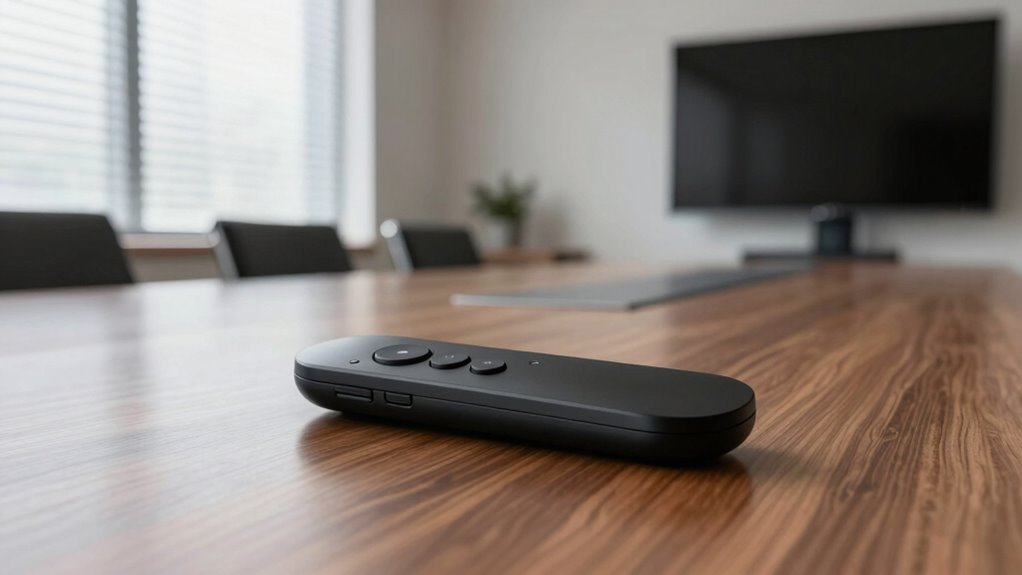

For most boardrooms, I’d start with the Logitech R500s: its familiar slide controls and red laser make it a straightforward choice for presenters who need to point and advance without extra features. The USB-A and USB-C receiver model stands out for mixed-device meeting rooms, while the Logitech Spotlight suits teams seeking more presentation control than a basic clicker provides. The main tradeoffs are compatibility, pointing method, range, and how much setup or training a remote adds. A simpler model can be easier to hand between speakers, but a feature-rich option may better serve a dedicated presenter. Read on for the full breakdown and a guide to matching a clicker to your room.

Get business pricing on office and shipping supplies
- Business-only prices and quantity discounts
- Tax-exempt purchasing
- Multiple users, one account, clear invoices
Key Takeaways
- The R500s is the clearest general-purpose pick for boardrooms that want familiar slide controls and a red laser rather than a feature-heavy remote.
- The USB-A and USB-C receiver model addresses mixed-device rooms, where connector compatibility can matter more than extra presentation features.
- The Spotlight and PR-820 take different advanced-control approaches: Spotlight is the premium presentation remote, while the PR-820 adds air-mouse functionality that may suit specialized workflows.
- Built-in extras create a usability tradeoff: power displays, volume controls, and air-mouse functions can help some presenters but add controls that occasional users may not need.
- Several picks use red pointing lights, so buyers should check room lighting, display type, and audience sightlines before assuming a laser pointer is the right tool.
| Wireless Presentation Clicker with USB-A and USB-C Receiver |  | Best Overall for Mixed Boardroom Setups | Connectivity: 2.4 GHz radio frequency | Receiver: Built-in USB-A and USB-C | Compatibility: Mac, Windows, Linux; PowerPoint, Keynote, Google Slides, Prezi | VIEW ON AMAZON | See Our Full Breakdown |
| Presentation Clicker Power Display Wireless Presenter Remote |  | Best Rechargeable Pick | Connectivity: Radio frequency | Receiver: Built-in USB dongle | Maximum control range: 100 feet | VIEW ON AMAZON | See Our Full Breakdown |
| DinoFire Wireless Presentation Clicker with Red Laser Pointer | 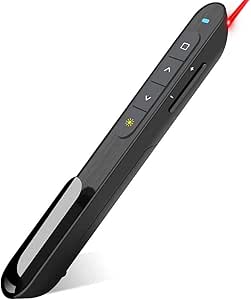 | Best for Control-Rich Slide Decks | Connectivity: 2.4 GHz radio frequency | Wireless range: Up to 100 feet (30 meters) | Pointer: Red laser | VIEW ON AMAZON | See Our Full Breakdown |
| Logitech R500s Wireless Presenter with Red Laser Pointer |  | Best for Managed Meeting-Room Fleets | Connectivity: USB receiver or Bluetooth Low Energy | Wireless range: Up to 20 meters (65 feet) | Laser: Red | VIEW ON AMAZON | See Our Full Breakdown |
| LBBYDDLL Wireless Presentation Remote with Red Pointer |  | Best for Long-Room Reach | Connectivity: Radio frequency | Maximum control range: 200 feet | Buttons: 6 | VIEW ON AMAZON | See Our Full Breakdown |
| QUI Wireless Presentation Clicker with Red Light, Blue |  | Best for Large Boardrooms | Brand and model: QUI BQ100 | Color: Blue | Connectivity: 2.4 GHz wireless via USB receiver | VIEW ON AMAZON | See Our Full Breakdown |
| Wireless Presentation Clicker with Red Laser Pointer |  | Best Compact Pick | Brand and model: CLIKBUTM WP08-R | Connectivity: Radio frequency | Buttons: 5 | VIEW ON AMAZON | See Our Full Breakdown |
| RED STAR TEC PR-820 Wireless Presentation Clicker with Air Mouse and Laser Pointer |  | Best for On-Screen Control | Brand and model: RED STAR TEC PR-820 | Connectivity: Radio frequency (RF) | Maximum range: 50 feet | VIEW ON AMAZON | See Our Full Breakdown |
| QUI Wireless Presentation Clicker with Volume Control |  | Best Value for Media Presentations | Brand and model: QUI BK600 | Connectivity: 2.4 GHz via USB receiver | Wireless range: Up to 328 feet | VIEW ON AMAZON | See Our Full Breakdown |
| Logitech Spotlight Wireless Presentation Remote, Black |  | Best Premium Pick | Brand and model: Logitech Spotlight | Color: Black | Connectivity: USB-A receiver or Bluetooth Smart | VIEW ON AMAZON | See Our Full Breakdown |
| wireless presentation clickers for boardroom | Connectivity | Battery | Buttons | Brand and model |
|---|---|---|---|---|
| Wireless Presentation Clicker | 2.4 GHz radio frequency | 2 AAA batteries, not included | — | — |
| Presentation Clicker Power Dis | Radio frequency | Rechargeable proprietary battery | — | — |
| DinoFire Wireless Presentation | 2.4 GHz radio frequency | 1 AAA battery, not included | — | — |
| Logitech R500s Wireless Presen | USB receiver or Bluetooth Low Energy | 1 AAA battery, included | 3 | — |
| LBBYDDLL Wireless Presentation | Radio frequency | 1 AAA alkaline battery, included | 6 | — |
| QUI Wireless Presentation Clic | 2.4 GHz wireless via USB receiver | 1 AAA battery, not included | — | QUI BQ100 |
| Wireless Presentation Clicker | Radio frequency | 1 AAA battery | 5 | CLIKBUTM WP08-R |
| RED STAR TEC PR-820 Wireless P | Radio frequency (RF) | — | — | RED STAR TEC PR-820 |
| QUI Wireless Presentation Clic | 2.4 GHz via USB receiver | 1 AAA battery, not included | 6 | QUI BK600 |
| Logitech Spotlight Wireless Pr | USB-A receiver or Bluetooth Smart | Included lithium-ion polymer | 5 | Logitech Spotlight |
More Details on Our Top Picks
Wireless Presentation Clicker with USB-A and USB-C Receiver
For a boardroom where presenters bring a mix of newer and older laptops, the built-in USB-A and USB-C receiver is the main advantage: it avoids hunting for an adapter before a meeting. Setup is plug-and-play, and the remote covers common tasks beyond slide changes, including volume, window switching, and screen blanking. Its stated control range reaches up to 30 meters, giving presenters room to move around a large table or stage. Compared with the Logitech R500s, it offers more onboard controls and both connector types, while the R500s adds Bluetooth and app-based customization. The tradeoff is less clarity around range: supplied details also list 20 meters. It uses two AAA batteries, not included, so it is less ready-to-go than the R500s, which includes one.
Pros:- Built-in USB-A and USB-C connectors suit mixed laptop fleets.
- Plug-and-play operation avoids software setup.
- Slide, volume, window, and screen controls cover common boardroom tasks.
- Magnetic receiver storage and a lightweight body make it easy to carry.
Cons:- Two AAA batteries are required and are not included.
- The supplied range information conflicts between 30 meters and 20 meters.
- The red laser may be less useful on some modern display surfaces.
Best for: Teams with a mix of USB-A and USB-C laptops that want extra presentation controls without installing software.
Not ideal for: Presenters who need Bluetooth pairing, a clearly specified operating range, or a remote ready to use without buying batteries.
- Connectivity:2.4 GHz radio frequency
- Receiver:Built-in USB-A and USB-C
- Compatibility:Mac, Windows, Linux; PowerPoint, Keynote, Google Slides, Prezi
- Wireless control range:Up to 30 meters (100 ft); another listed specification states 20 meters
- Controls:Page up/down, full screen/black screen, volume, switch windows
- Battery:2 AAA batteries, not included
- Weight and dimensions:55 g; 5.31 × 1.65 × 0.95 in
- Additional features:Red laser pointer, magnetic receiver storage, auto sleep
Our verdict“Choose this for flexible USB compatibility and a broad control set, but skip it if Bluetooth or unambiguous range specs matter more.”
Presentation Clicker Power Display Wireless Presenter Remote
The rechargeable battery and LED power display make this a practical choice for boardrooms where a dead clicker could interrupt a tightly scheduled meeting. Its stated wireless range is up to 100 feet, and the built-in USB dongle keeps setup simple across Windows, macOS, and Linux. Unlike the Wireless Presentation Clicker with USB-A and USB-C Receiver, this model gives a visible battery readout and avoids disposable AAA cells, but its supplied details do not identify a second receiver connector or Bluetooth support. The red laser and straightforward controls suit standard slide decks; the listed compatibility also includes Word and Excel. Charging takes about an hour, so a low battery discovered just before a presentation still requires planning. Its red pointer may also be difficult to see against dark backgrounds.
Pros:- Rechargeable battery avoids routine AAA replacements.
- LED display shows remaining power at a glance.
- Built-in USB dongle supports plug-and-play setup.
- Stated control range reaches up to 100 feet.
Cons:- A low battery requires charging rather than an immediate battery swap.
- Charging takes about one hour.
- The red laser may have weak visibility on dark backgrounds.
Best for: Frequent presenters who want a rechargeable remote with a visible charge indicator and use a compatible computer with a USB port.
Not ideal for: Teams that need USB-C receiver flexibility, Bluetooth, or a pointer that remains easy to see on dark slides.
- Connectivity:Radio frequency
- Receiver:Built-in USB dongle
- Maximum control range:100 feet
- Laser pointer range:328 ft / 100 m
- Battery:Rechargeable proprietary battery
- Charging:About 1 hour for several weeks of use
- Compatibility:Windows, macOS, Linux; Google Slides, PowerPoint, Word, Excel
- Other features:LED digital power display, ergonomic design, 1-year warranty
Our verdict“Pick this if battery status and rechargeable operation matter most, and pass if your boardroom needs dual-port or Bluetooth connectivity.”
DinoFire Wireless Presentation Clicker with Red Laser Pointer
The DinoFire D05 earns its place for presenters who need more than forward and back: its six buttons cover volume, hyperlinks, window switching, and full or black screen controls. That can reduce trips back to the laptop when a boardroom deck includes linked material or a video. Compared with the Logitech R500s, the DinoFire offers more shortcut controls and a stated range of up to 100 feet, while the R500s provides Bluetooth and a longer stated battery life. This model is compact and stores its USB receiver magnetically, but it depends on one AAA battery that is not included. Its red pointer is not recommended for LCD, LED, or TV screens, a meaningful limitation for rooms that use flat-panel displays rather than projection screens.
Pros:- Six-button layout includes hyperlink, volume, window, and screen controls.
- Stated wireless range reaches up to 100 feet.
- USB receiver supports plug-and-play setup and magnetic storage.
- Compact design is easy to carry between meeting rooms.
Cons:- Red pointer is not recommended for LCD, LED, or TV screens.
- One AAA battery is required and not included.
- The supplied compatibility detail identifies laptops but does not specify operating systems.
Best for: Presenters using projection screens and linked, media-heavy decks who want direct access to several presentation shortcuts.
Not ideal for: Boardrooms built around LCD, LED, or TV displays, or teams seeking Bluetooth and an included battery.
- Connectivity:2.4 GHz radio frequency
- Wireless range:Up to 100 feet (30 meters)
- Pointer:Red laser
- Controls:6 buttons; slide, volume, hyperlink, window, full screen, black screen
- Battery:1 AAA battery, not included
- Weight:8.53 g
- Compatible devices:Laptop
- Warranty:2 years
Our verdict“Choose the DinoFire for shortcut-heavy presentations on projection screens, but avoid it for boardrooms centered on flat-panel displays.”
Logitech R500s Wireless Presenter with Red Laser Pointer
The R500s is the most considered fit for organizations that want a familiar, restrained controller and options for connecting with or without its USB receiver. USB and Bluetooth Low Energy give IT teams flexibility across different laptops, while the companion app can customize buttons, check battery status, and set a presentation timer. That timer is especially useful when boardroom agendas run tightly. Compared with the Wireless Presentation Clicker with USB-A and USB-C Receiver, the R500s has fewer controls and lacks its dual-connector receiver, but adds Bluetooth and an included AAA battery with a stated life of up to 12 months. Its three-button layout is simpler, not richer, and some app features require software on Mac or PC. The red laser may also be less useful on flat-panel displays.
Pros:- Connects through either a USB receiver or Bluetooth Low Energy.
- Companion app supports button customization, battery monitoring, and a presentation timer.
- Works with Windows, Mac, iOS, and Android.
- Includes an AAA battery with a stated life of up to 12 months.
Cons:- Three buttons provide fewer direct controls than the DinoFire D05.
- Some app features require software installation on Mac or PC.
- Its stated range of up to 20 meters is shorter than the 100-foot claims for several alternatives.
Best for: Organizations standardizing meeting-room equipment that value Bluetooth, a presentation timer, and simple operation across major operating systems.
Not ideal for: Presenters who need multiple shortcut buttons, USB-C receiver flexibility, or advanced controls without companion software.
- Connectivity:USB receiver or Bluetooth Low Energy
- Wireless range:Up to 20 meters (65 feet)
- Laser:Red
- Buttons:3
- Battery:1 AAA battery, included
- Battery life:Up to 12 months
- Compatibility:Windows, Mac, iOS, Android
- Weight and dimensions:5.67 g; 4.9 × 1.4 × 1 in
Our verdict“Choose the R500s for Bluetooth and app-supported meeting management, but look elsewhere for more onboard shortcuts or longer stated range.”
LBBYDDLL Wireless Presentation Remote with Red Pointer
The LBBYDDLL is the range-focused option here, with a stated maximum control range of 200 feet—well beyond the 20-meter claim for the Logitech R500s and the 100-foot figures listed for the DinoFire and rechargeable UBUYONE remote. That reach may suit a large conference room where a presenter needs to move away from the display, though the supplied information does not explain the conditions behind the figure. Its six-button layout adds hyperlinks, window switching, and screen controls, and the included AAA battery means it can be used without a separate battery purchase. The tradeoff is a less established setup story: Mac may need simple configuration, and there is no Bluetooth or rechargeable option listed. Its red pointer also remains a limitation on some display types.
Pros:- Stated control range reaches up to 200 feet.
- Six buttons provide several presentation and window shortcuts.
- Includes a USB receiver and AAA alkaline battery.
- Lists compatibility with Windows, Mac OS, Linux, and Android.
Cons:- Mac may require setup rather than immediate plug-and-play operation.
- Uses a disposable AAA battery rather than a rechargeable battery.
- The long range is a stated maximum, with no operating conditions supplied.
Best for: Presenters in unusually large boardrooms who want a long stated control range, multiple shortcuts, and an included battery.
Not ideal for: Teams that need Bluetooth, rechargeable power, or confirmed plug-and-play behavior across Mac systems.
- Connectivity:Radio frequency
- Maximum control range:200 feet
- Buttons:6
- Compatible systems:Windows, Mac OS, Linux, Android
- Compatible software:PowerPoint, Keynote, Prezi, Word, Excel, ACDSee, iWork
- Battery:1 AAA alkaline battery, included
- Weight and dimensions:23 g; 5.49 × 0.87 × 0.54 in
- Package and warranty:Remote, USB receiver, user manual; 1-year warranty
Our verdict“Pick the LBBYDDLL when claimed reach is your main priority, but choose the Logitech R500s for Bluetooth and clearer meeting-room management features.”
QUI Wireless Presentation Clicker with Red Light, Blue
For a presenter who needs to move around a sizable room, the QUI BQ100 pairs a 328-foot stated range with slide navigation and controls for black-screen and full-screen display. That reach gives it an advantage over the RED STAR TEC PR-820, which is specified for 50 feet, though real-world wireless performance can vary with room layout and interference. The red pointer adds a straightforward way to direct attention to a slide, and its plug-and-play setup avoids software installation across several operating systems and presentation apps. The tradeoff is a conventional USB receiver connection: a compatible port is needed, and it is less flexible than the Logitech Spotlight’s Bluetooth option. It also needs an AAA battery that is not included, so it is not ready to present straight out of the box.
Pros:- Stated wireless range reaches up to 328 feet.
- Red pointer helps direct attention to slide content.
- Black-screen and full-screen controls support quick changes in presentation focus.
- Works with several operating systems and presentation apps without software installation.
Cons:- Requires a USB receiver, which may be inconvenient with devices lacking a compatible port.
- AAA battery is not included.
- The listed maximum range does not guarantee the same performance in every boardroom.
Best for: Presenters who need long-range slide control in a large boardroom and use a computer with a compatible USB port.
Not ideal for: People who need Bluetooth connectivity, a rechargeable battery, or a pointer designed to highlight and magnify screen content.
- Brand and model:QUI BQ100
- Color:Blue
- Connectivity:2.4 GHz wireless via USB receiver
- Maximum range:328 feet
- Battery:1 AAA battery, not included
- Compatible systems:Windows, macOS, Linux, Android
- Compatible software:PowerPoint, Excel, Prezi, Google Slides, iWork
- Warranty:1 year
Our verdict“Choose the BQ100 if long stated range and simple red-pointer slide control matter more than Bluetooth or a rechargeable design.”
Wireless Presentation Clicker with Red Laser Pointer
At 109 mm and 38 g including its battery, the CLIKBUTM WP08-R is a practical choice for presenters who want a small remote that can live in a laptop bag. Its USB receiver stores in the battery compartment, reducing the chance of losing the part needed to connect; that is a useful distinction from the QUI BQ100, whose receiver-based setup is also simple but whose supplied details do not specify onboard receiver storage. The five-button layout covers common presentation tasks without adding the broader mouse and volume functions found on the RED STAR TEC PR-820. Its stated presentation-control distance is 98 feet, with a separate laser range of 328 feet. The tradeoff is a more basic feature set and one-device support; it also requires an AAA battery, with inclusion not specified.
Pros:- Compact 109 mm body weighs 38 g including the battery.
- USB receiver stores in the battery compartment.
- No drivers are required.
- Supports common operating systems and apps, including PowerPoint, Keynote, and Google Slides.
Cons:- Requires one AAA battery; whether it is included is not specified.
- Supports only one device.
- Presentation-control distance is specified as 98 feet, shorter than the QUI BQ100’s stated 328-foot range.
Best for: Frequent presenters who travel between meeting rooms and want a lightweight clicker with receiver storage and familiar slide controls.
Not ideal for: Boardroom hosts who need volume or mouse control, multi-device support, or a stated wireless reach suited to very large rooms.
- Brand and model:CLIKBUTM WP08-R
- Connectivity:Radio frequency
- Buttons:5
- Presentation-control distance:98 feet (30 m)
- Laser range:328 feet (100 m)
- Battery:1 AAA battery
- Size and weight:109 mm; 38 g including battery
- Compatible systems:Windows, Mac OS, Linux
- Compatible applications:PowerPoint, Keynote, Google Slides, Word, Excel, websites, PDF
Our verdict“Pick the WP08-R if portability and keeping the receiver with the remote matter more than extended controls or multi-device flexibility.”
RED STAR TEC PR-820 Wireless Presentation Clicker with Air Mouse and Laser Pointer
The PR-820 is the pick for presenters who need more than next and previous: its 6-axis air mouse and controls for hyperlinks, volume, and mouse functions can reduce trips back to a keyboard during a demo. That broader control set makes it more adaptable than the five-button CLIKBUTM WP08-R, but its 50-foot RF range is a clear limitation beside the QUI BQ100’s stated 328 feet. The connection works without line of sight, which can help when a presenter moves around a room or the receiver is not directly visible. It also includes a Class 2 laser pointer and supports several device types. The extra functions bring tradeoffs: this is a one-device remote, weighs 55 g, and needs two AAA alkaline batteries rather than the Logitech Spotlight’s included rechargeable battery.
Pros:- Air mouse adds pointer control beyond standard slide navigation.
- Dedicated functions cover slides, volume, hyperlinks, and mouse use.
- RF connection works up to 50 feet without line of sight.
- Compatible with multiple device types and common presentation apps.
Cons:- 50-foot maximum range is much shorter than the QUI BQ100’s stated range.
- Requires two AAA alkaline batteries.
- Supports one device and weighs 55 g.
Best for: Presenters running interactive boardroom demos who want to control hyperlinks, volume, and mouse functions without returning to the computer.
Not ideal for: Speakers who need long-range control across a large room, a lightweight remote, or a rechargeable battery.
- Brand and model:RED STAR TEC PR-820
- Connectivity:Radio frequency (RF)
- Maximum range:50 feet
- Controls:6 buttons
- Features:Air mouse, Class 2 laser pointer, slide, volume, hyperlink, and mouse controls
- Battery requirement:2 AAA alkaline batteries
- Weight and color:55 g; black
- Compatible devices:PC, Mac, Android tablets, Chromebook, projector, smartboard
Our verdict“Choose the PR-820 for interactive presentations where mouse and media controls matter more than long range or a rechargeable power source.”
QUI Wireless Presentation Clicker with Volume Control
The QUI BK600 adds volume control to slide navigation, hyperlink, screen-display, and red-pointer functions, making it a useful fit for boardrooms where presentations include video or audio. Its specified 328-foot range matches the QUI BQ100, while its six-button layout gives media playback a more direct role. Against the RED STAR TEC PR-820, it has a much longer stated range, but it does not add the PR-820’s air mouse. At just 24 g, it is also the lightest-feeling option by listed weight in this group. The tradeoffs are a USB receiver requirement and one-device support, so it is less flexible than the Bluetooth-capable Logitech Spotlight when switching among devices. Its AAA battery is not included, which means a separate battery is needed before a meeting.
Pros:- Volume control is useful for presentations that include audio or video.
- Stated wireless range reaches up to 328 feet.
- Red pointer and screen-display controls complement slide navigation.
- Weighs 24 g and works without software or driver installation.
Cons:- AAA battery is not included.
- Requires a USB receiver.
- Supports one device, unlike a setup designed for switching among multiple connections.
Best for: Presenters who regularly play video or audio in meetings and want lightweight controls for volume, slides, and a red pointer.
Not ideal for: Users who need Bluetooth pairing, an air mouse, multi-device control, or a rechargeable battery.
- Brand and model:QUI BK600
- Connectivity:2.4 GHz via USB receiver
- Wireless range:Up to 328 feet
- Buttons:6
- Battery:1 AAA battery, not included
- Weight and color:24 g; black
- Compatible systems:Mac, Windows, Linux, Android
- Other controls:Slides, hyperlinks, volume, screen display, red pointer
Our verdict“Choose the BK600 for long-range, lightweight slide and volume control if a USB receiver and replaceable AAA battery suit your setup.”
Logitech Spotlight Wireless Presentation Remote, Black
The Logitech Spotlight is the strongest fit here for presenters who want to direct attention precisely on a shared screen: its advanced pointer can highlight and magnify content, rather than relying only on the red laser style used by the QUI BK600 and BQ100. It also offers USB-A or Bluetooth Smart connectivity, giving it more pairing flexibility than receiver-only options. The 30-meter range is suited to many boardrooms, though it falls well short of the QUI models’ stated 328 feet. An included lithium-ion polymer battery and quick-charge feature avoid the need to keep AAA cells on hand; one minute of charging is specified to provide up to three hours of use. The tradeoffs are app dependence for some functions and battery life that can vary with conditions, so it is a more feature-rich choice rather than the simplest one.
Pros:- Advanced pointer highlights and magnifies on-screen content.
- Connects through a USB-A receiver or Bluetooth Smart.
- Included lithium-ion polymer battery supports quick charging.
- Vibration alerts and a 30-meter range support presenter feedback and movement.
Cons:- Some features require the Logi Options+ app.
- 30-meter stated range is shorter than the QUI clickers’ stated 328 feet.
- Battery life can vary with environmental and computing conditions.
Best for: Boardroom presenters who need precise on-screen emphasis, flexible USB or Bluetooth connection, and an included rechargeable battery.
Not ideal for: People who prefer a basic plug-and-play laser remote, need the longest stated range, or do not want some functions tied to an app.
- Brand and model:Logitech Spotlight
- Color:Black
- Connectivity:USB-A receiver or Bluetooth Smart
- Maximum range:30 meters (100 feet)
- Buttons:5
- Battery:Included lithium-ion polymer
- Charging:One minute of charging provides up to three hours of use
- Weight:49.2 g
- Compatibility:Windows, macOS, PowerPoint, Keynote, PDF, Google Slides, Prezi
Our verdict“Choose Spotlight if screen emphasis and connection flexibility justify a more app-dependent setup than a basic red-pointer clicker.”

How We Picked
I ranked these wireless presentation clickers for boardrooms by how well their stated features match shared meeting-room use: straightforward slide control, receiver and device compatibility, pointing options, and the likelihood that different presenters can use them without a learning curve. I also weighed practical flexibility, such as dual USB-A and USB-C support, against added functions like volume control, power displays, and air-mouse operation.
The order reflects fit, not a claim that every boardroom needs the same remote. Models with clear everyday roles rise above options whose value depends on a specific workflow, while premium and specialized picks remain useful for buyers who can make use of their extra controls. Product names and listed features guide this comparison; details such as operating range, software support, and compatibility can vary, so I recommend checking the current product information against the room’s equipment before choosing.
| wireless presentation clickers for boardroom | Brand and model |
|---|---|
| Wireless Presentation Clicker | — |
| Presentation Clicker Power Dis | — |
| DinoFire Wireless Presentation | — |
| Logitech R500s Wireless Presen | — |
| LBBYDDLL Wireless Presentation | — |
| QUI Wireless Presentation Clic | QUI BQ100 |
| Wireless Presentation Clicker | CLIKBUTM WP08-R |
| RED STAR TEC PR-820 Wireless P | RED STAR TEC PR-820 |
| QUI Wireless Presentation Clic | QUI BK600 |
| Logitech Spotlight Wireless Pr | Logitech Spotlight |
Factors to Consider When Choosing Wireless Presentation Clickers For Boardrooms
A boardroom clicker has to work across people, devices, and presentation styles—not just move slides. I’d settle the room’s connection and pointing needs first, then decide whether advanced controls justify extra complexity.
Match the Receiver to the Room’s Devices
Start with the computers presenters actually bring, including any managed laptops used by guests. A USB-A receiver is familiar in many meeting rooms, while USB-C support can reduce adapter hunting on newer devices. A dual-connector option may be helpful in a shared room, but it does not automatically mean every operating system or presentation app will work as expected. Check whether the remote depends on a receiver, Bluetooth, or both, and confirm how it pairs with each device type. A common mistake is buying for the room’s installed computer while overlooking visiting presenters. If your organization is standardizing laptops, match the clicker to that standard rather than paying for connections nobody will use.
Choose a Pointer That Works With Your Display
A red laser can be useful when a presenter needs to indicate a detail on a screen, but its visibility depends on the display surface, room lighting, and audience position. A pointer that is easy to see on a projection screen may be less useful on some flat-panel displays. Think about whether presenters point at the screen itself or mainly guide attention through spoken explanation and slide movement. Test visibility in the actual room before ordering several units, especially if the display is bright or the room is sunlit. Avoid treating a laser as a substitute for readable slides or clear on-screen emphasis. If a physical pointer is not dependable in your setup, prioritize reliable controls and a presentation method that does not depend on a beam.
Prioritize Controls That Every Presenter Can Learn
Boardroom remotes often pass between executives, staff, and guests, so familiar forward-and-back controls can be more valuable than a long feature list. Extra buttons for volume, power information, or mouse movement may help a regular presenter but can confuse an occasional user if their purpose is unclear. Consider labeling, button layout, and whether a new speaker can identify the essential controls at a glance. If the clicker will live in a shared drawer, favor simplicity and a predictable handoff. A dedicated presenter who gives frequent briefings may benefit from advanced functions that reduce trips to the laptop. The right balance is the one that speeds up the meeting without creating a mini-training session.
Treat Range as a Room-Layout Question
Room size alone does not tell you whether a wireless remote will suit the space. Presenter position, receiver placement, furniture, and other wireless equipment can affect how reliably a clicker communicates. Compare the maker’s stated range with the farthest place a presenter is likely to stand, then leave room for practical obstructions. For a large boardroom, check whether the receiver can sit in a clear USB port or extension point rather than behind a cabinet or display. Do not pay for a long advertised range if everyone presents from beside the table. For rooms with multiple layouts, test the clicker from the seats and standing areas people actually use.
Decide Whether Advanced Features Earn Their Complexity
Volume control, a power display, or air-mouse operation can make one remote cover more tasks, but each extra function is useful only if presenters will use it. Air-mouse control may suit a workflow that involves navigating on-screen content, while a simple slide deck may gain little from it. A power display can help someone who presents often, yet it does not replace a sensible charging or battery-replacement routine. Before choosing a feature-rich model, ask who will manage it and whether the room has a consistent setup. Shared equipment benefits from fewer settings that can be changed accidentally. Pay more for a specific capability your team relies on, not for a longer specification list.
Plan for Ownership, Storage, and Handoffs
In a boardroom, a clicker can be misplaced, left connected to a laptop, or handed over with no explanation. Decide where it will be stored and whether the receiver stays with the remote or lives in a permanent room computer. For several meeting spaces, consistent models can make replacement and staff handoffs easier, while different rooms may justify different features. Check the maker’s battery or charging details and whether replacement parts or support information are available. A lower-complexity model can be easier for facilities or IT staff to maintain than a remote with specialized controls. Set a simple room routine: return the clicker, account for its receiver, and confirm its power before an important presentation.
Frequently Asked Questions
Should I choose a laser pointer or a remote that relies on slide controls?
Choose a laser if presenters regularly need to direct attention to a specific area of a screen and the beam is visible on your room’s display. Its usefulness depends on the display surface, ambient light, and where the audience sits, so verify those conditions in the boardroom before buying. If the room uses a display where a red beam is hard to see, slide controls may matter more than pointing. You can also improve attention with clear slide design rather than relying on a pointer. For shared rooms, I’d make the choice based on a real presentation setup, not the feature label alone.
Is a USB-A and USB-C receiver worth choosing for a shared boardroom?
It can be a practical choice when presenters use a mix of older USB-A and newer USB-C laptops. That flexibility may reduce the need to borrow adapters, though buyers should confirm how the receiver is designed and whether it supports their devices and presentation software. If the room has one permanently installed computer and no guest presentations, dual-connector support may add little value. Check the connection needs of managed laptops and visiting devices before standardizing. Compatibility is a room-level decision, not just a connector decision.
Do boardroom presenters need air-mouse or volume controls?
Those controls make sense when presenters regularly navigate on-screen content or adjust media without returning to the laptop. They are less compelling for meetings built around conventional slide decks, where forward and back controls cover most needs. Extra buttons can slow down handoffs if occasional users are unsure which control to press. Consider who presents most often and whether the feature solves a recurring room problem. If not, a simpler remote may be easier to share and maintain.
How can I tell whether a clicker’s wireless range will suit my boardroom?
Compare the maker’s stated range with the farthest point from which someone will present, then account for receiver placement and obstacles. A receiver hidden behind a computer or display may perform differently from one with a clear connection to the room. Wireless equipment and room layout can also affect reliability, so a specification alone cannot guarantee performance in your space. If possible, check the clicker in the actual room before buying units for multiple rooms. A compact, predictable presentation area may not need an especially long range.
Should an organization buy one model for every meeting room?
Standardizing can make staff handoffs, basic instruction, and replacement easier, especially when rooms share the same laptop connections and presentation setup. A single model may be a poor fit if one room needs USB-C flexibility while another relies on a specialized presentation workflow. Compare the devices, displays, and presenter habits in each room before setting a standard. You might choose one dependable general-purpose model for most rooms and a specialist remote only where its extra controls solve a clear need. Keep the receiver and storage routine consistent even if models differ.
Conclusion
For a typical shared boardroom, I’d choose the Logitech R500s as the best overall option for its straightforward presenter role and red laser. The USB-A and USB-C receiver model is my best value pick when device variety is the main concern, while the Logitech Spotlight is my best premium choice for buyers who want more presentation control than a basic clicker offers. For beginners and occasional guest speakers, I’d favor a simple remote with clear slide controls, such as the R500s, over one with several specialized functions. For specific needs, the PR-820 is the one to examine for air-mouse use, and the QUI model with volume control suits rooms where media adjustment from the remote matters. Match the connection, pointer, and control layout to the actual room before making a final selection.
Fall Picks

Samsung Essential S3 27-Inch Curved FHD Monitor
As an affiliate, we earn on qualifying purchases.