
If you’re looking for the best Thunderbolt docks for MacBook workflows in 2026, I recommend considering models like the Plugable Thunderbolt 4 Dock, UGREEN Thunderbolt 4 Dock, and CalDigit TS5 Plus, which offer high-speed data transfer, multiple display support, and reliable power delivery. These docks are perfect for multitasking and professional setups. To find the perfect fit for your needs, explore the options highlighted here and learn more about each one.
Key Takeaways
- Compatibility with various MacBook models, including M1 to M5, ensures seamless integration for diverse workflows.
- Supports high-resolution displays like dual 4K, 8K, or triple 4K for professional visual tasks.
- Offers extensive connectivity options, including Thunderbolt, USB-C, USB-A, SD cards, Ethernet, and audio ports.
- Provides robust power delivery (up to 140W) to charge MacBooks and peripherals simultaneously.
- Durable build quality with regular firmware updates enhances longevity, stability, and performance in demanding workflows.
Plugable Thunderbolt 4 Dock for MacBook (TBT-UDM)
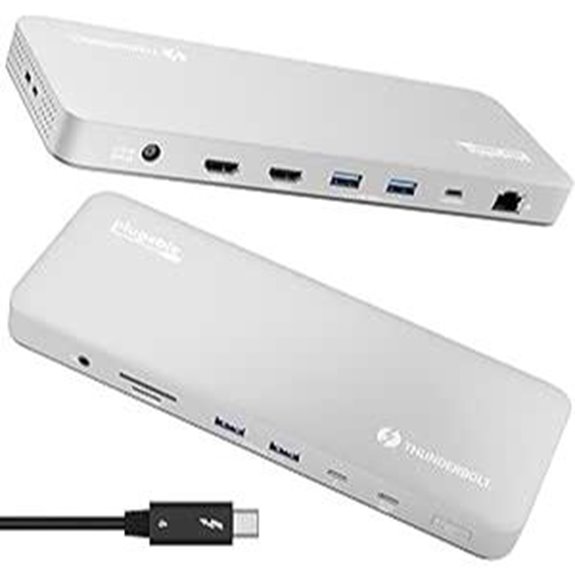
If you’re looking for a reliable and versatile dock that seamlessly integrates with your MacBook, the Plugable Thunderbolt 4 Dock (TBT-UDM) is an excellent choice. It supports all M4/M5 MacBooks, M1, M2, and M3 models, and works with Windows systems via Thunderbolt 4 or USB4. This 13-in-1 station offers dual 4K displays or a single 6K, plus a Thunderbolt 4 port, USB-C, four USB-A ports, SD/microSD slots, Ethernet, and audio. With 100W charging, plug-and-play setup, and a sleek aluminum design, it’s perfect for multitasking, creative work, and professional setups.
Amazon Basics Thunderbolt4/USB4 Docking Station
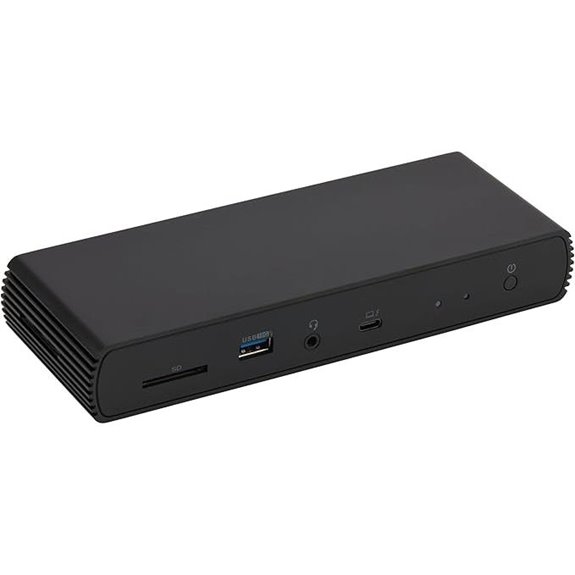
The Amazon Basics Thunderbolt4/USB4 Docking Station is an excellent choice for users seeking a compact, travel-friendly dock that delivers versatile connectivity and reliable power delivery. Its small size, measuring just 7.86 x 2.95 x 1.23 inches, makes it perfect for on-the-go setups, fitting easily into bags or carry-ons. It supports dual 4K@60Hz displays via two Thunderbolt 4 USB-C ports and an HDMI 2.1 output for up to 8K@30Hz. With a 96W power delivery, it can charge most laptops efficiently. Just verify your device supports these features, and use quality cables for peak performance.
UGREEN Thunderbolt 4 Dock 8-in-1 with 8K/4K Display
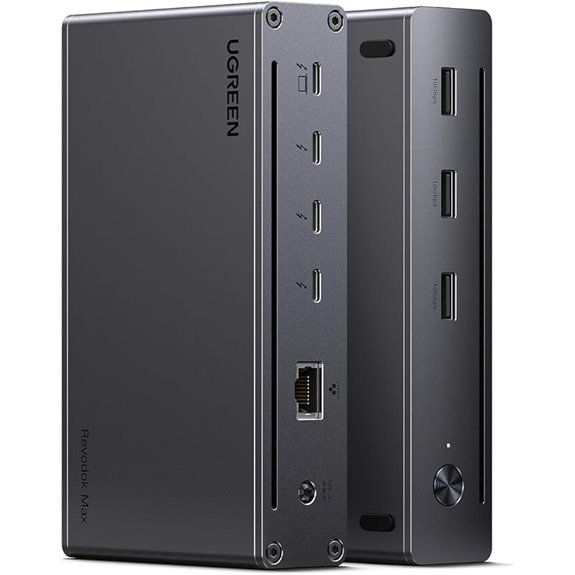
The UGREEN Thunderbolt 4 Dock 8-in-1 stands out as an ideal choice for MacBook users demanding high-performance expansion and exceptional display capabilities. It offers three Thunderbolt 4 ports, supporting data transfer up to 40Gbps and dual 4K@60Hz or single 8K@30Hz displays, ideal for visual-intensive tasks. With six USB A 3.2 ports and gigabit Ethernet, it guarantees versatile peripheral connectivity. The dock’s 140W GaN charger provides 85W charging during use, streamlining workspace setup. Compatible with most USB-C devices, including MacBooks with M-Chips and Intel chips, it’s a reliable hub for professional workflows needing power and high-resolution output.
MacBook Pro 14″ Docking Station with Dual Displays
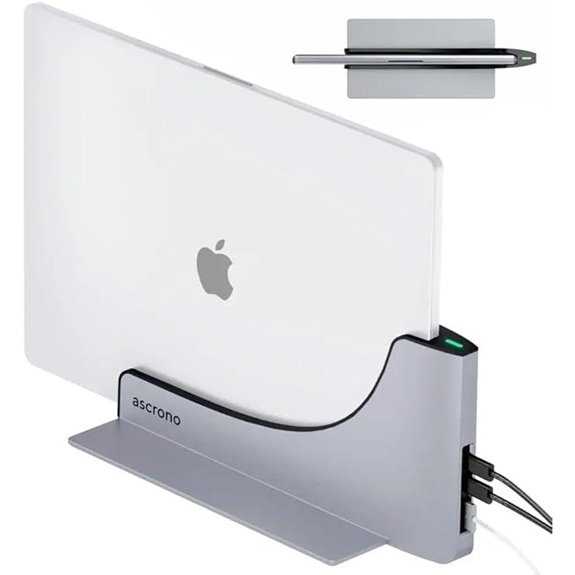
Designed specifically for the MacBook Pro 14″ models from M1 to M5, this docking station transforms your laptop into a full desktop setup with dual displays. It offers seamless vertical docking, allowing you to slide in your MacBook for instant connectivity, indicated by a green light. You can easily switch between portable and desktop modes, boosting productivity. Made from sleek, premium space gray alloy, it reduces cable clutter and complements your MacBook’s look. With dual Thunderbolt 4 ports providing 40Gbps speeds, it supports device charging and peripheral connections. Its secure, heat-dissipating design guarantees reliable performance during extended use.
Belkin Thunderbolt 3 Dock Pro with 4K Ports
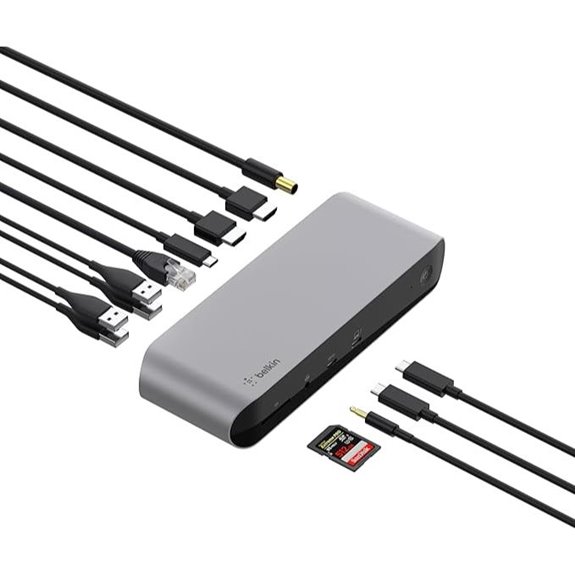
If you need a docking station that can handle demanding multi-monitor setups and fast data transfers, the Belkin Thunderbolt 3 Dock Pro stands out as an excellent choice for MacBook users in 2026. It supports dual 4K monitors at 60Hz with a maximum resolution of 7680 x 4800, connecting through a single Thunderbolt 3 or USB-C cable. With 12 ports—including USB-A, USB-C, SD card reader, Ethernet, and DisplayPort—it offers versatile connectivity. The dock’s 170W power supply delivers up to 85W of charging, keeping your MacBook powered during intensive tasks. Compact and reliable, it combines high-speed data, multiple peripherals, and seamless multi-display support.
Thunderbolt Docking Station for MacBook with 3 Monitors

Professionals seeking seamless multitasking will find this Thunderbolt docking station ideal, especially those who need to run three 4K monitors simultaneously from their MacBook. It offers triple 4K@60Hz support via HDMI and DisplayPort, with backward compatibility for higher refresh rates like 2K@144Hz and 1080P@240Hz. The dock includes multiple USB ports, SD card slots, and gigabit Ethernet, ensuring fast data transfer and stable connections. With 100W Power Delivery, it charges your MacBook while powering peripherals. Designed for macOS compatibility, it supports both mirror and extended displays, making it perfect for demanding workflows that require multiple screens.
Anker Prime TB5 14-in-1 Thunderbolt 5 Docking Station
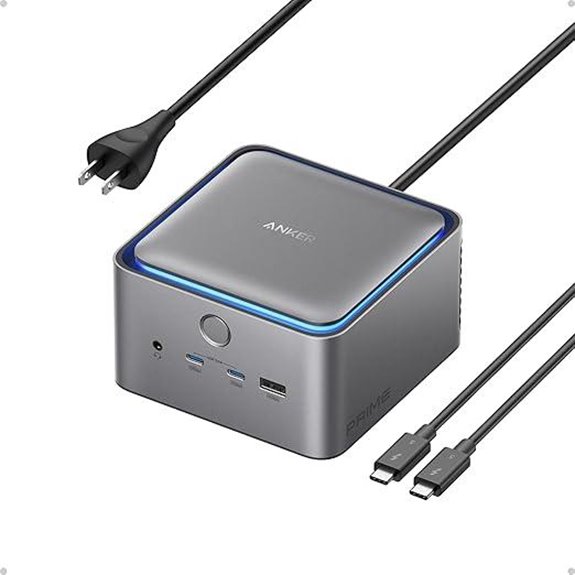
The Anker Prime TB5 14-in-1 Thunderbolt 5 Docking Station stands out for MacBook users who need lightning-fast data transfer and versatile connectivity in a compact package. It offers a Thunderbolt 5 upstream port, dual Thunderbolt 5 downstream ports, USB-C, USB-A, SD and TF card readers, Ethernet, audio jack, and HDMI 2.1 or DisplayPort 2.1 output. With an active cooling system, it maintains peak performance during heavy use. Supporting up to 8K resolution, it handles demanding video tasks, while delivering up to 140W power delivery. This dock is perfect for those who want high-speed transfers, multiple device support, and seamless integration with modern MacBooks.
Plugable Thunderbolt 4 Dock with 100W Charging

The Plugable Thunderbolt 4 Dock with 100W Charging stands out as an ideal choice for those demanding high performance and reliable connectivity in their MacBook workflow. It’s Thunderbolt Certified and was named Best Thunderbolt Dock 2025 by Wirecutter, ensuring top-tier quality. With 40Gbps Thunderbolt 4 speeds and 13 ports—including dual HDMI, USB, Ethernet, and SD card slots—it handles multiple peripherals effortlessly. The dock provides 96W of power delivery for fast charging, supporting a variety of display configurations, including dual 4K or single 8K. Its robust build and compatibility with Mac and Windows systems make it a versatile, future-proof solution for professional setups.
CalDigit TS5 Plus Thunderbolt 5 Dock (20 Ports)

If you’re looking to maximize your MacBook workflow with extensive connectivity and high-performance displays, the CalDigit TS5 Plus Thunderbolt 5 Dock stands out as a top choice. It offers 20 ports, including three Thunderbolt 5 ports supporting dual 8K or 6K displays, plus a wealth of USB-A and USB-C ports, SD card readers, and 10GbE Ethernet. With up to 140W power delivery, it can power demanding laptops like the 16” M4 MacBook Pro. Its aluminum chassis guarantees efficient heat dissipation, and Thunderbolt 5’s bandwidth boost assures smooth performance for high-refresh-rate and high-resolution displays. It’s a robust, versatile hub for demanding workflows.
MOKiN Thunderbolt 4 Dock with 16 Ports
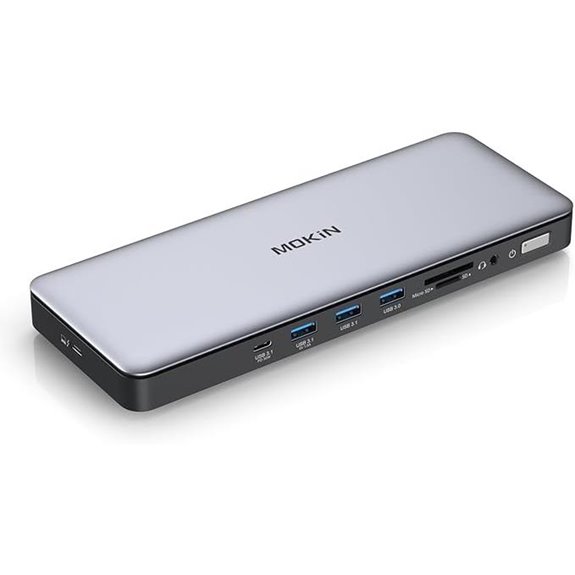
For professionals who need extensive connectivity options, the MOKiN Thunderbolt 4 Dock with 16 ports stands out as an ideal choice, especially for MacBook users handling demanding workflows in 2026. It offers dual Thunderbolt 4 ports, multiple USB-A and USB-C ports, and SD/Micro SD card readers, supporting triple 4K displays at 144Hz or three simultaneous screens. With up to 96W power delivery, it can charge your MacBook and mobile devices simultaneously. The 2.5GbE Ethernet port guarantees faster, more stable network connections. Compatible with Thunderbolt 3, USB4, and various display modes, this dock delivers robust, versatile performance for professional and daily use.
OWC 14-Port Thunderbolt Dock with 85W Charging
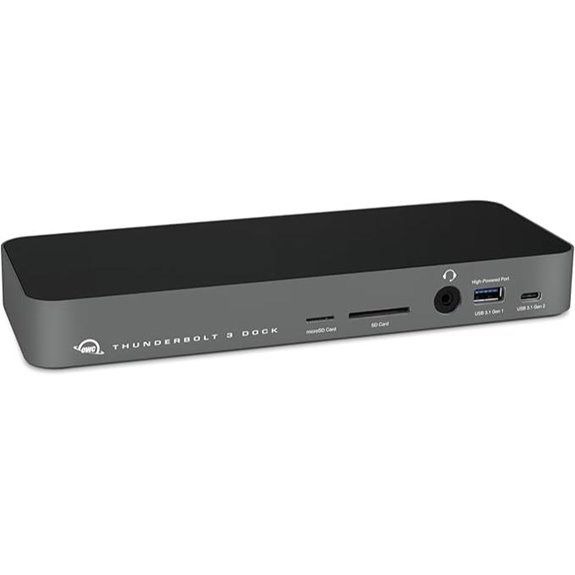
With its 14 ports and 85W charging capability, the OWC Thunderbolt Dock stands out as an ideal choice for professionals seeking seamless connectivity and reliable power delivery for their MacBooks in 2026. It powers and charges notebooks via Thunderbolt with up to 85W, ensuring your device stays juiced during busy work sessions. Compatible with Mac, PC, tablets, and desktops, it supports single 5K or dual 4K displays, making multitasking effortless. Its high-speed data transfer up to 40 Gb/s, along with multiple USB ports, SD card readers, and Ethernet, provides versatile connectivity. Plus, the included Thunderbolt cable and a 2-year warranty add to its appeal.
Kensington EQ Pro Thunderbolt 5 Dock for MacBook

The Kensington EQ Pro Thunderbolt 5 Dock stands out as an ideal choice for creative professionals and power users who demand top-tier connectivity and high-resolution video support. It offers blazing-fast Thunderbolt 5 bandwidth—up to 120Gbps with Bandwidth Boost—perfect for running one 8K or two 6K monitors at 60Hz. With 140W Power Delivery and KonstantCharge technology, it keeps your MacBook and peripherals charged even when undocked. Its versatile 19-in-1 port array includes multiple Thunderbolt, USB, and card reader options, plus a PCIe M.2 SSD slot for fast storage expansion. Easy to set up and customize, it’s a powerhouse for demanding workflows.
Plugable 16-in-1 Thunderbolt 4 Dock with Dual 4K Monitors
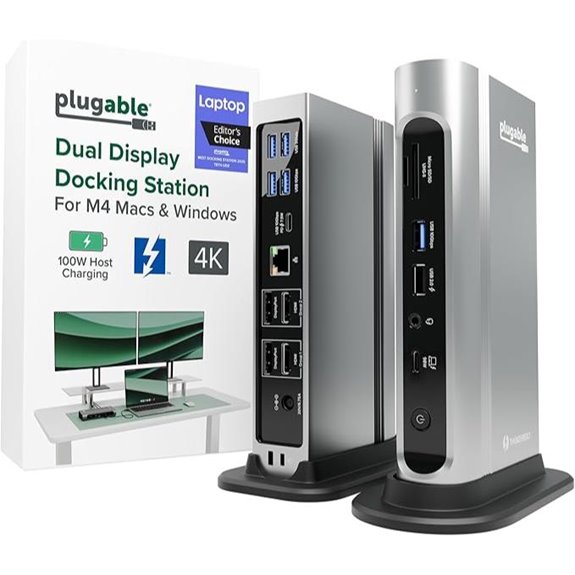
If you need a versatile dock that transforms your MacBook into a powerful dual-monitor workstation, the Plugable 16-in-1 Thunderbolt 4 Dock is an excellent choice. It supports dual 4K 60Hz displays via HDMI and DisplayPort, effortlessly handling multitasking and content creation. Awarded the 2025 Laptop Mag Dock of the Year, it offers 16 ports, including USB, Ethernet, SD card readers, and audio. With 100W Power Delivery, it keeps your MacBook charged all day. Compatible with M4, M5 Macs, Windows, and USB4 systems, it’s a reliable, plug-and-play solution that streamlines connectivity and boosts productivity.
Anker 7-in-2 USB C Hub for MacBook and More

For MacBook users seeking a compact yet versatile hub, the Anker 7-in-2 USB C Hub stands out by offering a range of essential ports in one sleek device. It supports Thunderbolt 4, making it compatible with MacBook Pro 13-inch, MacBook Air M1/M2, and more. The hub expands two USB-C ports into multiple interfaces, including a multi-function USB-C port, two USB-A ports, HDMI (up to 4K@60Hz), SD and microSD card slots, and a data-only USB-C port. It supports high-speed charging up to 100W and data transfer rates up to 40 Gb/s. Its design avoids obstructing the MagSafe port, maintaining your MacBook’s sleek look.
CalDigit TS4 Thunderbolt 4 Dock with 18 Ports

With its impressive 18-port array, the CalDigit TS4 Thunderbolt 4 Dock is ideal for power users who need to connect multiple devices simultaneously. It offers 3 Thunderbolt 4 ports, 8 USB-A ports, SD and microSD card readers, DisplayPort 1.4, Ethernet, and audio jacks, covering all connectivity needs. It supports single 6K or dual 4K displays on macOS, with power delivery up to 98W for charging large laptops. The 2.5GbE Ethernet port ensures faster network speeds, while compatibility extends across Thunderbolt 4, Thunderbolt 3, USB4, and USB-C devices. This dock simplifies setup with a single cable for data, power, and video.
Factors to Consider When Choosing Thunderbolt Dock for Macbook Workflows

When selecting a Thunderbolt dock for my MacBook workflow, I focus on key factors like compatibility with my Mac model and display support to make certain of seamless performance. I also consider power delivery efficiency and port options to match my device needs, along with data transfer speeds for quick file management. These points help me find a dock that boosts productivity without unnecessary hassle.
Compatibility With Mac Models
Choosing the right Thunderbolt dock for your MacBook hinges on ensuring it explicitly supports your specific model, whether you have an M1, M2, M3, or M4 chip. Compatibility with your MacBook’s macOS version is also essential; make sure the dock works seamlessly with macOS 11+ or later. Additionally, verify that the dock can handle your external display needs, especially if you use multiple monitors or have an older MacBook Air or Pro. Power delivery is another key factor—your dock should supply enough wattage to charge your MacBook during use without needing extra adapters. Finally, check if the dock supports special configurations like clamshell mode or extended desktop setups, so it aligns with your workflow requirements.
Display Support Capabilities
Display support capabilities are crucial to guarantee your Thunderbolt dock can handle your desired monitor setup without issues. Depending on the dock’s specs, you can connect dual 4K displays at 60Hz or a single 8K display at 30Hz. Some docks support up to three monitors simultaneously, which is great for complex workflows. Keep in mind, the host device’s Thunderbolt version and graphics card influence resolution and refresh rates. Many docks use HDMI, DisplayPort, or both, often supporting MST (Multi-Stream Transport) for extended desktops. When choosing a dock, make sure its supported resolutions and refresh rates match your monitor’s specifications. This ensures smooth visuals and peak performance, avoiding frustrating compatibility issues during your work sessions.
Power Delivery Efficiency
Power delivery efficiency plays a vital role in ensuring your MacBook stays charged and ready to handle demanding workflows. To achieve this, look for a Thunderbolt dock that supports at least 85W to 100W Power Delivery, so your MacBook charges quickly even during intensive tasks. It’s imperative to verify that the dock’s Power Delivery profile matches or exceeds your MacBook’s requirements to avoid slow charging or disconnections. Docks with dynamic Power Delivery automatically adjust output based on device needs, maximizing energy efficiency. Consider models with dedicated charging ports that deliver full wattage while supporting multiple peripherals without sacrificing power. Using a dock or cable with lower Power Delivery ratings can slow down charging and hinder workflow efficiency, so prioritize high-quality, capable options.
Port Selection Variety
A wide variety of ports on a Thunderbolt dock is essential for creating a versatile and efficient workspace. With options like Thunderbolt, USB-C, USB-A, HDMI, DisplayPort, SD card slots, and Ethernet, I can connect a broad range of peripherals and displays seamlessly. Multiple Thunderbolt ports let me daisy-chain devices, expanding my workspace without extra hubs. Supporting high-speed data transfer and video output across different ports keeps my multitasking smooth and professional workflows efficient. Dedicated ports for media cards and audio boost my media management and content creation capabilities. Having diverse port types and numbers also future-proofs my setup by accommodating new peripherals and evolving technology standards. This variety guarantees my MacBook remains adaptable, making my workspace both flexible and ready for upcoming demands.
Data Transfer Speed
Choosing a Thunderbolt dock with high data transfer speeds is essential for maintaining smooth workflows on my MacBook. Thunderbolt docks can support speeds up to 40Gbps, making it easy to transfer large files quickly and manage demanding tasks. The fastest speeds come from Thunderbolt 4 and Thunderbolt 5, which outperform USB-C and USB 3.x standards. This is critical when editing large video files, backing up media libraries, or moving high-resolution images. However, if multiple devices share ports, bandwidth can be split, reducing speeds. To get the most out of your dock, use certified cables and verify compatibility with Thunderbolt standards. This guarantees maximum transfer speeds, so I can work efficiently without bottlenecks or delays.
Build Quality Durability
Durability is a crucial factor when selecting a Thunderbolt dock for my MacBook workflows, as it directly impacts long-term reliability. I look for docks made from high-quality materials like aluminum or reinforced plastics, which can withstand daily wear and tear. A well-built dock resists impacts, vibrations, and temperature changes, extending its lifespan. Secure port connections and reinforced cables are essential, especially with frequent plugging and unplugging, preventing damage over time. I also prioritize devices with high manufacturing standards, including certified components and thorough testing, ensuring consistent performance. Choosing a sturdy, well-designed dock reduces the risk of hardware failure, connection issues, and costly replacements, making it a smart investment for a seamless, durable, and reliable workspace.
Software & Firmware Updates
Keeping software and firmware up to date is essential for guaranteeing your Thunderbolt dock stays compatible with the latest macOS updates and hardware advancements. Regular updates help fix bugs, improve stability, and enhance security, especially when using multiple peripherals. Firmware updates often bring improved display support, better power delivery, and faster data transfer speeds, which can notably boost your MacBook workflows. It’s important to check the manufacturer’s website periodically for updates and follow proper procedures to avoid bricking or damaging the device. Staying current with software and firmware ensures your dock works seamlessly with new MacBook models and prevents compatibility issues as workflows evolve. Prioritizing updates helps maintain peak performance and protects your investment in your setup.
Frequently Asked Questions
How Do Thunderbolt Docks Impact Macbook Battery Life Over Time?
Thunderbolt docks can slightly impact my MacBook’s battery life over time, especially if I keep them plugged in constantly. They draw power to operate connected devices, which can lead to faster battery drain if I’m not careful. However, using docks with power management features helps minimize this effect. Overall, I notice a small impact, but it’s manageable with proper usage and ensuring my MacBook’s battery health stays good.
Are Thunderbolt Docks Compatible With Older Macbook Models?
Oh, absolutely, Thunderbolt docks are like vintage wine—they just keep working with older MacBooks! Most docks are backward compatible, but you’ll want to double-check your model’s Thunderbolt version. I’ve found that while newer docks often support older ports, some features might be limited. So, yes, with a bit of research, you can definitely connect your trusty old MacBook and enjoy the modern perks.
Can Thunderbolt Docks Support Daisy-Chaining Multiple Devices Simultaneously?
Yes, Thunderbolt docks can support daisy-chaining multiple devices simultaneously. I’ve used mine to connect multiple monitors, external drives, and even audio interfaces without issues. The key is ensuring your dock and devices support Thunderbolt 3 or 4, which handle high data transfer speeds and power delivery efficiently. Just make sure to check the specifications—most modern docks are designed for seamless daisy-chaining, making my workflow much smoother.
What Security Features Should I Look for in a Thunderbolt Dock?
When choosing a Thunderbolt dock, I look for robust security features like hardware encryption, secure firmware updates, and trusted platform modules (TPMs). These protections help guard my data against unauthorized access and firmware tampering. I also prefer docks with hardware-based security protocols, so I can confidently connect my MacBook knowing my sensitive information stays safe. Security is vital, especially when handling confidential work or personal data on my device.
How Do Thunderbolt Docks Handle Firmware Updates and Support?
Thunderbolt docks handle firmware updates through manufacturer-provided software or utilities, which you usually download from their websites. I recommend regularly checking for updates to verify compatibility and security. Most docks support automatic or manual updates, making it easy to keep your device running smoothly. Support is typically offered via customer service, online guides, or firmware update tools, so I always keep an eye out for updates to optimize performance.
Conclusion
Choosing the right Thunderbolt dock is like selecting the perfect compass for a journeyman—guiding your MacBook through a sea of tasks with ease. Each option in this list acts as a trusted navigator, ensuring you stay on course and reach your destination efficiently. With the right dock, your workflow becomes a smooth voyage rather than a turbulent storm. Trust your instincts, and let one of these docks steer your creative journey forward.