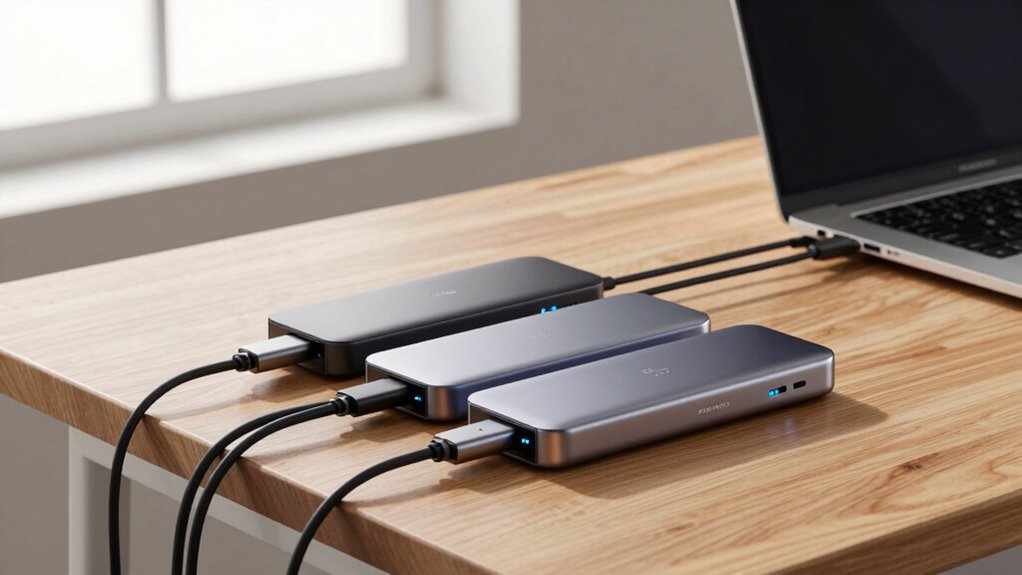

For a premium Thunderbolt dock for MacBook workflows, I’d start with the CalDigit TS5 as my best overall pick for a capable, flexible desk setup. The CalDigit TS4 remains a strong Thunderbolt 4 choice for broad connectivity, while the Satechi Thunderbolt 5 CubeDock suits buyers who want storage built into the dock. The main tradeoffs are Thunderbolt generation, display compatibility, port mix, and how much desk space or charging capacity your setup needs. A newer standard does not automatically mean a better fit for your MacBook or monitors. Read on for my ranking, the differences that matter, and help choosing the right dock for your workflow.

Get business pricing on office and shipping supplies
- Business-only prices and quantity discounts
- Tax-exempt purchasing
- Multiple users, one account, clear invoices
Key Takeaways
- CalDigit TS5 leads the roundup as my best overall choice for buyers who want a modern Thunderbolt 5 dock with room to build out a desk setup.
- CalDigit TS4 shows that Thunderbolt 4 can still be the more sensible fit when broad connectivity matters more than moving to the newest standard.
- Satechi Thunderbolt 5 CubeDock and CalDigit Element 5 serve different expansion needs: built-in NVMe storage versus a simpler hub approach.
- iVANKY FusionDock Max 2 targets highly connected workstations, while compact options such as the UGREEN 8-in-1 make more sense when desk space and a short port list matter.
- Display support depends on the specific MacBook and monitor setup, so port counts alone do not tell me whether a dock will support the screens a buyer wants.
| Belkin Thunderbolt 4 Docking Station, 14-in-1 USB-C Hub with Triple 4K Display Support and 96W Power Delivery |  | Best for Triple 4K Workspaces | Ports: 14-in-1 | Interface: Thunderbolt 4 / USB-C | Data transfer speed: Up to 40Gbps | VIEW ON AMAZON | See Our Full Breakdown |
| CalDigit TS5 Thunderbolt 5 Dock |  | Best for High-End Thunderbolt 5 MacBooks | Ports: 15 | Data speed: 80Gb/s Thunderbolt 5 | Host charging: Up to 140W | VIEW ON AMAZON | See Our Full Breakdown |
| Satechi Thunderbolt 5 CubeDock with Built-in NVMe SSD Enclosure |  | Best for Docking and Internal Storage | Interface: Thunderbolt 5, USB4 v2 | Bandwidth: Up to 120Gbps | Host charging: Up to 140W | VIEW ON AMAZON | See Our Full Breakdown |
| StarTech Thunderbolt 4 Docking Station, 16-Port, 40Gbps, 98W Power Delivery |  | Best for Mixed Mac and Windows Desks | Ports: 16 | Connectivity: Thunderbolt 4 and USB4 | Data transfer speed: Up to 40Gbps | VIEW ON AMAZON | See Our Full Breakdown |
| Plugable Thunderbolt 4 Dock with 100W Charging and Dual Monitor Support |  | Best for Straightforward Dual-Monitor Mac Setups | Ports: 13 total | Connectivity: Thunderbolt 4, USB4 | Thunderbolt speed: 40Gbps | VIEW ON AMAZON | See Our Full Breakdown |
| Satechi Thunderbolt 4 Docking Station with HDMI |  | Best for Multi-Display Flexibility | Thunderbolt 4 ports: 3; up to 40Gbps | USB-A ports: 2; up to 10Gbps | USB-C power delivery: 96W | VIEW ON AMAZON | See Our Full Breakdown |
| iVANKY FusionDock Max 2 23-in-1 Thunderbolt 5 Dock |  | Best for High-End Mac Display Workflows | Interface: Thunderbolt 5 | Compatibility: Mac only; M1–M5 Pro or Max chips | Ports: 23-in-1, including 3 Thunderbolt 5, 10 USB, SD/TF 4.0, and 2.5GbE | VIEW ON AMAZON | See Our Full Breakdown |
| Satechi Thunderbolt 4 Slim Hub Pro Docking Station |  | Best Compact Thunderbolt Hub | Interface: Thunderbolt 4, USB 3.2 Gen 2 | Total ports: 5 | Thunderbolt ports: 3 | VIEW ON AMAZON | See Our Full Breakdown |
| Kensington SD5900T EQ Thunderbolt 4 Docking Station |  | Best for Quad 4K Mac Setups | Interface: Thunderbolt 4 | Ports: 16-in-1, including 2 Thunderbolt 4, 3 USB-A, USB-C, display outputs, dual card readers, Ethernet, and audio | Display support: Quad 4K/60Hz on Pro/Max chipsets; triple 4K/60Hz on base chipsets | VIEW ON AMAZON | See Our Full Breakdown |
| CalDigit Element 5 Thunderbolt 5 Hub, 9-Port |  | Best for Thunderbolt 5 Expansion | Ports: 9 total: 4 Thunderbolt 5, 3 USB-A, 2 USB-C | Thunderbolt 5 bandwidth: Up to 80Gbps; up to 120Gbps for display bandwidth | USB data speed: Up to 10Gbps | VIEW ON AMAZON | See Our Full Breakdown |
| Belkin 140W Thunderbolt 5 Dock, 14-in-1 Docking Station |  | Best for High-Refresh Displays | Ports: 14, including 2 Thunderbolt 5, USB-A, USB-C, HDMI 2.1, DisplayPort 2.1, Ethernet, audio, SD, and microSD | Power delivery: Up to 140W | Data transfer: Up to 80Gbps; up to 120Gbps with Bandwidth Boost | VIEW ON AMAZON | See Our Full Breakdown |
| CalDigit TS4 Thunderbolt 4 Dock | 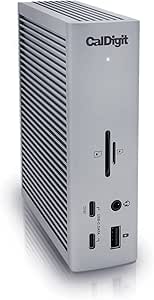 | Best for Port Variety | Ports: 18 | Thunderbolt: 3 × Thunderbolt 4 at 40Gbps | USB: 3 × USB-C and 5 × USB-A at up to 10Gbps | VIEW ON AMAZON | See Our Full Breakdown |
| Anker Prime TB5 Docking Station, 14-in-1 Thunderbolt 5 Dock |  | Best for Heavy Transfer Workloads | Ports: 14, including 3 Thunderbolt 5, 2 USB-C, 3 USB-A, SD/TF, Ethernet, audio, HDMI, and DisplayPort | Maximum power delivery: Up to 140W via upstream port | Video output: Single 8K at 60Hz; dual 8K at 60Hz on Thunderbolt 5 Windows systems | VIEW ON AMAZON | See Our Full Breakdown |
| UGREEN 8-in-1 Thunderbolt 4 Docking Station |  | Best for a Simple MacBook Desk | Ports: 3 × Thunderbolt 4, 3 × USB-A 3.2, Gigabit Ethernet, and DC power | Thunderbolt data speed: Up to 40Gbps | USB-A data speed: Up to 10Gbps | VIEW ON AMAZON | See Our Full Breakdown |
| premium thunderbolt dock for macbook workflow | Ports | Display support | Ethernet | Compatibility |
|---|---|---|---|---|
| Belkin Thunderbolt 4 Docking S | 14-in-1 | Triple 4K at 60Hz | 2.5Gb | — |
| CalDigit TS5 Thunderbolt 5 Doc | 15 | Dual 8K at 60Hz or dual 4K at 240Hz | 2.5GbE | Thunderbolt 5/4/3, USB4, USB-C |
| Satechi Thunderbolt 5 CubeDock | 13, including 2.5G Ethernet and UHS-II SD/microSD | Up to triple 8K at 60Hz or dual 8K at 120Hz | — | — |
| StarTech Thunderbolt 4 Docking | 16 | — | — | Windows and macOS |
| Plugable Thunderbolt 4 Dock wi | 13 total | Dual 4K at 60Hz or single 8K on compatible systems | Gigabit | Windows 10 and up; compatible Thunderbolt 4, Thunderbolt 5, or USB4 systems |
| Satechi Thunderbolt 4 Docking | — | Up to 4 extended displays at 4K/60Hz; HDMI requires DisplayLink | Gigabit; up to 1000Mbps | — |
| iVANKY FusionDock Max 2 23-in- | 23-in-1, including 3 Thunderbolt 5, 10 USB, SD/TF 4.0, and 2.5GbE | Up to triple 6K at 60Hz, depending on Mac chip | — | Mac only; M1–M5 Pro or Max chips |
| Satechi Thunderbolt 4 Slim Hub | — | Dual 4K/60Hz or single 8K/30Hz | — | — |
| Kensington SD5900T EQ Thunderb | 16-in-1, including 2 Thunderbolt 4, 3 USB-A, USB-C, display outputs, dual card readers, Ethernet, and audio | Quad 4K/60Hz on Pro/Max chipsets; triple 4K/60Hz on base chipsets | 2.5Gbps | — |
| CalDigit Element 5 Thunderbolt | 9 total: 4 Thunderbolt 5, 3 USB-A, 2 USB-C | — | — | Thunderbolt 5, USB4 v2, Thunderbolt 4, USB4, Mac Thunderbolt 3, and some USB-C devices |
| Belkin 140W Thunderbolt 5 Dock | 14, including 2 Thunderbolt 5, USB-A, USB-C, HDMI 2.1, DisplayPort 2.1, Ethernet, audio, SD, and microSD | Up to 3 × 4K at 144Hz or 8K at 60Hz; macOS limited to two extended displays | 2.5Gb | Windows, Mac, and Chrome OS devices with USB-C or Thunderbolt 4/5 |
| CalDigit TS4 Thunderbolt 4 Doc | 18 | Single 8K at 30Hz or dual 6K at 60Hz on supported hosts | 2.5GbE | Mac, Windows, Chrome OS, iPad, and iPhone 15/16 Pro |
| Anker Prime TB5 Docking Statio | 14, including 3 Thunderbolt 5, 2 USB-C, 3 USB-A, SD/TF, Ethernet, audio, HDMI, and DisplayPort | — | 2.5Gbps | — |
| UGREEN 8-in-1 Thunderbolt 4 Do | 3 × Thunderbolt 4, 3 × USB-A 3.2, Gigabit Ethernet, and DC power | Dual 4K at 60Hz or single 8K at 30Hz on supported Windows systems; Mac support varies by model | — | Thunderbolt 4/3, USB4, and USB-C devices; macOS 11.4+ and Windows 10+ |
More Details on Our Top Picks
Belkin Thunderbolt 4 Docking Station, 14-in-1 USB-C Hub with Triple 4K Display Support and 96W Power Delivery
I’d choose the Belkin Thunderbolt 4 Dock for a MacBook desk built around several 4K screens and fast wired networking. Its triple 4K at 60Hz support, 2.5Gb Ethernet, and 96W laptop charging make it a more screen-focused option than the Plugable Thunderbolt 4 Dock, which lists dual 4K or a single 8K display. The tradeoff is that Mac display support depends on the specific Mac; the stated triple-display capability should not be read as a guarantee for every MacBook. Its 14-port setup and safety features suit a permanent home or office station, while Thunderbolt 4 compatibility matters for full functionality. I’d skip it if one or two displays are enough and a simpler dock would meet the workflow.
Pros:- Lists support for triple 4K displays at 60Hz
- 2.5Gb Ethernet is faster than the Gigabit Ethernet listed on the Plugable dock
- Up to 96W power delivery can charge a laptop while it is in use
- Includes a six-point safety system and Kensington lock
Cons:- Full functionality requires a Thunderbolt 4 compatible device
- Triple-display support may not apply to every MacBook configuration
- Its extensive display and connectivity capabilities may be unnecessary for simpler desks
Best for: MacBook users whose compatible setup needs several 4K displays, 2.5Gb wired networking, and substantial host charging from one dock.
Not ideal for: MacBook owners who need assured triple-display support without checking their model, or who only need a basic one-screen desk connection.
- Ports:14-in-1
- Interface:Thunderbolt 4 / USB-C
- Data transfer speed:Up to 40Gbps
- Power delivery:Up to 96W
- Display support:Triple 4K at 60Hz
- Ethernet:2.5Gb
- Safety:Six-point safety system; Kensington lock
- Warranty:3-year coverage up to $2,500
Our verdict“Choose the Belkin if your compatible MacBook desk needs multiple 4K screens and 2.5Gb Ethernet in one dock.”
CalDigit TS5 Thunderbolt 5 Dock
The CalDigit TS5 is the forward-looking pick for a MacBook workflow with demanding displays, fast storage, and a high-power laptop. Its Thunderbolt 5 bandwidth of 80Gb/s and up to 140W host charging give it more headroom than the 40Gb/s Thunderbolt 4 docks from Belkin and Plugable. It can support dual 8K at 60Hz or dual 4K at 240Hz, but those capabilities only help if the MacBook and displays support the desired configuration; the product data also flags limits around Ethernet host support. The 15-port design, card readers, and aluminum heat-sink chassis suit a dense workstation. I’d pass if the MacBook is Thunderbolt 4 only and the extra display and bandwidth capacity would sit unused.
Pros:- Thunderbolt 5 provides up to 80Gb/s data speed
- Up to 140W host charging suits power-hungry laptops
- Supports dual 8K at 60Hz or dual 4K at 240Hz on compatible systems
- Includes SD 4.0 and microSD 4.0 UHS-II readers
Cons:- Maximum bandwidth requires a Thunderbolt 5 or USB4 v2 host
- Ethernet functionality requires PCIe support on the host
- The advanced display capacity may offer little benefit on a Thunderbolt 4 MacBook
Best for: MacBook Pro owners with Thunderbolt 5 who connect high-resolution or high-refresh displays, fast peripherals, and a high-power laptop.
Not ideal for: MacBook users with no Thunderbolt 5 or USB4 v2 workflow, or those relying on display and Ethernet behavior without checking host compatibility.
- Ports:15
- Data speed:80Gb/s Thunderbolt 5
- Host charging:Up to 140W
- Power supply:240W
- Display support:Dual 8K at 60Hz or dual 4K at 240Hz
- Ethernet:2.5GbE
- Card readers:SD 4.0 and microSD 4.0 UHS-II
- Compatibility:Thunderbolt 5/4/3, USB4, USB-C
Our verdict“Pick the TS5 if your Thunderbolt 5 MacBook workflow can use its extra bandwidth, display headroom, and 140W charging.”
Satechi Thunderbolt 5 CubeDock with Built-in NVMe SSD Enclosure
The Satechi Thunderbolt 5 CubeDock combines a dock with an enclosure for an M.2 NVMe SSD, making it a distinctive choice for MacBook workflows that move large media or project files. Its 120Gbps bandwidth, 140W host charging, and support for high-resolution displays offer more capacity on paper than the CalDigit TS5, while the built-in drive bay can reduce desk clutter from a separate external enclosure. That bay does not include an SSD, so storage adds a component the buyer must supply. The 13-port dock also has 2.5G Ethernet and UHS-II card readers. Its 1229 g weight and fan noise under load make it less appealing for quiet or portable setups; I’d favor CalDigit if an integrated SSD bay is not part of the workflow.
Pros:- Combines docking with an M.2 NVMe SSD enclosure
- Supports up to 8TB PCIe 4×4 storage with listed speeds up to 6000MB/s
- Provides up to 140W host charging and 30W USB-C power delivery
- Includes 2.5G Ethernet and UHS-II SD and microSD readers
Cons:- NVMe SSD is not included
- Fan noise is listed at 20–40 dB(A) under load
- At 1229 g, it is substantially heavier than the 8.9-ounce CalDigit TS5
Best for: MacBook video editors, photographers, and other large-file creators who want a dock and NVMe enclosure in one desktop unit.
Not ideal for: Travel-focused users, quiet-workspace users, or buyers who want ready-to-use storage without sourcing and installing an SSD.
- Interface:Thunderbolt 5, USB4 v2
- Bandwidth:Up to 120Gbps
- Host charging:Up to 140W
- Storage enclosure:M.2 NVMe, PCIe 4×4, up to 8TB; SSD not included
- Display support:Up to triple 8K at 60Hz or dual 8K at 120Hz
- Ports:13, including 2.5G Ethernet and UHS-II SD/microSD
- Dimensions:5 × 5 × 2 inches
- Weight:1229 g
- Warranty:2-year limited
Our verdict“Choose the CubeDock if your MacBook desk benefits from combining high-speed docking with an NVMe drive bay.”
StarTech Thunderbolt 4 Docking Station, 16-Port, 40Gbps, 98W Power Delivery
I’d put the StarTech 16-Port Thunderbolt 4 Dock on the shortlist for a desk shared between Mac and Windows laptops. It is driverless, offers up to 98W charging, and lists dual extended 4K at 60Hz on supported Macs. Its four-display support applies to compatible Windows systems, giving it a broader stated Windows display ceiling than the Plugable Thunderbolt 4 Dock, but Mac users should focus on the dual-display limit and their specific model’s behavior. The 16 ports provide flexibility for a crowded setup, including a USB 2.0 charging port. That port is useful for a low-demand accessory, though its 7.5W output is modest. I’d choose the Belkin instead when 2.5Gb Ethernet is a priority; Ethernet speed is not specified here.
Pros:- Driverless compatibility with Windows and macOS
- Up to 98W laptop power delivery
- Lists dual extended 4K at 60Hz for supported Macs
- USB 2.0 port supplies 7.5W charging for mobile devices
Cons:- Four 4K displays are listed for compatible Windows systems, not Macs
- Some Mac configurations may require clamshell mode or Pro/Max chips for dual extended displays
- USB 2.0 charging output is limited to 7.5W
Best for: Households or offices switching between supported Mac and Windows laptops that need many connections and strong host charging.
Not ideal for: MacBook owners expecting four extended 4K displays, or buyers who need a specified multi-gigabit Ethernet connection.
- Ports:16
- Connectivity:Thunderbolt 4 and USB4
- Data transfer speed:Up to 40Gbps
- Laptop power delivery:Up to 98W
- Mac display support:Dual extended 4K at 60Hz on supported Macs
- Windows display support:Up to four 4K displays at 60Hz on compatible systems
- USB 2.0 charging:7.5W (1.5A)
- Compatibility:Windows and macOS
Our verdict“Choose the StarTech for a shared Mac and Windows desk where broad port access and near-100W charging matter more than Mac display count.”
Plugable Thunderbolt 4 Dock with 100W Charging and Dual Monitor Support
The Plugable Thunderbolt 4 Dock suits a MacBook desk that needs two external screens and familiar connections without stepping up to Thunderbolt 5. It lists dual 4K at 60Hz or one 8K display on compatible systems, plus 13 ports, card readers, Gigabit Ethernet, and up to 100W host charging. Compared with the Belkin Thunderbolt 4 Dock, Plugable’s stated display target is more modest, but its 96W certified charging and driverless design cover a common office setup. Display support depends on the Mac model: some Macs require clamshell mode, and Thunderbolt 3 or USB-C systems support only one external display. I’d look at StarTech for more ports and higher listed charging, or Belkin for 2.5Gb Ethernet.
Pros:- Supports dual 4K at 60Hz or a single 8K display on compatible systems
- Up to 100W host charging, with 96W certified
- Includes SD and microSD readers, Gigabit Ethernet, and an audio jack
- Driverless design
Cons:- Thunderbolt 3 and USB-C systems support only one external display
- Dual-display support on Mac depends on model, and some systems require clamshell mode
- Gigabit Ethernet is slower than the Belkin dock’s listed 2.5Gb Ethernet
Best for: MacBook users with a compatible dual-display setup who want card readers, wired networking, and laptop charging from one dock.
Not ideal for: Owners of Thunderbolt 3 or USB-C systems who need two external screens, or users whose workflow calls for multi-gigabit Ethernet.
- Ports:13 total
- Connectivity:Thunderbolt 4, USB4
- Thunderbolt speed:40Gbps
- Host power delivery:Up to 100W; 96W certified
- Downstream Thunderbolt charging:15W
- Display support:Dual 4K at 60Hz or single 8K on compatible systems
- Ethernet:Gigabit
- Compatibility:Windows 10 and up; compatible Thunderbolt 4, Thunderbolt 5, or USB4 systems
Our verdict“Pick Plugable for a compatible MacBook dual-screen desk with useful everyday ports and up to 100W host charging.”
Satechi Thunderbolt 4 Docking Station with HDMI
The Satechi makes sense for a MacBook desk where several displays and everyday peripherals need to share one dock. It supports up to four extended 4K/60Hz displays, though HDMI output requires DisplayLink software and Mac display limits still apply. Its 96W charging, UHS-II SD reader, and Gigabit Ethernet also suit a workflow that moves camera files and stays wired to a network. Compared with the Satechi Thunderbolt 4 Slim Hub Pro, this model offers more of a traditional docking mix, including Ethernet and card reading; the Slim Hub is smaller and centers on Thunderbolt connections. The tradeoff is that multi-display setup depends on driver support, and M1/M2 Macs are capped at three displays. I’d choose it when port variety and display count matter more than a simpler setup.
Pros:- Supports up to four extended 4K/60Hz displays, subject to Mac limits and DisplayLink for HDMI
- Combines 96W USB-C charging with Gigabit Ethernet and a UHS-II SD reader
- Three Thunderbolt 4 ports support data rates up to 40Gbps
- Includes a Thunderbolt 4 cable and 180W power adapter
Cons:- HDMI display output requires DisplayLink drivers
- M1/M2 Mac models support up to three displays
- Gigabit Ethernet is slower than the 2.5GbE connection listed for the Kensington SD5900T EQ
Best for: MacBook users building a multi-monitor desk who also need wired networking, SD transfers, and laptop charging from one dock
Not ideal for: Buyers who want HDMI displays to work without DisplayLink software or whose Mac display limit falls below their monitor needs
- Thunderbolt 4 ports:3; up to 40Gbps
- USB-A ports:2; up to 10Gbps
- USB-C power delivery:96W
- Display support:Up to 4 extended displays at 4K/60Hz; HDMI requires DisplayLink
- M1/M2 Mac display limit:Up to 3 displays
- SD card reader:UHS-II SD 4.0; up to 312MB/s
- Ethernet:Gigabit; up to 1000Mbps
- Included accessories:1m Thunderbolt 4 cable, 180W AC adapter, C5 power cord, user manual
Our verdict“Choose the Satechi if your MacBook desk needs a broad port mix and multiple displays, and DisplayLink setup fits your workflow.”
iVANKY FusionDock Max 2 23-in-1 Thunderbolt 5 Dock
For a MacBook Pro with a compatible Pro or Max chip, the FusionDock Max 2 is the lineup’s specialist for a dense, high-resolution desk: it supports up to triple 6K displays and provides 23 connections, including 2.5GbE. Its 140W power delivery and fanless cooling suit a demanding setup where the dock stays connected through long work sessions. Compared with the CalDigit Element 5 Thunderbolt 5 Hub, it provides a much broader range of connections and is built specifically around Mac display workflows; the CalDigit is more compact and supports a wider range of hosts. That specialization is also the main compromise: this dock is Mac-only, connects to one Mac at a time, and triple 6K depends on the Mac chip. I’d place it above general-purpose hubs only for buyers whose Mac and monitor plans can use its full capacity.
Pros:- Supports up to triple 6K at 60Hz on compatible Macs
- 23-in-1 port selection includes three Thunderbolt 5 ports and 2.5GbE
- Delivers up to 140W power delivery
- Passive fanless cooling avoids fan noise
Cons:- Mac-only compatibility excludes Windows and Chrome laptops
- Connects to a single Mac, with no computer switching
- Triple 6K support depends on the specific Mac chip
Best for: MacBook Pro owners with an M-series Pro or Max chip who need multiple high-resolution displays, extensive peripheral connections, and 140W charging
Not ideal for: People sharing a dock between Mac and Windows or Chrome laptops, switching between computers, or using a Mac that cannot support their desired display count
- Interface:Thunderbolt 5
- Compatibility:Mac only; M1–M5 Pro or Max chips
- Ports:23-in-1, including 3 Thunderbolt 5, 10 USB, SD/TF 4.0, and 2.5GbE
- Data transfer rate:Up to 120Gbps
- Power delivery:140W
- Display support:Up to triple 6K at 60Hz, depending on Mac chip
- Cooling:Passive, fanless
- Warranty:24 months
Our verdict“Pick this dock for a compatible high-end MacBook Pro desk that can use its triple 6K support and extensive ports.”
Satechi Thunderbolt 4 Slim Hub Pro Docking Station
The Slim Hub Pro is the compact choice for a MacBook desk that needs fast Thunderbolt expansion without a large dock. Its three Thunderbolt 4 ports can handle up to 40Gbps, while the included 150W GaN supply provides up to 100W for the host. That makes it a good fit for connecting fast storage and displays while keeping the hub’s slim aluminum body unobtrusive. Compared with the Satechi Thunderbolt 4 Docking Station with HDMI, it takes less space and offers more host charging, but the larger dock includes Ethernet and an SD reader for a fuller desk setup. Display support is listed as dual 4K/60Hz or single 8K/30Hz, though actual output depends on the laptop; some Mac models have display or HDMI limits. I’d favor this hub when size and Thunderbolt connections matter more than built-in network and card-reader ports.
Pros:- Three Thunderbolt 4 ports provide data rates up to 40Gbps
- Supports dual 4K/60Hz or single 8K/30Hz display output, subject to host capabilities
- Provides up to 100W host charging from an included 150W GaN supply
- Compact aluminum housing uses passive cooling
Cons:- Does not list built-in Ethernet or an SD card reader
- Full functionality depends on Thunderbolt 4 or compatible USB4 support
- Display output can be limited by specific Mac models
Best for: MacBook Air or Pro owners who want a small powered hub for Thunderbolt storage and up to two 4K displays
Not ideal for: Desk setups that need built-in Ethernet, an SD card reader, or broad compatibility without checking the laptop’s Thunderbolt or USB4 support
- Interface:Thunderbolt 4, USB 3.2 Gen 2
- Total ports:5
- Thunderbolt ports:3
- Maximum host charging:100W
- Data transfer speed:Up to 40Gbps
- Display support:Dual 4K/60Hz or single 8K/30Hz
- Dimensions:5.31 × 0.67 × 2.91 inches
- Included accessories:0.8m Thunderbolt 4 cable, 150W GaN power supply, C5 power cable
Our verdict“Choose the Slim Hub Pro if a compact footprint and Thunderbolt expansion matter more to you than built-in Ethernet and card reading.”
Kensington SD5900T EQ Thunderbolt 4 Docking Station
The SD5900T EQ is aimed at a MacBook workstation where four 4K/60Hz monitors are the defining requirement. DisplayLink helps it extend display support across compatible M1–M4 Macs, with quad output for Pro/Max models and triple output listed for base chips. Its 16-in-1 layout, dual card readers, and 2.5GbE make it a fuller desk anchor than the compact Satechi Slim Hub Pro, which trades those connections for a smaller form. The dock also supplies up to 100W power delivery, with 96W certified. There are conditions to weigh: display counts depend on chip and setup, and DisplayLink means software is part of the arrangement. At 1.3 pounds, it is better suited to a permanent desk than a travel bag. I’d choose it when monitor capacity outweighs portability.
Pros:- Supports up to quad 4K/60Hz displays on compatible Pro/Max Macs
- 16-in-1 connectivity includes dual card readers and 2.5GbE
- Provides up to 100W power delivery and 40Gbps data speed
- Chassis uses 100% post-consumer recycled aluminum
Cons:- Display support varies by Mac chip and setup, and relies on DisplayLink technology
- Its 1.3-pound chassis is less suited to frequent travel than the Satechi Slim Hub Pro
- Mounting bracket and security cable lock are sold separately
Best for: MacBook users with compatible Pro/Max chips who need four 4K monitors, multiple peripheral ports, and faster-than-Gigabit wired networking
Not ideal for: Traveling MacBook owners or users who want a lightweight, driver-free setup and do not need several external displays
- Interface:Thunderbolt 4
- Ports:16-in-1, including 2 Thunderbolt 4, 3 USB-A, USB-C, display outputs, dual card readers, Ethernet, and audio
- Display support:Quad 4K/60Hz on Pro/Max chipsets; triple 4K/60Hz on base chipsets
- Power delivery:100W; 96W certified
- Data speed:Up to 40Gbps
- Ethernet:2.5Gbps
- Dimensions and weight:8.86 × 3.35 × 0.87 inches; 1.3 pounds
- Warranty:3 years
Our verdict“Choose the Kensington if a compatible MacBook desk needs quad 4K output and a broad, wired port selection.”
CalDigit Element 5 Thunderbolt 5 Hub, 9-Port
The Element 5 suits a MacBook workflow built around fast external storage and several direct device connections. Four Thunderbolt 5 ports sit alongside five USB ports, and its 90W charging can keep a laptop powered while the included 180W supply supports connected devices. On supported Macs, display options include up to two 6K/60Hz or 8K/60Hz displays, while the 120Gbps display bandwidth can matter for high-resolution output. Compared with the Mac-only iVANKY FusionDock Max 2, this hub works across a broader range of Thunderbolt and USB hosts and is much smaller, but it offers fewer total connections and no stated 140W charging. Triple displays are not supported on macOS, and base M1–M3 Macs do not support dual displays. I’d pick it for flexible TB5 expansion, not as a route to a three-monitor Mac setup.
Pros:- Four Thunderbolt 5 ports support high-speed peripherals and storage
- Five USB ports add three USB-A and two USB-C connections
- Provides up to 90W host charging and offline device charging
- Compact 8.9-ounce hub supports high-resolution displays on compatible Macs
Cons:- Mac display support does not include triple displays
- Display capabilities vary by host, and base M1–M3 Macs do not support dual displays
- Provides less laptop charging than the iVANKY FusionDock Max 2’s 140W
Best for: MacBook owners with a supported Thunderbolt 5 or USB4 v2 setup who prioritize high-speed storage, two high-resolution displays, and compact expansion
Not ideal for: Mac users needing three external displays, base M1–M3 owners seeking dual displays, or buyers who need more than 90W laptop charging
- Ports:9 total: 4 Thunderbolt 5, 3 USB-A, 2 USB-C
- Thunderbolt 5 bandwidth:Up to 80Gbps; up to 120Gbps for display bandwidth
- USB data speed:Up to 10Gbps
- Power delivery:Up to 90W
- Mac display support:Up to two 6K/60Hz or 8K/60Hz displays on supported Macs
- Compatibility:Thunderbolt 5, USB4 v2, Thunderbolt 4, USB4, Mac Thunderbolt 3, and some USB-C devices
- Dimensions and weight:4.5 × 2.75 × 1.12 inches; 8.9 ounces
- Power supply:180W
Our verdict“Pick the Element 5 if you want compact Thunderbolt 5 expansion and your Mac’s display limits match a two-screen workflow.”
Belkin 140W Thunderbolt 5 Dock, 14-in-1 Docking Station
Display bandwidth and charging headroom make this Belkin a strong fit for a MacBook workflow built around demanding monitors and power-hungry accessories. Its Thunderbolt 5 connection can reach 120Gbps with Bandwidth Boost, while 140W delivery gives compatible laptops room to charge through the dock. Compared with the CalDigit TS4, it offers newer Thunderbolt bandwidth and support for higher-refresh displays; the TS4 counters with more ports and broad Thunderbolt 4 capability. Mac users should read the display limits carefully: triple 4K support applies to compatible Windows PCs, while macOS supports two extended displays. The 2.5Gb Ethernet and card readers suit a fixed desk setup, but the higher-generation features make less sense if your MacBook cannot use them.
Pros:- Up to 140W power delivery for compatible laptops
- Thunderbolt 5 bandwidth reaches 120Gbps with Bandwidth Boost
- 2.5Gb Ethernet and SD/microSD readers support a desk-based workflow
- Supports two extended displays on macOS, including high-resolution configurations
Cons:- macOS is limited to two extended displays; triple 4K support requires a compatible Windows PC
- Thunderbolt 5 advantages depend on having compatible host hardware
- Its 14-port selection is less extensive than the CalDigit TS4’s 18 ports
Best for: MacBook owners with a Thunderbolt 5 system, high-refresh external monitors, and demanding wired-network or charging needs
Not ideal for: MacBook users who need three extended displays or whose laptop cannot take advantage of Thunderbolt 5 bandwidth
- Ports:14, including 2 Thunderbolt 5, USB-A, USB-C, HDMI 2.1, DisplayPort 2.1, Ethernet, audio, SD, and microSD
- Power delivery:Up to 140W
- Data transfer:Up to 80Gbps; up to 120Gbps with Bandwidth Boost
- Display support:Up to 3 × 4K at 144Hz or 8K at 60Hz; macOS limited to two extended displays
- Ethernet:2.5Gb
- Dimensions:8.85 × 3.39 × 1.06 inches
- Compatibility:Windows, Mac, and Chrome OS devices with USB-C or Thunderbolt 4/5
- Warranty:3-year coverage
Our verdict“Choose this Belkin if your MacBook and monitors can use Thunderbolt 5 and high-refresh display support matters more than having the TS4’s larger port count.”
CalDigit TS4 Thunderbolt 4 Dock
Port count and useful variety are the TS4’s clearest advantages for a MacBook desk that connects storage, cameras, displays, and wired networking. It has 18 ports, including three Thunderbolt 4 ports, eight USB ports, 2.5Gb Ethernet, and fast SD and microSD readers. Compared with the Belkin 140W Thunderbolt 5 Dock, the TS4 gives you more connection points and a mature Thunderbolt 4 setup, while Belkin offers newer bandwidth and higher power delivery. The TS4’s 98W charging is ample for many MacBooks, but its display results depend on the Mac’s chip and host capabilities; not every M-series Mac supports the listed dual-display configuration. It also calls for the supplied or Intel-certified cables, so it is a better fit for buyers willing to follow the connection requirements than for those seeking a casual plug-anything-in hub.
Pros:- 18 ports cover a broad range of desk peripherals
- Three Thunderbolt 4 ports allow high-speed accessory connections
- 98W power delivery suits many laptop charging needs
- 2.5Gb Ethernet and UHS-II SD and microSD readers support media and network workflows
Cons:- Display support varies by host Mac; some M-series models have more limited options
- Requires the supplied or Intel-certified cables for reliable operation
- Thunderbolt 4 tops out below the newer Thunderbolt 5 docks in this roundup
Best for: MacBook desk users who regularly connect several USB devices, Thunderbolt accessories, card media, and wired Ethernet
Not ideal for: Owners of base-chip M-series MacBooks who need multiple external displays, or buyers seeking Thunderbolt 5 bandwidth
- Ports:18
- Thunderbolt:3 × Thunderbolt 4 at 40Gbps
- USB:3 × USB-C and 5 × USB-A at up to 10Gbps
- Power delivery:Up to 98W
- Display support:Single 8K at 30Hz or dual 6K at 60Hz on supported hosts
- Ethernet:2.5GbE
- Card readers:SD and microSD 4.0 UHS-II
- Dimensions and weight:4.46 × 1.65 × 5.55 inches; 1.4 lb
- Compatibility:Mac, Windows, Chrome OS, iPad, and iPhone 15/16 Pro
Our verdict“Pick the TS4 if connecting many different peripherals matters more to your MacBook desk than having the newest Thunderbolt generation.”
Anker Prime TB5 Docking Station, 14-in-1 Thunderbolt 5 Dock
Fast file movement with active cooling gives this Anker a distinct role among the Thunderbolt 5 docks here. The stated transfer example—150GB in 25 seconds—speaks to workloads where moving large project files matters, and its cooling system is designed to sustain operation under load. It also supplies up to 140W through the upstream port, pairing laptop charging with a 14-in-1 port selection. Compared with the Belkin 140W Thunderbolt 5 Dock, Anker highlights active cooling and dual 8K support on compatible Thunderbolt 5 Windows systems; Belkin lists triple 4K at high refresh rates for compatible Windows PCs. MacBook buyers should verify display support for their specific host, since Anker’s dual 8K claim is Windows-specific. Its front USB-C ports share a 45W budget, which limits charging flexibility for several devices at once.
Pros:- Thunderbolt 5 supports high-speed transfers for large files
- Up to 140W upstream power delivery charges a compatible laptop
- Active cooling is designed for sustained heavy workloads
- Includes Ethernet, card readers, audio, and HDMI/DisplayPort in a 14-in-1 layout
Cons:- Dual 8K at 60Hz support is specified for Thunderbolt 5 Windows systems, not as a general MacBook feature
- Front USB-C ports share a 45W total power budget
- Full capabilities require Thunderbolt 5 compatible hardware
Best for: MacBook professionals moving large media or project files through a compatible Thunderbolt 5 setup who also need high-power laptop charging
Not ideal for: MacBook owners without Thunderbolt 5 who expect the full feature set, or users who need high simultaneous power from the front USB-C ports
- Ports:14, including 3 Thunderbolt 5, 2 USB-C, 3 USB-A, SD/TF, Ethernet, audio, HDMI, and DisplayPort
- Maximum power delivery:Up to 140W via upstream port
- Video output:Single 8K at 60Hz; dual 8K at 60Hz on Thunderbolt 5 Windows systems
- Ethernet:2.5Gbps
- Cooling:Active cooling system
- Front USB-C power:45W total shared across front USB-C ports
- Included cables:3.3 ft Thunderbolt 5 cable and 6 ft AC power cable
- Warranty:24 months
Our verdict“Choose Anker for sustained large-file work on a compatible Thunderbolt 5 setup, after checking your MacBook’s display support and accessory charging needs.”
UGREEN 8-in-1 Thunderbolt 4 Docking Station
A compact port set with its own GaN charger makes the UGREEN a simpler alternative for a MacBook desk that needs a few fast connections rather than a full 14- or 18-port station. Three Thunderbolt 4 ports, three USB-A ports, and gigabit Ethernet cover common peripherals, while the included 140W charger provides up to 85W to a compatible laptop. Compared with the CalDigit TS4, UGREEN has fewer ports and lower network speed, but its bundled charger gives the setup a straightforward power arrangement. Display limits matter: supported MacBook models can run dual 4K, while basic M-chip MacBooks are limited to one 4K display. The dock also needs the included charger connected to function, so it is not a portable hub for minimal cable setups; its larger footprint further favors a permanent desk.
Pros:- Three Thunderbolt 4 ports provide 40Gbps connections for compatible accessories
- Includes a 140W GaN charger and supplies up to 85W to a compatible laptop
- Three USB-A ports support common wired peripherals
- Supports dual 4K at 60Hz on compatible MacBook configurations
Cons:- Basic M-chip MacBooks are limited to one 4K external display
- Gigabit Ethernet is slower than the 2.5GbE on the CalDigit TS4 and Thunderbolt 5 alternatives
- Requires the included charger to operate and has a relatively large 9.5-inch square footprint
Best for: MacBook owners with a compatible Thunderbolt or USB4 port who want a modest set of desk connections and a bundled laptop charger
Not ideal for: Users with base M-chip MacBooks who need dual external displays, or anyone seeking 2.5Gb Ethernet and extensive port selection
- Ports:3 × Thunderbolt 4, 3 × USB-A 3.2, Gigabit Ethernet, and DC power
- Thunderbolt data speed:Up to 40Gbps
- USB-A data speed:Up to 10Gbps
- Display support:Dual 4K at 60Hz or single 8K at 30Hz on supported Windows systems; Mac support varies by model
- Laptop charging:Up to 85W; 140W GaN charger included
- Compatibility:Thunderbolt 4/3, USB4, and USB-C devices; macOS 11.4+ and Windows 10+
- Dimensions:9.5 × 9.5 × 2.5 inches
- Weight:1.4 kg
Our verdict“Choose UGREEN for a straightforward, charger-included MacBook desk when its display limits and smaller port count match your setup.”

How We Picked
I ranked these docks around the jobs MacBook owners actually ask a dock to handle: connecting displays and peripherals, charging the laptop, and keeping a desk setup practical. I weighed the Thunderbolt generation alongside the port selection, charging capability, form factor, and any standout feature such as built-in storage. A larger port count earned a higher place only when it added useful flexibility without making the dock a poor fit for simpler workflows.
The order reflects how broadly each product appears suited to premium MacBook use, with a preference for flexible connectivity and a clear reason to choose it. Thunderbolt 5 models stand out for buyers building around newer equipment, but Thunderbolt 4 docks remain strong choices when their port mix better fits the setup. I also considered who should skip each type: a compact hub may not serve a multi-monitor workstation, and a feature-rich dock may add bulk and ports a basic desk never uses. Buyers should confirm compatibility against their exact MacBook model and display arrangement before choosing.
Factors to Consider When Choosing Premium Thunderbolt Dock For Macbook Workflows
I’d match the dock to the whole desk, rather than choosing by generation or port count alone. These factors help narrow the field before comparing individual models.
Start With Your MacBook and Display Setup
Write down your MacBook model and the number, resolution, and refresh rate of the displays you plan to connect. MacBook display support can vary by model, so a dock advertising several display outputs may not deliver the same result on every Mac. Check whether your workflow depends on extended desktops, mirrored screens, or a single high-resolution panel. Also confirm which ports on the dock carry video; a connector’s presence does not by itself tell you how it behaves. A common mistake is buying for a future monitor setup without checking the laptop’s display limits. If your current setup uses one screen, prioritize the connections you need today and leave headroom only when an upgrade is likely.
Choose Thunderbolt 4 or Thunderbolt 5 for a Reason
Thunderbolt 5 is a sensible priority when the rest of your setup can use its newer capabilities or when you want a dock to anchor a newer workstation. Thunderbolt 4 can remain the better choice when your MacBook and peripherals already fit its bandwidth and the dock offers the ports you need. The standard printed on the box does not upgrade a laptop’s own limits, so check the host connection as well as connected devices. Think about how long you expect to keep the dock and whether likely upgrades would make the newer standard useful. Paying for a newer generation without compatible equipment can add little to a present-day workflow. For a stable desk with established Thunderbolt 4 gear, compare connectivity and usability before treating generation as the deciding factor.
Plan the Port Mix Around Your Daily Connections
List the devices that stay connected at your desk: displays, storage, wired networking, audio gear, card readers, and input devices. Separate ports you use every day from ones you might need occasionally, then check whether the dock places them where cables can reach comfortably. A dock with many ports can still be inconvenient if it lacks the particular connection your workflow depends on or puts it in an awkward spot. Front-facing ports are useful for temporary accessories, while rear ports can keep permanent cables out of view. If you regularly move storage between machines, card-reader access may matter more than extra general-purpose USB ports. This exercise helps avoid paying for expansion that adds clutter without solving a real connection problem.
Match Charging Capacity to Your MacBook
Compare the dock’s stated power delivery with the charging needs of your exact MacBook, especially if you use a larger model or put it under sustained heavy workloads. Lower charging capacity may still suit lighter use, but a dock should not be assumed to replace a separate charger in every setup. Think about whether you want one cable for data, displays, and power, or whether keeping the MacBook’s charger connected is acceptable. Check whether the power figure refers to the host charging connection and review the manufacturer’s compatibility details. A high wattage figure alone does not make a dock a better purchase if the laptop cannot use it. Match power to your work pattern and laptop before treating it as a premium feature.
Decide Whether a Hub, Dock, or Storage Combo Fits
A compact hub works well when portability and a few extra connections matter more than a permanent, cable-rich desk. A full dock is a better match for a workstation where monitors, network, storage, and accessories remain connected. A model with an NVMe enclosure can combine desk expansion and storage, but that convenience makes the dock a more specialized choice. Consider where large files live, whether you need removable storage, and whether you prefer to select a separate drive or have storage integrated with the dock. Do not choose a larger unit just because it appears more capable; unused ports take space and can make travel less convenient. The right form factor follows how often you move the dock and how many devices stay attached.
Check Desk Fit, Heat, and Cable Layout
Premium docks often stay powered and connected for long stretches, so their footprint, cable exits, and ventilation affect daily use. Measure the space available and account for room behind the dock for attached cables, rather than measuring only the device itself. If you plan to place it under a monitor stand or beside a laptop, check that its shape and airflow suit that location. A smaller hub may be easier to carry but can require more adapters or a separate charger, which shifts clutter elsewhere. Long cable runs can also limit where the dock sits relative to the MacBook and displays. Planning the physical layout first can prevent a capable dock from becoming an awkward centerpiece of the desk.
Frequently Asked Questions
Should I choose a Thunderbolt 5 dock if my MacBook has Thunderbolt 4?
A Thunderbolt 5 dock may still connect to a Thunderbolt 4 MacBook, but the host connection determines what the laptop can use. I would choose one if its port layout or a planned MacBook upgrade makes it a good long-term fit. If your current equipment already meets your needs, a Thunderbolt 4 dock may provide better value through a more useful connection mix. Check the dock maker’s compatibility notes for your exact MacBook and intended displays. Buy for a concrete need or upgrade plan rather than the generation label alone.
Can one dock run two external displays from any MacBook?
No; the answer depends on the MacBook model, the dock’s display connections, and how macOS handles the monitors in that configuration. Before buying, confirm the maximum external displays supported by your laptop and whether the dock supports the resolution and refresh rate you want. Also check if a particular display output requires a specific cable or connection path. If you need extended desktops, verify that the setup provides separate workspaces rather than duplicated output. A dock’s advertised display count describes its capability under supported host conditions, not a guarantee for every MacBook.
Is a dock with more ports always better for a MacBook desk?
More ports help only when they match devices you use or expect to add. Extra connections can be valuable for a workstation with displays, wired networking, storage, and audio gear, but they also tend to come with a larger footprint and more cabling. Make a short inventory of what stays connected and identify any occasional devices that could use a separate adapter. Pay special attention to port type and placement, since a convenient card reader or front USB connection may matter more than several rarely used ports. I’d favor a smaller dock when it handles the daily setup cleanly.
Can a Thunderbolt dock replace my MacBook charger?
It can in a suitable setup if the dock supplies enough power for your specific MacBook through its host charging connection. Compare the dock’s power delivery with the laptop’s requirements and consider whether your workload uses sustained heavy power. A dock’s headline wattage does not tell you by itself how quickly every MacBook will charge. Review the manufacturer’s compatibility information and keep in mind that connected accessories also draw power from the dock’s supply. If the dock cannot keep up with your use, connecting the MacBook charger separately may be more practical.
When does built-in NVMe storage make sense in a dock?
Integrated NVMe storage can suit a desk where fast local files and a tidy setup matter, particularly if those files stay near the MacBook. It may be less appealing if you already have a preferred external drive or want to swap storage between computers often. Check which drive formats and capacities the enclosure supports, and confirm whether the drive is included or sold separately. Consider backups as well: storage inside a dock still needs a separate backup plan. A standard dock with separate storage gives you more freedom to replace or relocate the drive, while an integrated enclosure can reduce the number of desk devices.
Conclusion
For the broadest premium MacBook desk setup, I recommend the CalDigit TS5 as best overall, while the CalDigit TS4 is my best value for buyers whose needs fit Thunderbolt 4. The Belkin 140W Thunderbolt 5 Dock is my best premium pick for shoppers focused on a high-capacity Thunderbolt 5 setup, and the UGREEN 8-in-1 is my best choice for beginners who want a simpler starting point. For specialized needs, I’d look at the Satechi Thunderbolt 5 CubeDock for its integrated NVMe enclosure, the iVANKY FusionDock Max 2 for a highly connected workstation, or the CalDigit Element 5 when a hub-style layout fits better. Match your final choice to your MacBook’s display support, the devices you keep connected, and the space available on your desk.
Halloween Picks

11.2-Foot Halloween Inflatable Pumpkin with LED Lights

MGparty 14.5 ft Halloween Inflatable Walk-In Pumpkin House with LED Lights

12.5-Foot Lighted Halloween Inflatable Archway
As an affiliate, we earn on qualifying purchases.