A bottleneck in label printing often caused by complex designs, low-quality images, or misaligned labels can slow down your shipping team. Outdated or poorly maintained printers lead to jams, misprints, and delays. Ensuring your equipment matches your volume needs, simplifying label designs, and keeping printers clean and calibrated can improve speed and accuracy. Keep these tips in mind—you’ll discover more ways to keep your labeling process running smoothly.
Key Takeaways
- Complex label designs and high-resolution images slow printer processing and increase delays.
- Frequent jams and misalignments indicate maintenance issues hindering workflow.
- Using incompatible or aging printers causes slow speeds and inconsistent print quality.
- Neglecting regular calibration and cleaning leads to misprints and operational bottlenecks.
- Poor label material quality and improper settings cause jams and reprints, delaying shipments.
What Causes Bottlenecks in Label Printing for E-Commerce?
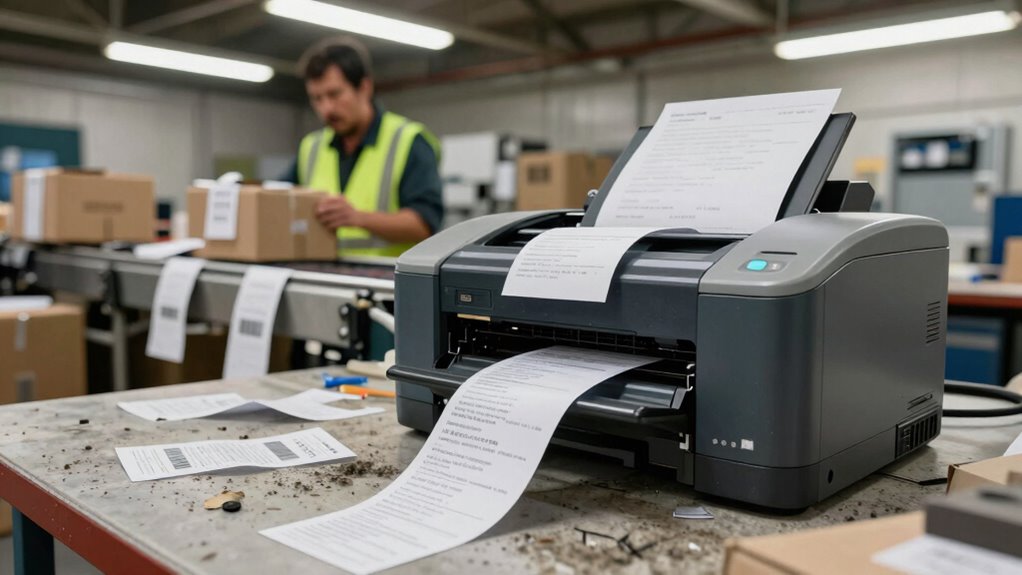
Have you ever wondered what slows down label printing in e-commerce operations? One major factor is label design. If your labels are overly complex or include too many graphics, it can hinder printing speed because the printer has to process more data. Additionally, poor-quality images or high-resolution files can cause delays. Printing speed itself also plays a role; some printers are simply slower, especially older models or those not optimized for high-volume tasks. Misaligned labels or inconsistent formats can further cause jams or misprints, creating bottlenecks. Finally, software issues or outdated drivers may slow down the process by delaying command execution. All these elements combined can considerably impact your overall label printing efficiency, leading to slower shipping times. Sometimes, consumer deals and financing options like cash back offers or discounts can tempt teams to cut corners or delay upgrades, inadvertently contributing to inefficiencies. Being aware of printing technology limitations can help teams make informed decisions to upgrade or optimize their setups effectively.
How to Tell If Your Label Printer Is Underperforming
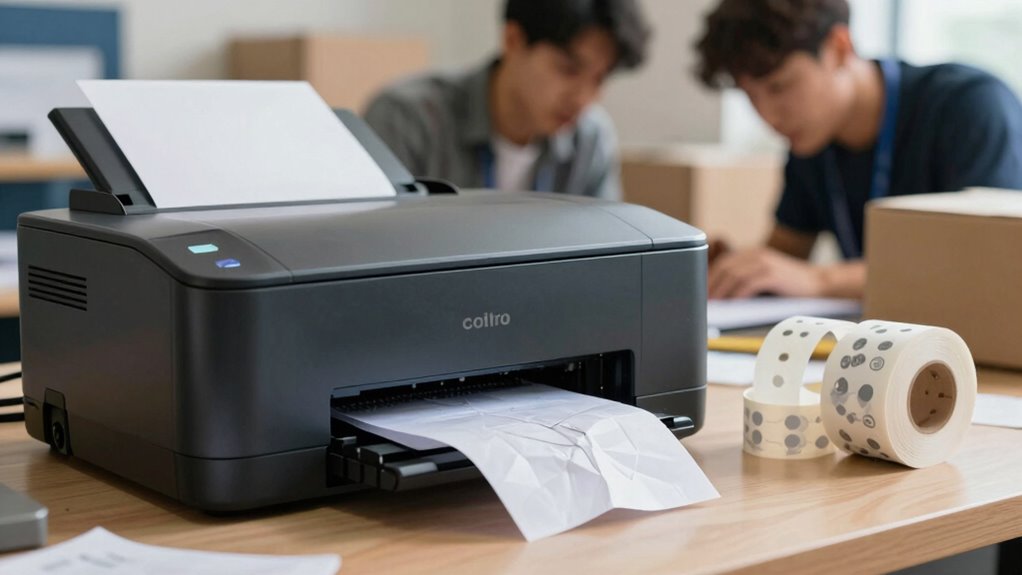
If your label printer is taking longer than usual or producing inconsistent results, it’s likely underperforming. Signs include frequent jams, faded or smudged prints, and delays in printing. These issues can stem from a shortened label printer lifespan or incompatible ink cartridges. To diagnose performance, check if the printer:
A label printer underperforming? Watch for jams, faded prints, and delays—check compatibility and maintenance to ensure smooth operation.
- Struggles with print quality despite clean cartridges
- Repeatedly jams or skips labels
- Has slow or inconsistent printing speeds
Pay attention to whether your ink cartridge compatibility is maintained, as mismatched cartridges can cause delays. Also, consider the age of your printer—an aging device may no longer meet your workload demands. Regular maintenance and using recommended supplies can help prevent underperformance. Understanding how proper maintenance impacts your equipment longevity can help you avoid unnecessary downtime. Additionally, adopting best practices for printing can optimize your printer’s efficiency and reduce the likelihood of issues. Recognizing these signs early ensures smoother operations and minimizes shipping delays. Furthermore, staying informed about equipment lifespan can guide you in planning timely upgrades or replacements. Also, understanding the importance of quality supplies can significantly influence your printing results and overall printer performance. Additionally, understanding how ethical choices impact your business practices can help you make more sustainable and responsible decisions regarding equipment and supplies.
Choosing the Right Label Printer to Avoid Future Delays
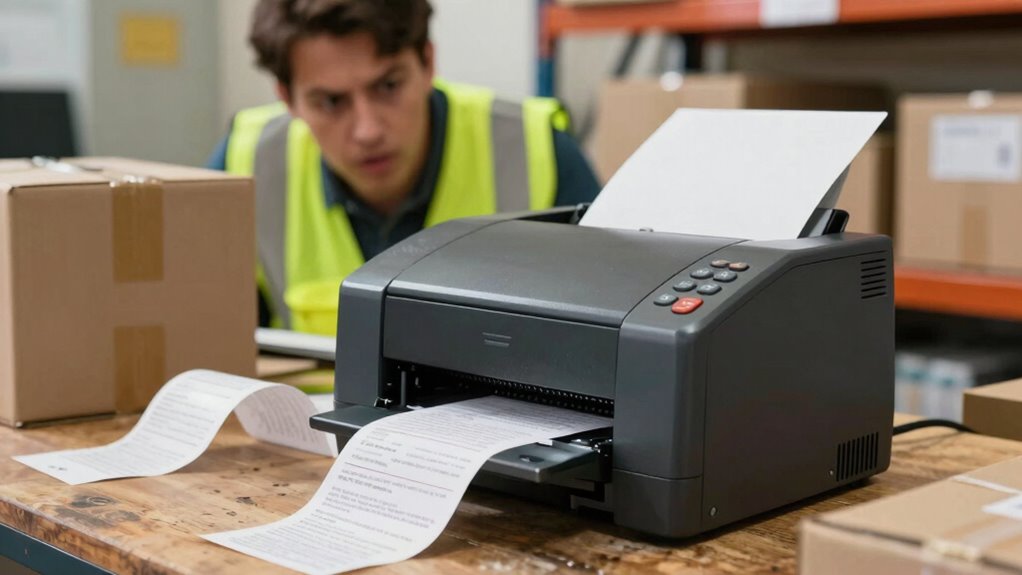
Choosing the right label printer is vital to prevent future delays and guarantee efficient operations. When selecting a printer, consider models that support custom label designs, allowing you to create clear, professional labels tailored to your needs. Look for printers that offer fast print speeds and reliable performance to keep your shipping process smooth. Eco-friendly printing options are also essential, helping you reduce your environmental impact without sacrificing quality. Choose a printer with energy-efficient features and compatible eco-friendly ink or label materials. Properly matching the printer’s capabilities with your volume needs ensures you avoid bottlenecks caused by slow or malfunctioning equipment. Additionally, understanding soundproofing techniques can help minimize operational noise, creating a more comfortable warehouse environment. Investing in the right label printer now saves you time, reduces errors, and keeps your shipping team running seamlessly.
Tips to Speed Up Label Printing and Reduce Errors
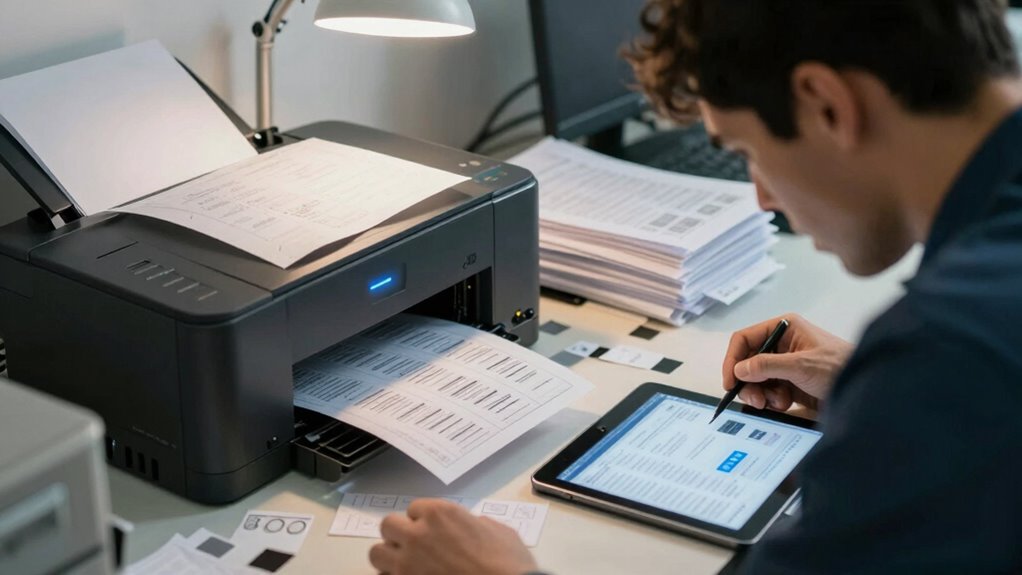
To speed up label printing and minimize errors, you should start by refining your printer settings. Proper settings ensure faster printing speed and clearer labels, reducing reprints and delays. Focus on adjusting the print resolution for a balance between quality and speed, and select the correct paper type to prevent jams. Additionally, streamline your label design by avoiding overly complex graphics and tiny fonts that slow down the process and increase mistakes. Using water-resistant labels can also help prevent smudging and ensure durability during handling. Consider these tips:
- Use simple, clean label designs to improve printing speed and reduce misprints.
- Set your printer to draft or fast mode when high quality isn’t necessary.
- Regularly calibrate your printer to maintain peak performance and prevent errors.
- Ensuring your printer is properly maintained can also minimize printing errors caused by dust or ink buildup.
- Maintaining consistent printer calibration can significantly enhance overall efficiency and accuracy, especially when paired with proper home cleaning routines that keep the printer area free of dust and debris. Incorporating regular checks of your printer’s print quality settings can further optimize performance and prevent unexpected issues.
These adjustments help you print labels quickly and accurately, boosting overall shipping efficiency.
Quick Fixes for Common Label Printer Problems
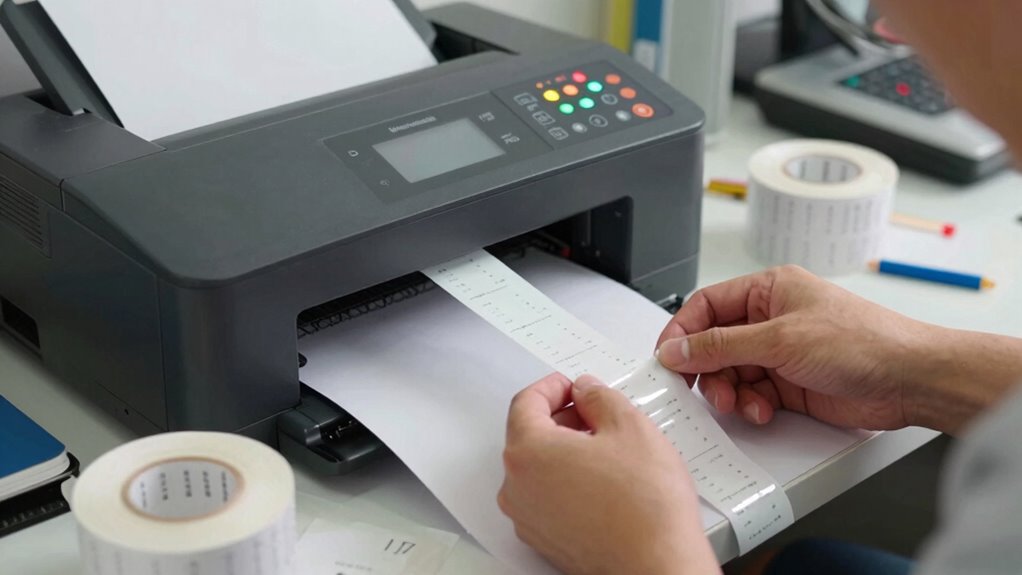
When your label printer acts up, quick fixes can get it back on track fast. Start by clearing paper jams, replacing ink if colors are fading, and making sure labels are aligned correctly. These simple steps can save you time and prevent bigger issues down the line. Regular maintenance can also help avoid common printer malfunctions and keep your shipping process running smoothly. Additionally, periodically checking and calibrating your printer ensures it maintains optimal printing quality, reducing the need for frequent repairs. Being aware of printer troubleshooting techniques can further streamline the repair process and minimize downtime. Staying informed about printer maintenance can prevent unexpected breakdowns and prolong your equipment’s lifespan. Monitoring your printer’s performance trends can help anticipate issues before they cause significant delays.
Clearing Paper Jams
Paper jams are a common headache in label printing, but they can often be fixed quickly with a few simple steps. First, turn off your printer and open the cover. Carefully remove any jammed labels or debris, avoiding torn pieces that could cause further issues. For effective paper jam troubleshooting, check for misaligned labels or skewed paper paths. To prevent future jams, perform label alignment adjustments—ensure labels are loaded straight and match your printer’s specifications. Inspect rollers for dirt or damage, and clean them if needed. Also, verify that the paper or labels aren’t overfilled or wrinkled. Keeping these areas clear and aligned reduces the chance of jams and keeps your printing process smooth. Proper calibration of your printer can also help maintain consistent label placement, reducing the likelihood of future jams. Regular maintenance, including cleaning and checking for wear, can prolong your printer’s life and prevent unexpected issues. Additionally, ensuring your labels are compatible with your printer model can significantly reduce printing errors and downtime. To sustain optimal performance, staying informed about label quality and using high-quality materials can make a notable difference. Consistently using correct label types tailored to your printer ensures smooth operation and fewer interruptions. Quick, attentive fixes save time and maintain your printing efficiency.
Replacing Printer Ink
If your labels are printing with faded or inconsistent colors, replacing the printer ink might be the quickest fix. Start by checking if your current ink cartridges are running low or dried out. Consider switching to eco friendly inks, which are better for the environment and often produce more vibrant, consistent results. Many printers now offer options for printer customization, allowing you to select ink types optimized for label printing. Properly cleaning the print heads can also improve ink flow and color accuracy. Keep spare cartridges on hand to minimize downtime. Upgrading to high-quality inks and customizing your printer settings can drastically improve print quality and reduce the need for reprints, keeping your shipping process smooth and efficient. Additionally, understanding the symbolism of clocks and time can help you better manage workflow and avoid delays. Incorporating technological advancements such as smart printers or automation tools can further streamline the printing process and reduce manual troubleshooting.
Ensuring Proper Alignment
Have you noticed your labels are misaligned or crooked? Proper alignment guarantees your labels look professional and legible, preventing delays. Start by checking your printer’s color calibration to ensure colors print accurately, which can affect readability. Next, verify font consistency; inconsistent fonts or sizes can make labels look unprofessional. Adjust the paper guides to align labels correctly with the print head, avoiding skewed printing. Regularly clean the print head to prevent misprints or faint text. Additionally, perform test prints after adjustments to confirm everything is aligned properly. Keeping these elements in check helps streamline your printing process and reduces errors that slow down shipping. Proper alignment isn’t just about aesthetics — it’s about efficiency and accuracy.
How to Prevent Label Printing Issues Before They Happen
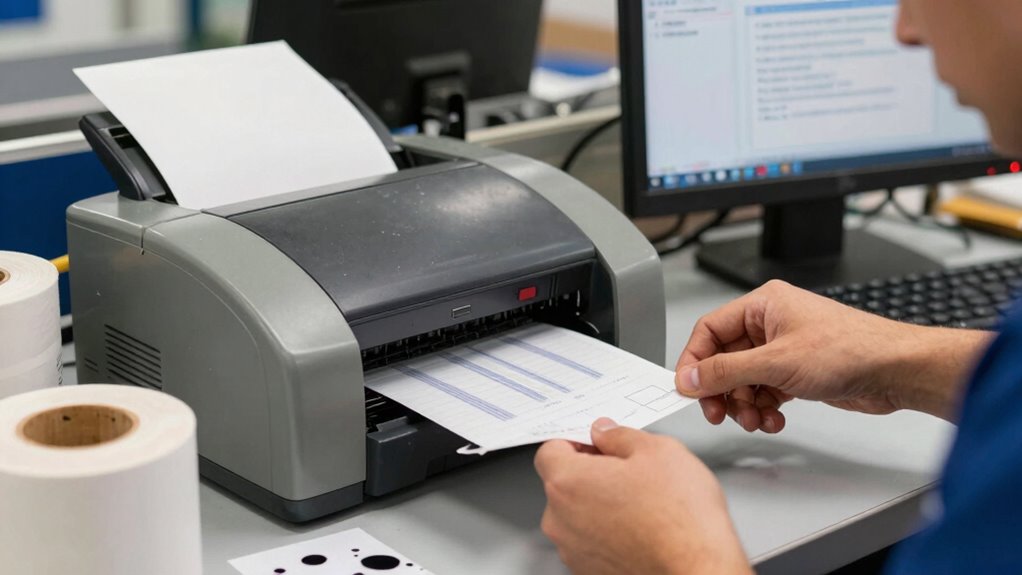
You can prevent printing issues by keeping your printer well-maintained and regularly checking for dust or worn parts. Using high-quality label materials helps reduce jams and smudges, ensuring smooth operation. Additionally, implementing pre-printing checks allows you to catch problems early and avoid costly delays.
Regular Printer Maintenance
Ever wonder why label printing suddenly jams or produces blurry results? Regular printer maintenance can prevent these issues before they happen. Keep your ink cartridge clean and replace it when needed to guarantee crisp, clear prints. Check paper quality—using the right type and avoiding old or damaged sheets reduces jams and smudges. Additionally, regularly clean the print heads and rollers to prevent buildup that causes printing errors.
- Replace ink cartridges promptly when they run low
- Use high-quality, compatible label paper
- Clean print heads and rollers weekly to maintain smooth operation
Use Quality Label Materials
Using high-quality label materials is essential for preventing printing issues before they occur. Premium adhesives guarantee labels stick properly without peeling or slipping, reducing reprints and delays. Choose eco-friendly materials that are compatible with your printers and resistant to moisture, heat, and handling. Low-quality labels can cause jams, smudging, or uneven printing, which slows down your workflow. Investing in durable, reliable materials minimizes these risks, saving time and resources. Additionally, eco-friendly options support sustainability efforts and often come with better surface finishes, improving print clarity. By selecting the right materials upfront, you ensure a smoother printing process, fewer errors, and faster shipping. Properly chosen, high-quality labels are a simple yet effective way to eliminate bottlenecks and streamline your operations.
Implement Pre-Printing Checks
Implementing pre-printing checks is a proactive way to catch potential issues before they disrupt your workflow. By verifying your label design and ensuring compatibility with your printing software, you reduce errors and delays. Before printing, review the label layout for clarity and accuracy, confirming all information is correct. Check that your printing software settings match your label material and printer specifications to prevent misprints. Testing a sample print also helps identify alignment or quality issues early.
- Confirm label design accuracy and font readability
- Verify printer settings align with label material
- Conduct test prints to detect alignment or quality problems
Frequently Asked Questions
How Often Should I Perform Maintenance on My Label Printer?
You should perform maintenance on your label printer every 1 to 2 months, or sooner if you notice print quality issues. Regularly calibrate the printer to guarantee accurate label alignment, and check ink durability to prevent smudging or fading. Cleaning the print head and replacing worn parts help maintain peak performance. Consistent maintenance minimizes downtime, speeds up your shipping process, and keeps your labels clear and professional.
What Are the Most Common Causes of Label Misalignment?
Imagine your label slipping just as you press print—coincidence or a sign. The most common causes of label misalignment are improper label loading, worn-out rollers, or inconsistent label tension. These issues directly impact label alignment and printing accuracy, causing smudges or crooked prints. Regularly check and adjust your label guides, replace worn rollers, and make sure correct tension to keep your labels perfectly aligned and your prints sharp.
Can Software Updates Improve Label Printing Speed?
Yes, software updates can improve label printing speed. When you keep your software compatible and up-to-date, it guarantees smoother communication between your printing hardware and the system. Firmware updates often include performance enhancements that reduce processing time and fix bugs that cause delays. By regularly updating your software and firmware, you minimize misalignments and speed up your label printing, helping your shipping team work more efficiently.
How Does Label Material Affect Printer Performance?
Label material impacts printer performance like a race car on different tracks. If you choose labels with strong label adhesive, they might jam your printer if it’s not designed for them. Similarly, ink compatibility matters; using incompatible ink can cause smudging or poor adhesion, slowing production. Selecting the right label material guarantees smooth printing, faster speeds, and fewer jams, helping your shipping team keep pace without unnecessary delays.
Are There Specific Environmental Factors That Impact Printing Efficiency?
Environmental conditions, especially ambient temperature, greatly impact your printing efficiency. If it’s too hot or cold, your printer may struggle with ink adhesion or paper feed issues, leading to delays. Humidity can cause labels to peel or smudge, slowing down your process further. To maintain ideal performance, keep the printing area at a consistent, moderate temperature and humidity level, ensuring smooth, efficient label printing every time.
Conclusion
Streamlining your label printing process isn’t just a time-saver—it can boost your shipping efficiency by up to 30%. If you’re currently facing delays, addressing common bottlenecks and choosing the right printer can make all the difference. Don’t let avoidable errors slow you down; proactive maintenance and quick fixes keep your team moving smoothly. Invest in smarter solutions now, and watch your shipping process become faster and more reliable than ever before.