
Set up business productivity software so your team can manage work, share files, and communicate in one organized workspace. This guide is for small-business owners or team leads with basic computer skills. Plan for 2–4 hours to configure the workspace, then 1–2 weeks to introduce it and adjust workflows based on real use.

Get business pricing on office and shipping supplies
- Business-only prices and quantity discounts
- Tax-exempt purchasing
- Multiple users, one account, clear invoices

Microsoft Office Home & Business 2024 for PC or Mac
- ✔ Included apps: Word, Excel, PowerPoint, Outlook, OneNote
- ✔ License: One-time purchase for one person
- ✔ Compatible device: One PC or Mac

Microsoft Office Home 2024 for Windows or Mac
- ✔ Included apps: Word, Excel, PowerPoint, OneNote
- ✔ License: One-time purchase for one person
- ✔ Device limit: One Windows or Mac device
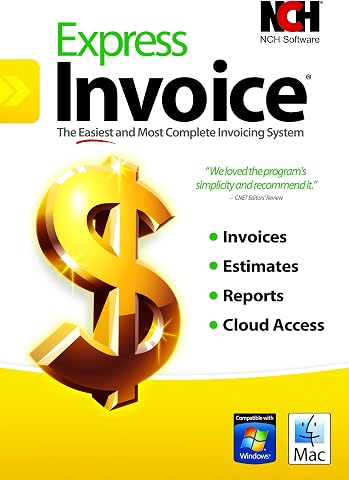
Express Invoice Billing and Invoicing Software for PC
- ✔ Platform: PC
- ✔ Operating system: Windows
- ✔ Supported documents: Invoices, orders, and quotes
Difficulty: Beginner | Time: 2–4 hours for initial setup; allow 1–2 weeks for a small-team rollout
What You’ll Need
Tools & Materials:
- A computer with internet access
- A business email address and a list of staff who need access
- A short list of current work processes, file locations, and communication tools
- A chosen productivity platform with an account or trial
Knowledge:
- Basic web browsing and email use
- A general understanding of how your team assigns, tracks, and completes work
Before you choose a paid plan, check the platform’s user limits, storage, integrations, data export options, and security settings. Avoid uploading sensitive company or customer information until an administrator has reviewed access and retention settings.
Microsoft Office Home & Business 2024 for PC or Mac
For an individual who handles both business correspondence and everyday documents, Office Home & Business 2024 is the most balanced choice in this group. Word, Excel, PowerPoint, and OneNote cover familiar office tasks, while Outlook adds email and calendar work to the same desktop suite. That combination gives it a practical edge over Office Home 2024, which omits Outlook, and over Express Invoice, which concentrates on billing rather than general office work.The tradeoff is a narrow deployment model. The license is for one person and one PC or Mac, and the product is designed for desktop use. That makes it a sensible fit for a professional with a primary computer, but a poor match for a team that needs several installations or a workflow built around mobile access. It is also not an invoicing system: compared with Express Invoice, it does not address recurring bills, customer account management, or tax-rate handling in the supplied details. We’d choose it for breadth across office tasks, not as a substitute for specialized business operations software.
Pros:
- Includes Word, Excel, PowerPoint, Outlook, and OneNote
- One-time purchase for one person
- Available for one PC or Mac
- Technical support by chat or phone
Cons:
- Licensed for installation on only one PC or Mac
- Desktop use only, limiting flexibility across devices
Best for: Solo professionals who need desktop documents, spreadsheets, presentations, notes, and Outlook on one PC or Mac.
Not ideal for: Teams needing multiple installations, people who work primarily across devices, or businesses seeking dedicated invoicing tools.
Bottom line: For solo office work that depends on Outlook as well as document creation, this is the broadest and most useful choice in the lineup.
“For solo office work that depends on Outlook as well as document creation, this is the broadest and most useful choice in the lineup.”
Microsoft Office Home 2024 for Windows or Mac
Office Home 2024 suits buyers who need the main tools for writing, calculations, and presentations but do not need Outlook in the bundle. Word, Excel, PowerPoint, and OneNote give it a straightforward role: handle common school or home office work on a single computer. Compared with Office Home & Business 2024, the reduced app set means fewer email-management tools, but it keeps the focus on core content creation. For a buyer who already handles email elsewhere, that may be the more sensible fit.Its simplicity comes with limits that matter in a business setting. The one-person license installs on one Windows or Mac device, and the supplied description does not include multi-device support or the cloud storage benefits associated with Microsoft 365. It also lacks the purpose-built billing features of Express Invoice, so businesses that routinely send quotes or track recurring charges will need another tool for that work. This is the focused Office option for a primary computer, not the best choice for a growing team or a business seeking an all-in-one workflow.
Pros:
- Includes four classic desktop Office apps
- Supports Windows and Mac devices
- One-time purchase for one person
- Instant download
Cons:
- Limited to installation on a single device
- Does not include Microsoft 365 subscription benefits such as 1 TB cloud storage and multi-device support
Best for: Individuals who mainly create documents, spreadsheets, and presentations on one Windows or Mac device and manage email separately.
Not ideal for: Buyers who need Outlook, multi-device access, cloud storage benefits, or specialized billing and customer-account tools.
Bottom line: Choose Office Home 2024 when core Office apps are enough and Outlook or dedicated billing would go unused.
“Choose Office Home 2024 when core Office apps are enough and Outlook or dedicated billing would go unused.”
Express Invoice Billing and Invoicing Software for PC
When business productivity means getting quotes and invoices out accurately, Express Invoice addresses a different problem from the two Office suites. It can create invoices, orders, and quotes with business details, logos, notes, and templates, and it supports recurring invoices, multiple tax rates, and customer account management. Those functions make it more relevant to a small service business with repeat billing than either Office product, which offers broad document tools but no specified billing workflow.That specialization also defines its limits. Express Invoice is listed for Windows, and some features require access through a web interface. The product description mentions mobile access through that interface, but this is not the same as having the broad desktop suite offered by Microsoft. Compared with Office Home & Business 2024, it will not cover general document, spreadsheet, presentation, or email needs described here. We’d pick it to streamline billing tasks, while keeping a separate office suite for other work. Buyers should confirm the Windows requirement and web-interface workflow suit their setup.
Pros:
- Supports recurring invoices and multiple tax rates
- Customizable invoice templates and business details
- Allows multiple users and mobile access through a web interface
- Can print, email, or fax documents
Cons:
- Listed minimum operating system is Windows
- Some features require access through a web interface
- Does not replace general document, spreadsheet, or presentation software
Best for: Small Windows-based businesses or service providers that regularly prepare quotes, manage customer accounts, and send recurring invoices.
Not ideal for: Mac users, buyers seeking a complete general office suite, or teams that want all work handled in one desktop application.
Bottom line: For a billing-heavy workflow, Express Invoice fills a need neither Office suite covers, but it is a specialized companion rather than a complete office suite.
“For a billing-heavy workflow, Express Invoice fills a need neither Office suite covers, but it is a specialized companion rather than a complete office suite.”
As an Amazon Associate we earn from qualifying purchases.
Before You Start
Write down the main problem you want the software to solve, such as missed deadlines, scattered files, or unclear task ownership. Choose one or two workflows for the first rollout. Moving every process at once makes it harder to spot setup problems and can disrupt ongoing work.
Step-by-Step Instructions
Step 1: Choose one platform for a clear need
Compare two or three platforms against your team’s needs. Check that each supports the work you plan to manage, such as task assignment, shared documents, calendars, or team messaging. Confirm that staff can access it from their usual devices and that it connects to tools you already rely on. Select the simplest platform that covers the required workflows.
Tip:Use a trial or free tier to try a real workflow before buying seats for the whole team. Record any limits that could affect daily use.
Check: You can explain which team problem the platform addresses, who will use it, and what its plan costs for your expected number of users.
Step 2: Assign an administrator and set up the workspace
Create the business workspace with a company-controlled email address. Assign at least one administrator who can manage users, settings, and billing. Add the company name, time zone, and any basic workspace details. Keep administrative credentials in your approved password manager, and enable multi-factor authentication if the platform offers it.
Tip:Use a shared business identity for ownership where the platform supports it. Avoid making a departing employee the only workspace owner.
Check: The workspace opens under the company account, the administrator can reach settings, and multi-factor authentication is active where available.
Step 3: Define a small set of team rules
Write short rules for where work belongs before inviting everyone. Specify where to create tasks, how to name shared files, when to use chat versus email, and how to mark work complete. Keep the rules to a few practical points and use terms your team already understands.
Tip:Decide on a naming pattern for projects, such as client name plus quarter, before creating multiple spaces.
Check: A new team member could use your written rules to find a task, locate its related file, and understand its status.
Build one workspace, project, or board around a recurring piece of work. Add only the stages your team uses, such as “To do,” “In progress,” and “Done.” Create a sample task with an owner, due date, priority, and relevant file or notes. Keep task descriptions specific enough that the assignee knows the next action.
Tip:Do not add every possible status or custom field at the start. Extra choices can slow task updates and make reports harder to read.
Check: The sample task appears in the correct stage, has one clear owner, and shows the information needed to act on it.
Create a folder or shared document area for the workflow, then link it from the project or task board. Set up only the communication channels the team needs, such as a general channel and a project channel. Post a short note that explains what belongs in each place and where urgent requests should go.
Tip:Check whether links inherit folder permissions. A link to a file does not automatically mean every teammate can open it.
Check: A test user can open the linked file and find the project conversation without asking the administrator for directions.
Step 6: Set permissions and invite staff
Review the platform’s roles and give each person the lowest access level that lets them do their work. Invite staff using their business email addresses, then ask them to sign in and complete any required account security setup. Remove test accounts or outside collaborators that do not need access.
Tip:Check access to customer, financial, or personnel information separately. Do not grant broad access just to make setup faster.
Check: Each invited staff member can enter the workspace, see the projects relevant to their role, and cannot access restricted areas without authorization.
Step 7: Test the workflow with a small group
Ask two or three team members to use the new workflow for a real task. Have them create or update a task, attach or open a file, leave a project message, and mark completed work. Watch for unclear labels, missing permissions, duplicate steps, or alerts that are too frequent.
Tip:Use a low-risk task for the first trial. Capture questions as they occur instead of adding features in response to each individual preference.
Check: The test group can complete the workflow without administrator intervention, and tasks retain their owners, due dates, and related files.
Step 8: Train the team and set a review date
Show staff the agreed workflow in a short live demonstration or written walkthrough. Explain where to ask for help and what the team will continue handling outside the platform. Set a review date after one or two weeks to check adoption, remove unused spaces, and adjust confusing rules.
Tip:Ask people to use the platform for the selected workflows before expanding it to other processes.
Check: Staff know where to find the workflow instructions, how to get help, and when the team will review the setup.
Common Mistakes to Avoid
- Setting up too many boards, channels, and custom fields before the team has tried the workflow. — Start with one recurring workflow and add structure only when a repeated need appears.
- Inviting users before agreeing where tasks and files belong. — Write the basic team rules first, then create the matching workspace structure and invite staff.
- Giving everyone administrator or broad access to avoid permission questions. — Assign role-based access and check sensitive folders separately before sharing.
- Treating the software launch as complete after sending invitations. — Run a real task through the workflow, train users, and schedule a review after initial use.
Troubleshooting
Problem: A teammate cannot open a shared file or project.
Solution: Confirm they signed in with the invited business email, then inspect both workspace membership and the file or folder’s individual permissions. Re-share from the correct location if needed.
Problem: Staff keep using email or chat instead of updating tasks.
Solution: Choose one workflow to track in the platform, explain which updates belong there, and have the team lead model the process. Reduce duplicate updates in other tools where practical.
Problem: Notifications are overwhelming or important updates are missed.
Solution: Review personal and workspace notification settings. Limit alerts to assignments, mentions, and due-date changes, then ask users to check their notification summary regularly.
Problem: The trial workflow feels confusing or takes longer than the old process.
Solution: Observe where users pause, remove unnecessary stages or fields, and clarify task ownership. Retest the simplified workflow with a small group before expanding it.
What Success Looks Like
The setup is working when each team member can sign in, find the appropriate project, update an assigned task, access its related files, and understand where to communicate. The workflow should show clear owners and statuses, access should match each person’s role, and the pilot group should complete a real task without repeated administrator help.
Next Steps
At the review date, ask staff which steps helped and which caused confusion. Check whether tasks are being updated, files are easy to find, and access remains appropriate. Adjust the workflow in small changes, document the new rules, and then introduce another process if the first one is being used consistently. Review users and permissions when staff join, change roles, or leave.
Frequently Asked Questions
Should a small business use one productivity platform for everything?
Start with one platform for the workflows it handles well, but keep specialized tools when they serve a clear need. Connect or link tools only when the setup stays easy for staff to follow.
How many people should test the software before rollout?
Two or three people from the team are enough to uncover common workflow and access issues. Include users who do the work regularly and, if possible, someone who will manage the workspace.
What information should not go into the platform yet?
Hold sensitive customer, financial, or personnel data until an administrator has checked security, access controls, retention, and company policy. Use sample information for initial testing.
How can I tell whether the software is improving productivity?
Track a few practical measures, such as overdue tasks, time spent locating files, or repeated status requests. Compare them with the period before rollout and ask staff whether the workflow is easier to use.